Summary: ◀▼
Control who can access the AI agents workspace by assigning standard or custom roles, including admin, editor, user, or no access. As a client admin, you can also choose which agents client users can access. Editors and admins generally access all agents; restricting an admin’s access requires support assistance, and editor access can’t currently be restricted.
Access to the AI agents workspace is controlled in Admin Center, where an admin must first create an account for a user and assign them an appropriate user role.
Users with the client admin role can then control which specific AI agents an individual user can access.
This article contains the following topics:
Related article:
Managing access to the AI agents workspace
Access to the AI agents workspace is controlled in Admin Center. By default, any user with the Admin role for Support has the Client admin role for AI agents.

Client admins can manage access to the AI agents workspace for other users in one of the following ways:
Managing access with standard user roles
Client admins can change the AI agents role for other users as needed.
To manage AI agent workspace access with standard user roles
-
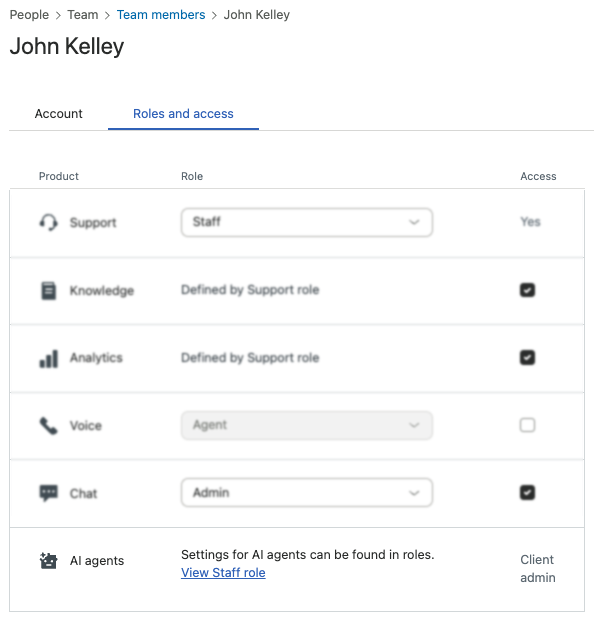
Set a team member's role for
the AI agents product to one of the available options: Client
admin, Client editor, or Client user.
For more information about permissions for each role, see AI agents roles.
Alternatively, if a user shouldn't have access to the AI agents workspace at all, deactivate access to the AI agents product.
Managing access with custom roles
If your Zendesk plan includes access to custom roles, client admins can opt in to manage access to the AI agents workspace using custom roles, rather than standard user roles.
You can opt in for each custom role individually. When you opt in, the AI agent access settings are permanently moved from the Roles and access tab on the team member profile to the custom roles for that role only. For example, if you opt in for the Staff role, you can still manage the Advisor role using standard user roles.
To manage AI agent workspace access with custom roles
- Create or edit a custom role.
- Under AI agents, select Opt in for AI agents to manage the
role’s AI agents access from custom roles.
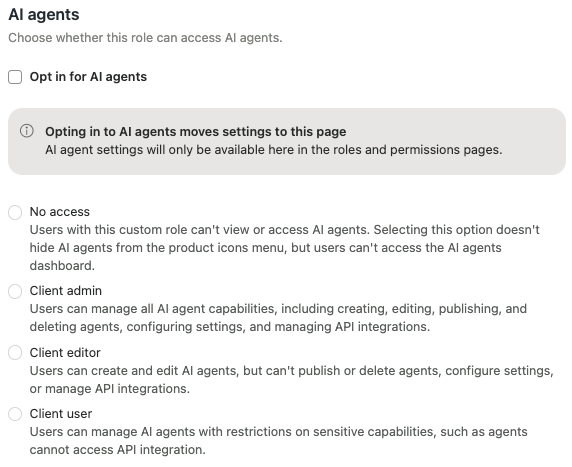
- Select one of the following options:
- No access: Users with this custom role can't view or access the AI agents workspace. Selecting this option doesn't hide AI agents from the product menu, but they can't access the workspace.
- Client admin: Users can manage all AI agent capabilities, including creating, publishing, and deleting agents, configuring settings, and managing API integrations.
- Client editor: Users can create and edit AI agents, but can't publish or delete them, configure settings, or manage API integrations.
-
Client user: Users can manage AI agents with restrictions
on sensitive capabilities, such as not being able to access API
integrations.
For more information about permissions for each role, see AI agents roles.
- Click Save.
Managing access to specific AI agents
Client admins can control which specific AI agents other users can access. The way this is done depends on whether the user is a client user, client editor, or another client admin:
Managing AI agent access for client users
Client admins can control which AI agents can be accessed by client users.
To manage specific AI agent access for client users
-
In the AI agents workspace, click
 Settings in the sidebar, then select User access.
The Users page appears.
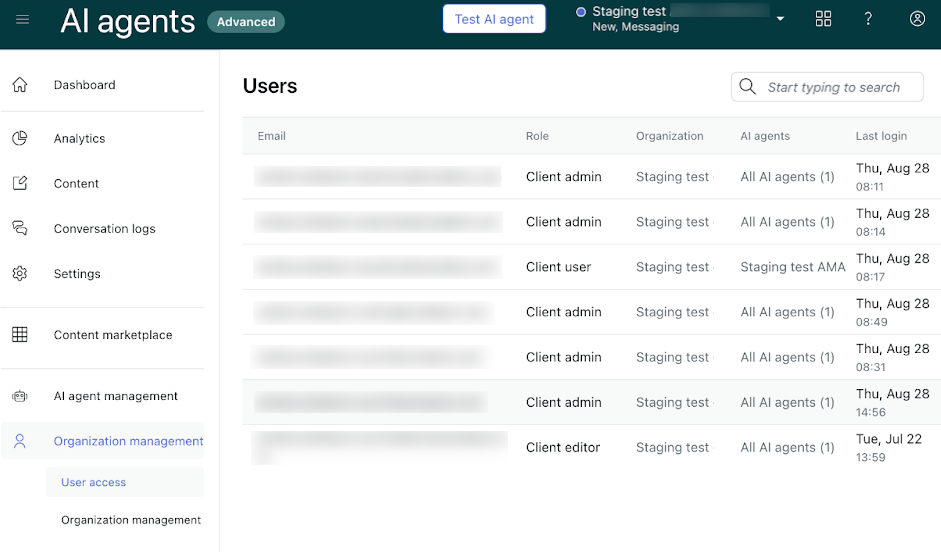
- Hover over the user you want to manage AI agent access for and click the
Edit icon (
 ).
The Edit user pane opens. All fields except AI agents are read-only.
- Click Select AI agents.
- Select the AI agents that the user should be able to access.
You can select more than one. You can also start typing to filter the results of the drop-down list.
When you select an AI agent, it’s added above the AI agents field. You can click the X next to an AI agent to remove the user’s access to it.
- Click Save.
Managing AI agent access for client editors and client admins
By default, client editors and client admins have access to all AI agents. However, a client admin can contact Zendesk customer support to request that Zendesk restrict the AI agents that another client admin has access to.
When this happens:
- Client admins with restricted AI agent access can give other users access only to the AI agents they themselves have access to.
- If a client admin with restricted AI agent access is downgraded to a client editor or client user, they continue to have the same restricted AI agent access.
Article Q&A
Click to view
How do I give someone access to the AI agents workspace or remove it?
In Admin Center, set the user’s role for the AI agents product to Client admin, Client editor, or Client user. To remove workspace access, deactivate the user’s access to the AI agents product. By default, users with the Support Admin role have the AI agents Client admin role.
Can I manage AI agents workspace access through custom roles, and how do I set that up?
If your Zendesk plan includes custom roles, create or edit a custom role and select Opt in for AI agents under AI agents. Choose the access option and click Save. You opt in separately for each role. For a role you opt in, AI agents access settings are permanently moved from the team member profile to that custom role; other roles can still use standard user roles.
What can users do with each AI agents access option in a custom role?
No access prevents users from viewing or entering the workspace, although AI agents still appear in the product menu. Client admin can create, publish, and delete agents, configure settings, and manage API integrations. Client editor can create and edit agents, but cannot publish or delete them, configure settings, or manage API integrations. Client user has restrictions on sensitive capabilities, such as API integrations.
How do I choose which AI agents a client user can access?
In the AI agents workspace, select Settings, then User access. Edit the user, click Select AI agents, and choose one or more agents. You can type to filter the list or click the X beside an agent to remove access. Click Save.
Why can’t I restrict which AI agents a client editor or another client admin can access?
Client editors and client admins have access to all AI agents by default. Client editors’ access cannot currently be restricted. To restrict another client admin’s access, contact Zendesk customer support. A restricted client admin can give other users access only to agents they can access, and the restriction remains if they are downgraded to client editor or client user.