Verified AI summary ◀▼
Add a summary to your help center articles to give users a quick overview of the content. You can manually type a summary or use AI to generate one. AI-generated summaries can be previewed, regenerated, and updated as needed. This feature helps users quickly determine if the article contains the information they need.
You can insert an article summary component into your help center article to display a concise description of the article content in a shaded box at the top of your article. Users can scan the summary to gain an overview of the article content and determine if it contains the information they're looking for.
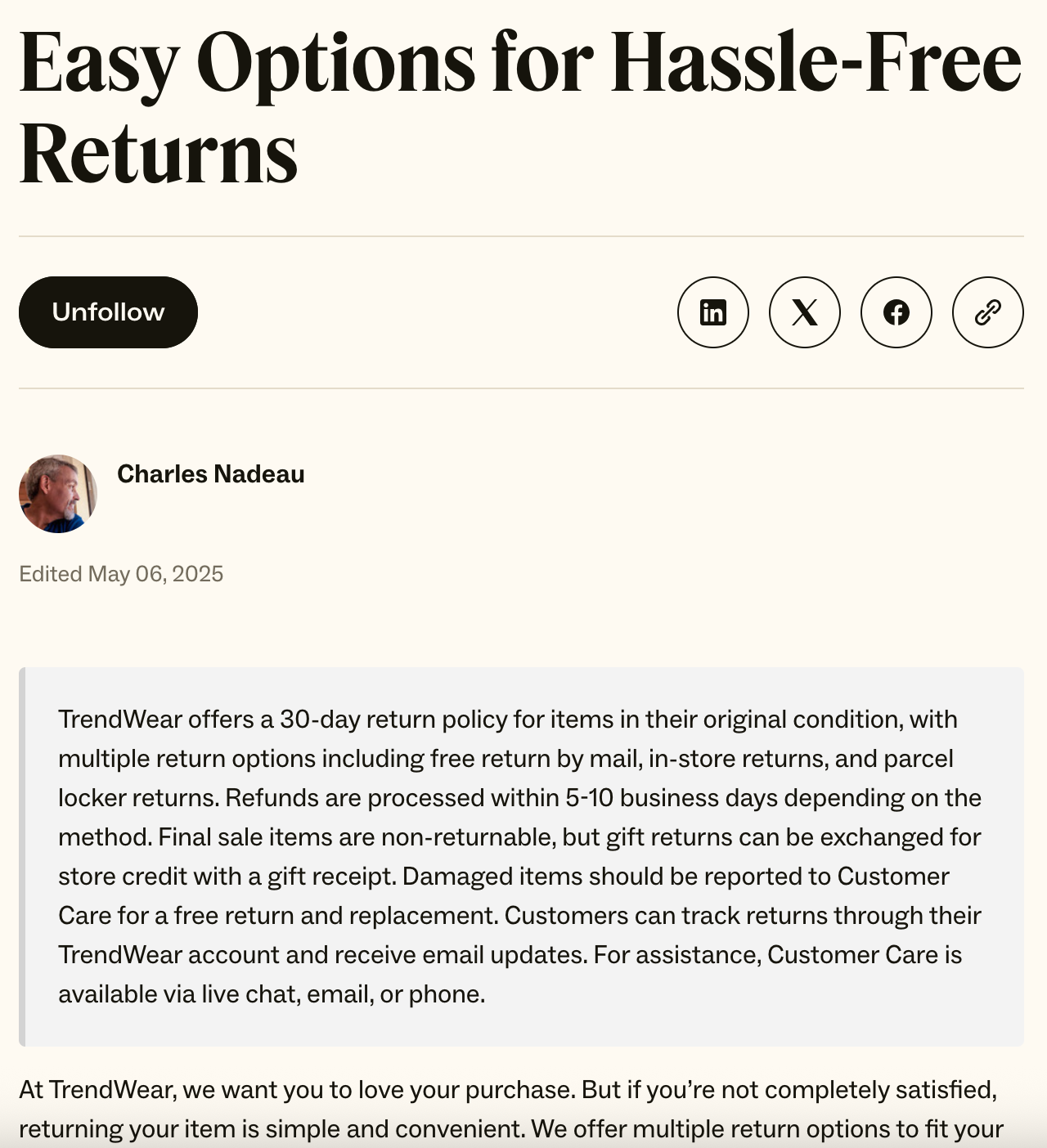
Adding article summaries
You can create blank article summaries in the article editor, then type your summaries in the text box.
To add an article summary
- In the help center or Knowledge admin, create or edit an article.
- Click the Article components button (
 ) in the article
editor toolbar, then select Summary.
) in the article
editor toolbar, then select Summary.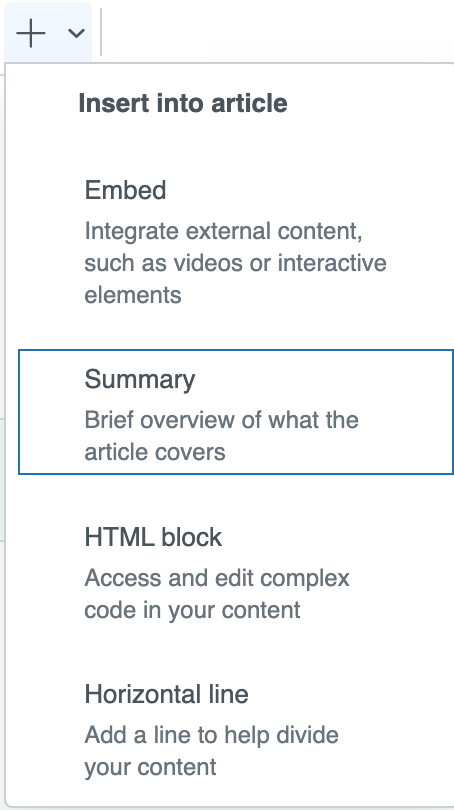
- Enter your summary in the Summary field.

- Click Save.
Adding AI-generated summaries
AI-generated article summaries are article overviews that you create with the Summary component in the article editor. With AI-generated summaries, you can generate a concise description of the article, preview the summary, then regenerate it if you aren't happy with the result. You can publish the summary and regenerate a new summary whenever the article is updated.
The ability to create AI-generated summaries is on by default. An admin can turn AI article summaries on or off as needed.
You can find information about supported languages for AI article summaries in the Zendesk language support article.
- In the help center or Knowledge admin, create or edit an article.
- Click the Article components button () in the
article editor toolbar, then select
Summary.
- Click in the Summary field to expose the AI menu,
then click Generate.

The AI-generated summary appears in the shaded box. If you want to regenerate the summary, click Generate again until you are happy with the content. To remove the AI-generated summary, click the delete icon (
 ).
). - Click Save.