Summary: ◀▼
Use personalized topic recommendations to improve topic quality and keep intelligent triage accurate. You can review new topic suggestions based on your ticket data, accept them to expand coverage, or decline them with feedback. You can also fix duplicate or overlapping topics to reduce conflicts and improve ticket classification.
Intelligent triage leverages AI to automatically classify incoming tickets by topic, language, and sentiment. The Zendesk Topic Model includes pre-trained topics across several industries, providing relevant topics and use cases tailored to your account's ticket data.
Intelligent triage makes proactive recommendations to help you monitor the quality of your topics. When gaps are identified in your topic coverage, you'll see recommendations for new topics. Additionally, whenever you create, modify, or deactivate a topic, intelligent triage analyzes your account and identifies any duplicate or overlapping topics.
This article contains the following topics:
Related articles:
About topic recommendations
A topic is how intelligent triage classifies what a ticket is about. When you activate intelligent triage, your account includes a prebuilt list of topics specific to your industry.
For example, if a customer submits a ticket saying that the item they ordered arrived damaged, then intelligent triage may automatically classify the ticket with a topic of damaged on arrival.
-
Create new topic: Intelligent triage identifies gaps in your topic coverage and makes data-driven recommendations every week for new, relevant topics that are tailored to your account’s ticket data. You can review and accept topic recommendations to further fine tune your setup.
When you accept a topic recommendation, it's immediately added to your list of topics and starts detecting the topic of incoming customer requests. Topics aren't intended to identify details of the ticket, such as specific product or service names, branch locations, subscription types, or similar details. Instead, see the entity classification feature to identify business-critical information in your incoming requests automatically.
If you want to create your own custom topics, see Personalizing intelligent triage by creating custom topics.
-
Resolve topic conflict: Intelligent triage analyzes your account whenever you create, modify, or deactivate a topic. If an overlapping or duplicate topic is identified, a recommendation is made to resolve the conflict.
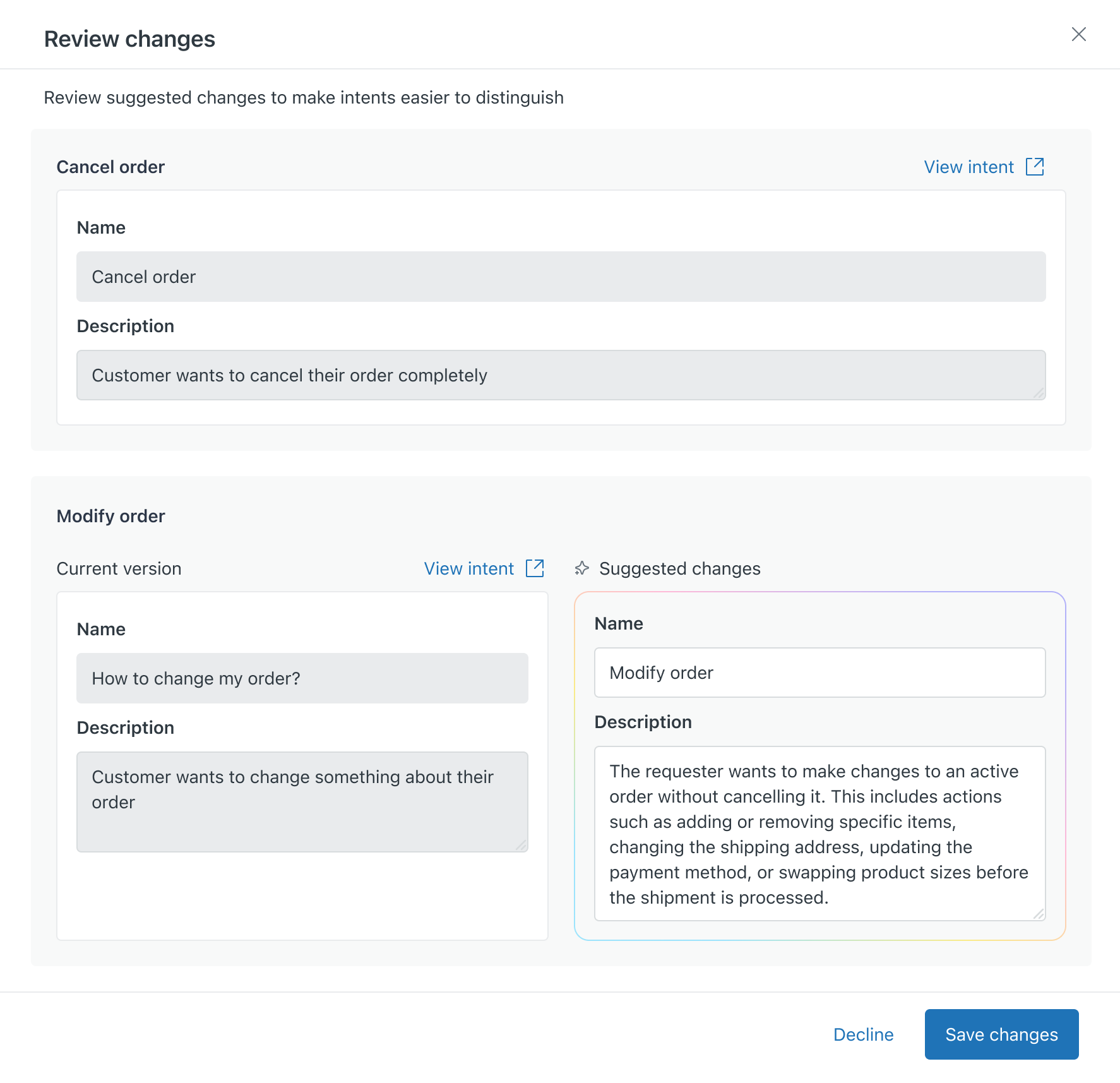
A topic is considered to be overlapping when it contains expressions that are similar to other topics. Recommendations for an overlapping topic contain suggested content changes that can help differentiate the topics during ticket classification.
An topic is considered a duplicate when it fully overlaps with other topics, causing the system to treat them as identical. When you have a recommendation to review a duplicate topic, you can resolve the conflict by reviewing both topics and deactivating the unnecessary duplicate. Removing duplicate topics helps prevent confusion during ticket classification.
For some duplicate topics, you may want to consider creating an entity after deactivating a topic. For example, say you have the following two topics that are considered duplicates:
- Missing deposit
- Missing deposit in Acme Bank
In this case, you could deactivate the "Missing deposit in Acme Bank" topic and then create an entity to extract the bank name from the ticket.
You're always in control and must accept or decline a recommendation before any action is taken. If you decline a recommendation and want to come back to it later, you can filter your list of topic recommendations. See Filtering topic recommendations.
Monitoring topic quality at a glance
The Topic page in Admin Center displays three counters that give you an at-a-glance view of your topic health:
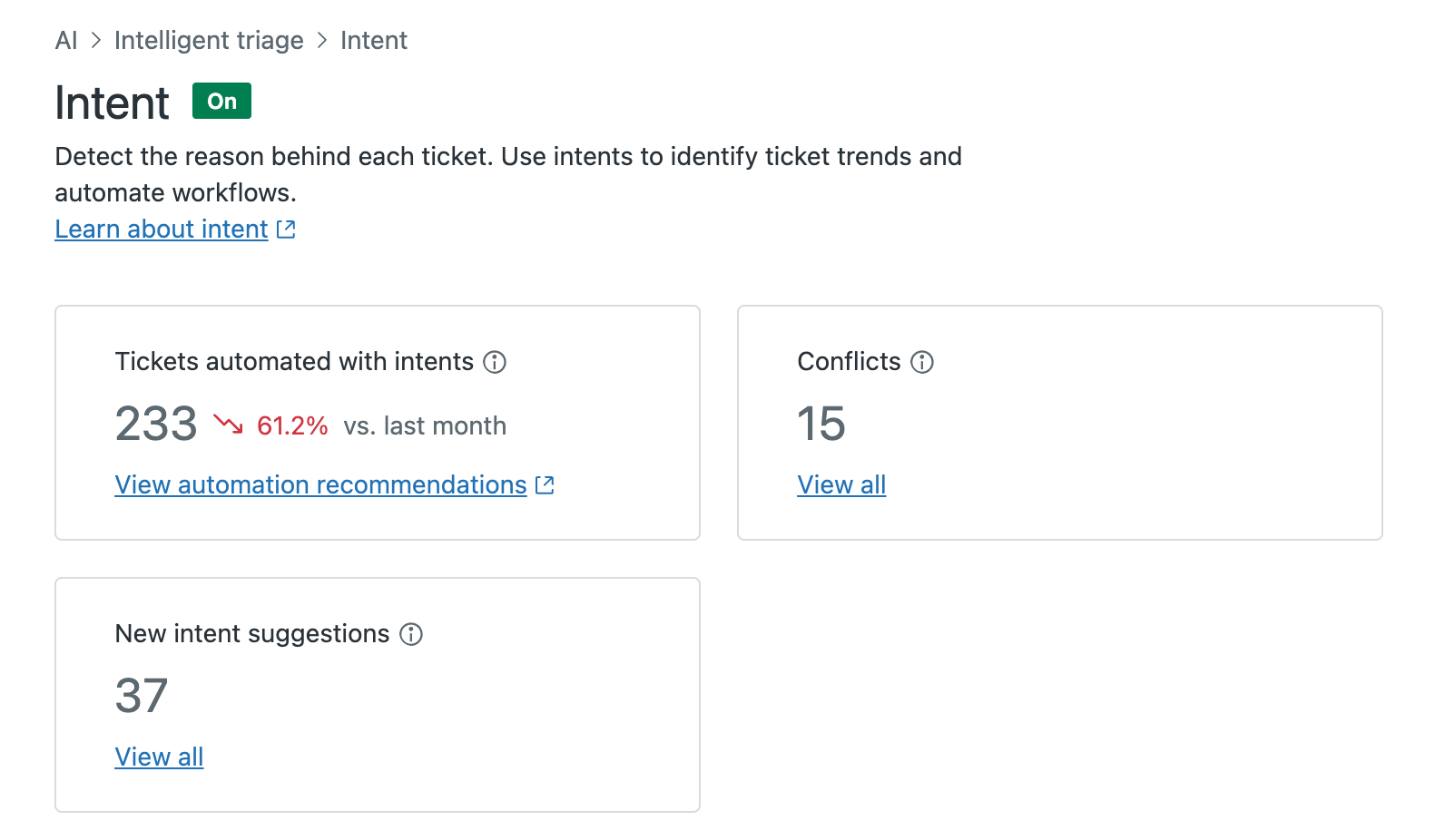
- Tickets automated with topics: The number of tickets that have been automatically routed or actioned using topics. Click View automation recommendations to explore workflow automation recommendations.
- New topic suggestions: The number of new topics recommended based on your account's ticket data. Click View all to review and accept or decline suggestions. See Reviewing topic recommendations to learn more.
- Conflicts: The number of duplicate or overlapping topics detected in your account. Click View all to review and resolve conflicts. See Resolving topic conflicts to learn more.
Understanding a topic recommendation
You can always review more details about a recommendation to help you decide if you want to accept or decline it. A topic recommendation includes the following details:
- Name, description, and category.
- Coverage, which is the percentage of tickets the topic would affect (new topic) or currently affects (topic conflict).
- The number of days used to calculate the recommendation. For example, seven days.
- The date the recommendation was created.
- For new topics, a list of five ticket examples that fit into this topic recommendation.
Reviewing topic recommendations
As an alternative to manually creating custom topics, you can review and accept personalized topic recommendations to automate and simplify topic maintenance.
To review new topic recommendations
-
In Admin Center, click
 AI in the sidebar, then select Intelligent triage > Topic.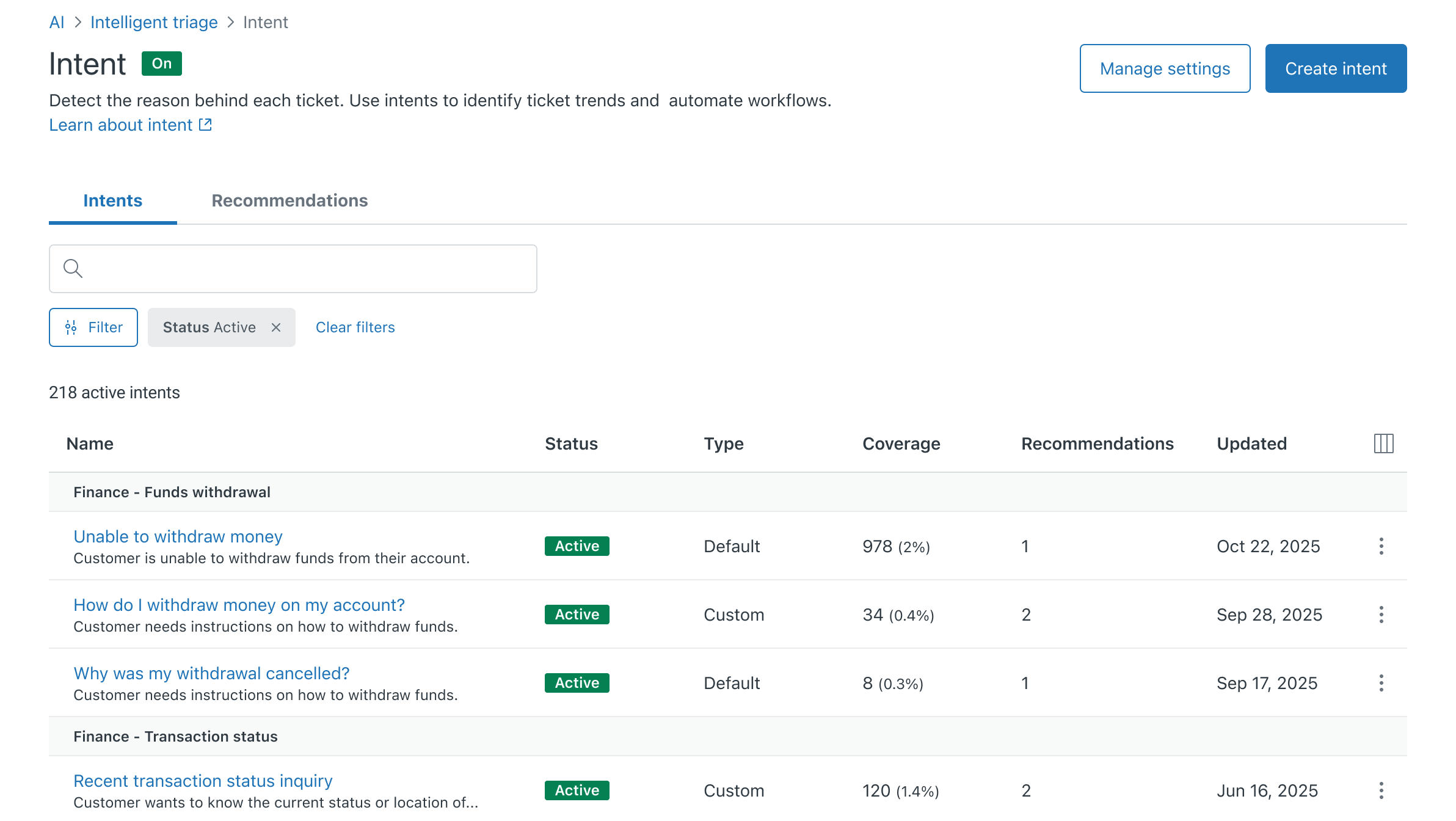
If you have new recommendations, a banner displays above your topics list.
- Click the Recommendations tab.
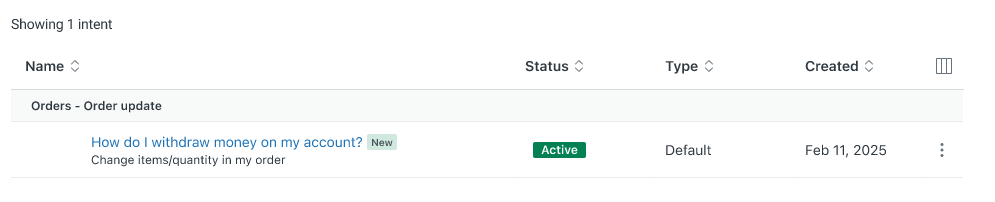
- Click a recommended topic’s Name.
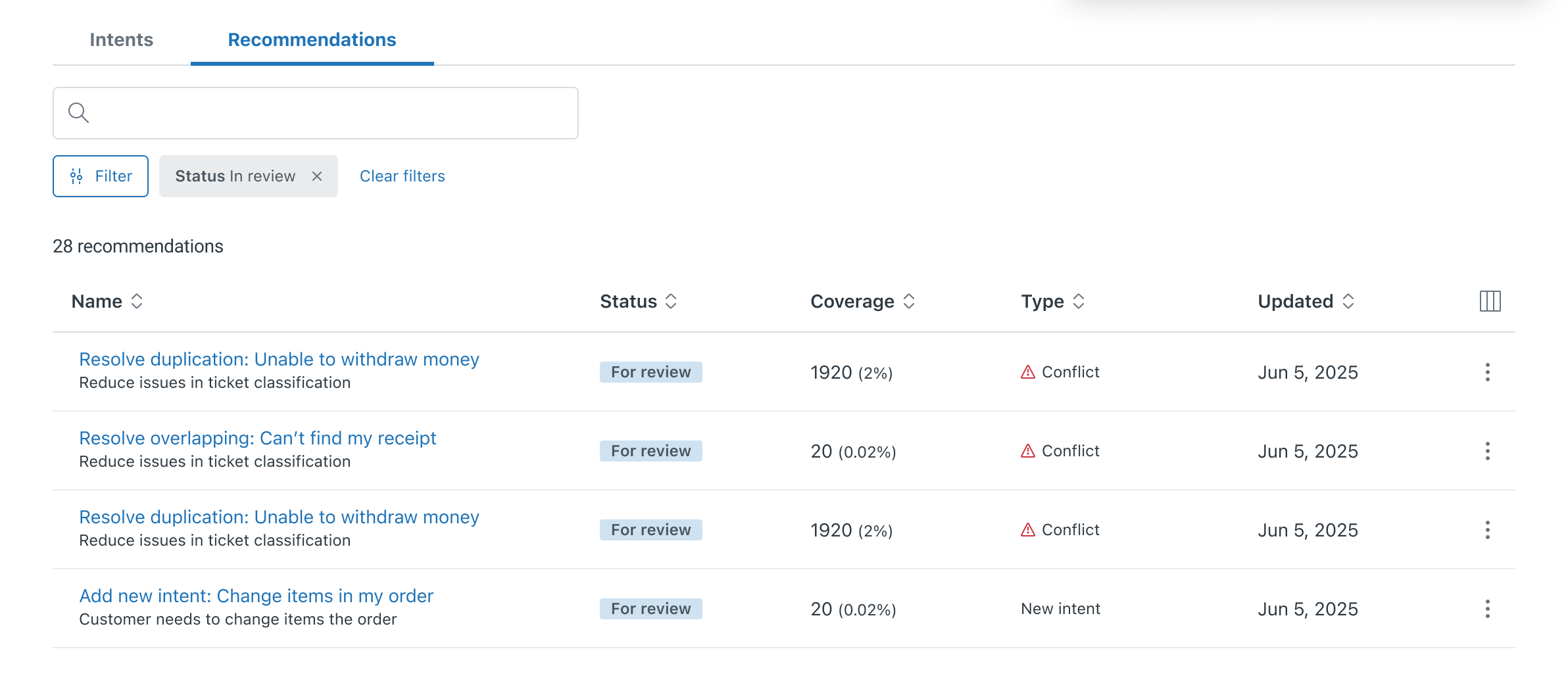
The topic recommendation appears in the right-hand panel.
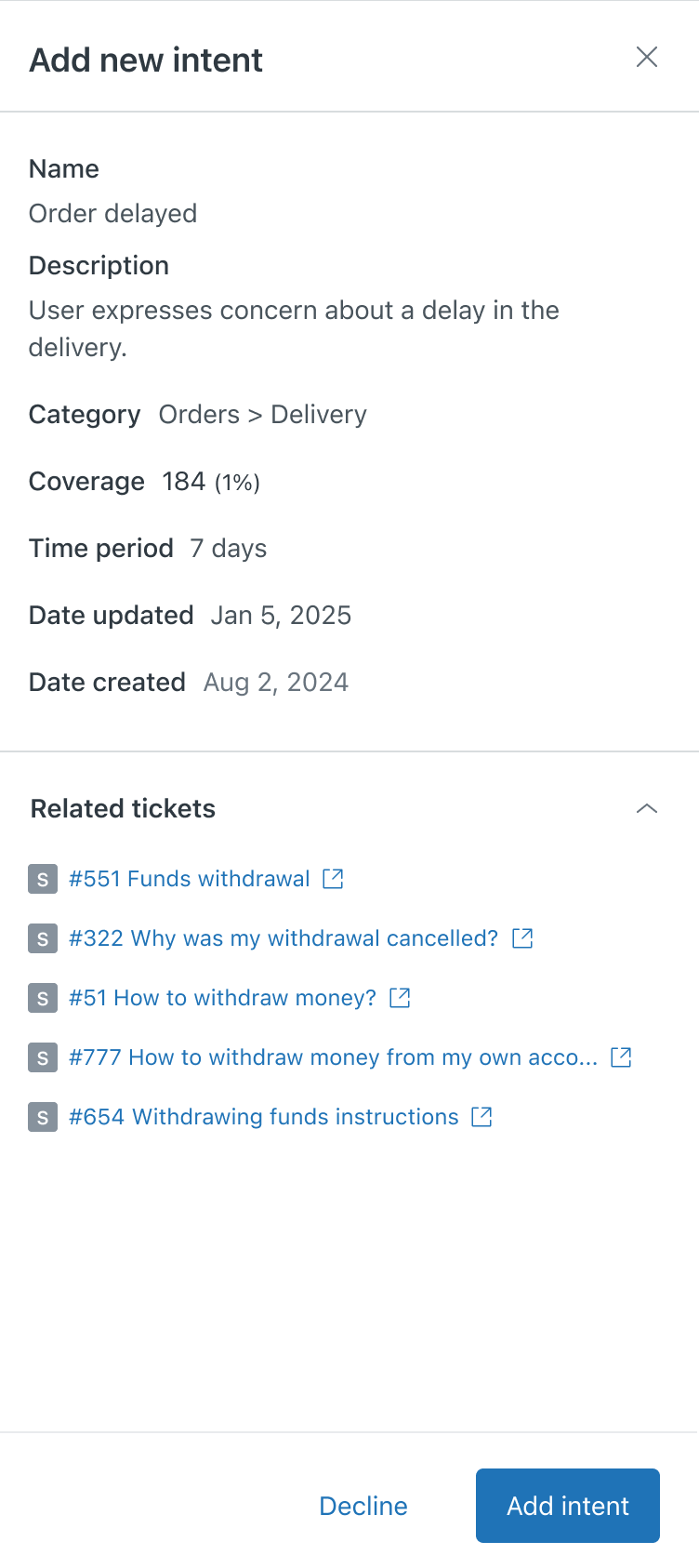
See Understanding a topic recommendation to learn more.
- Review the topic and click one of the following:
-
Add
topic
If you accept the recommendation, it’s added to your list of topics and immediately starts detecting the topic in incoming requests.
-
Decline
If you decline the recommendation, a dialog window opens asking for your feedback.
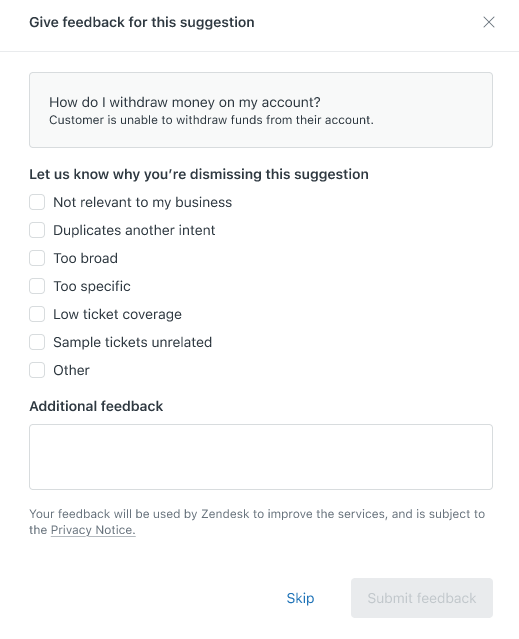
Select a reason and enter any additional comments and click Submit feedback.
-
Add
topic
Resolving topic conflicts
Intelligent triage identifies duplicate or overlapping topics in your account. To help you fine-tune your topic coverage for your specific business needs, you can review and resolve any detected topic conflicts.
To resolve topic conflicts
- In Admin Center, click
AI in the sidebar, then select Intelligent triage > Topic.
- Click the Recommendations tab.
- Click the name of a recommendation to resolve a topic conflict.
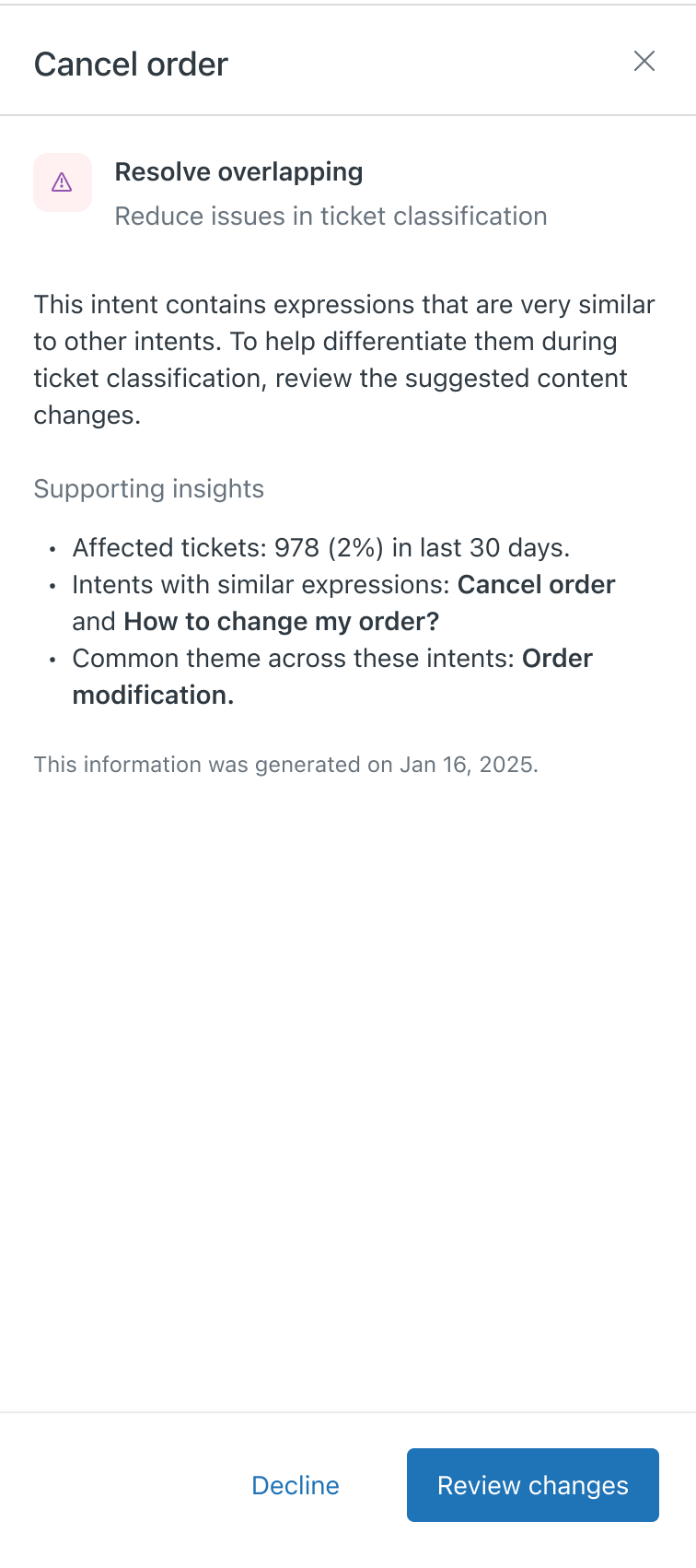
The recommendation opens on the right. You can view more information about why the recommendation was made, including the names of potential topic duplicates or topics with similar expressions.
- Take one of the following actions:
- If the recommendation is for resolving a duplicate topic, click
Review duplicates.
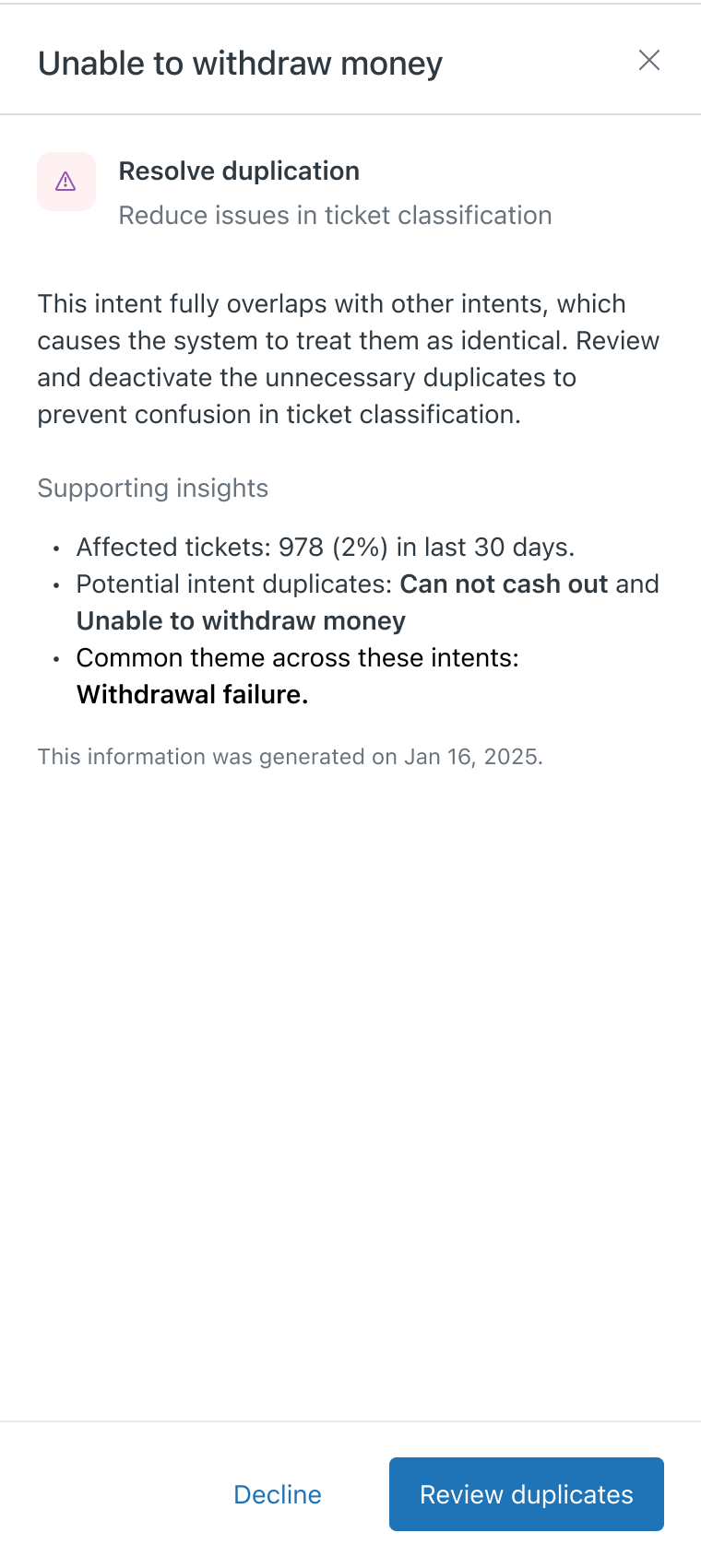
Review the duplicated topics.
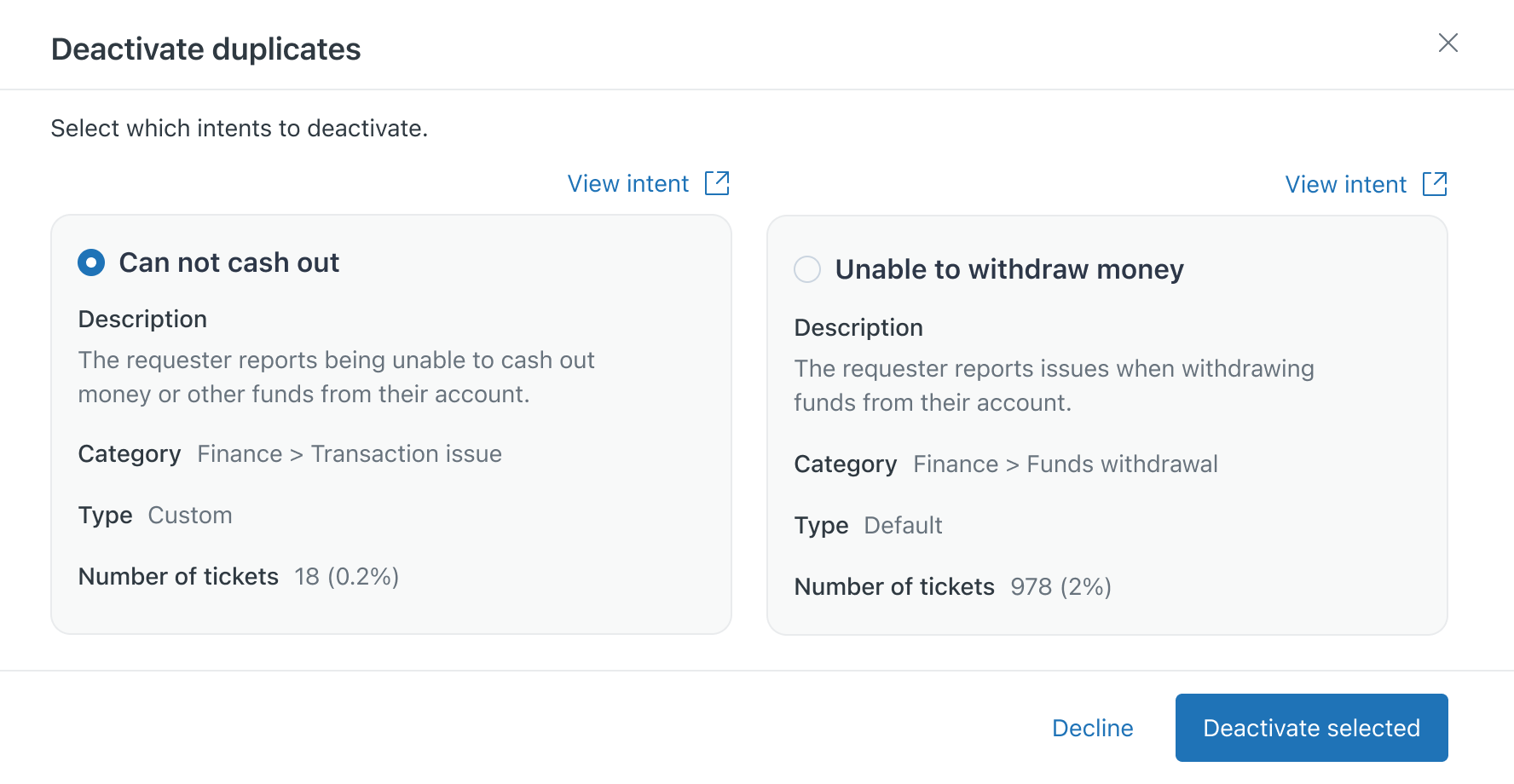
Select a topic to deactivate, then click Deactivate selected. Confirm you want to deactivate the topic.
- If the recommendation is for resolving an overlapping topic, click
Review changes.
Review the suggested changes, then click Save changes to apply the suggestion.
- If the recommendation is for resolving a duplicate topic, click
Review duplicates.