As communicated in earlier product and customer announcements, we are turning off the feature that temporarily assigned all agents to all brands within department spaces.
This change was originally scheduled to take effect on August 4th, 2025. We have extended this deadline until August 9th to give our Enterprise customers additional time to update their brandless agents. If you don't take action before August 9th, any agents without brand assignments will no longer have access to tickets. To resolve lost ticket access, you will need to manually add those agents to brands. This may disrupt your team’s workflow.
This announcement includes the following topics:
Who is affected by this change?
This announcement applies to all customers on Enterprise and Enterprise + plans with department spaces enabled on their accounts. To check if you have department spaces enabled on your account, go to the Team members page in Admin Center. If you see the Brands column, then you have department spaces turned on.
If you don't see the Brands column on the Team members page, you are part of the last cohort of customers to receive this feature. This announcement does not apply to you and you can ignore it. When you receive department spaces on your account, all agents will automatically be applied to all brands. You will then have the option to remove agents from brands to update ticket access.
What do I need to do?
If you confirmed that you are affected by this change, use the steps below to find agents in your account with no brand memberships, then assign them to brands as needed.
Find agents with no brand memberships
- Go to Admin Center > Team members.
- Click Filter.
- Under Brand membership, select No brand.
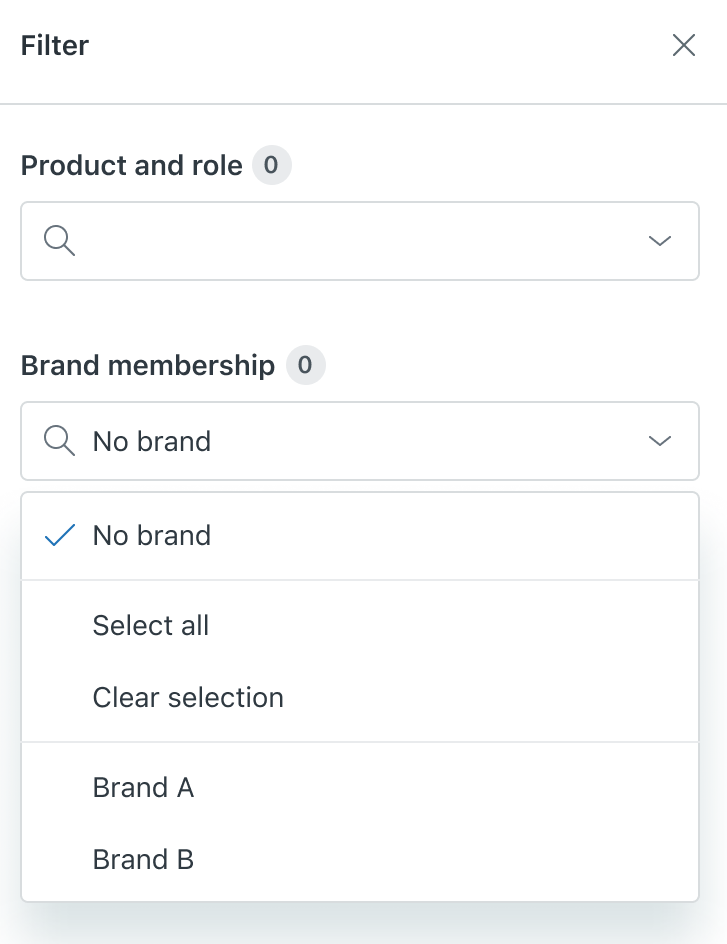
- Click Apply filters.
See Filtering team members by brand for details.
Add agents to brands
Assign the brandless agents to the appropriate brands as needed, or leave them without brand assignments if that fits your workflow. Agents with no brand assignments will lose access to all tickets.
See Adding or removing a team member from brands.
If you have feedback or questions related to this announcement, visit our community forum where we collect and manage customer product feedback. For general assistance with your Zendesk products, contact Zendesk customer support.