Verified AI summary ◀▼
Integrate Microsoft 365 Copilot to allow users to access support directly within Microsoft apps like Teams and Outlook. Users can search help center articles, create and manage tickets, and track their progress. Admins must connect their Microsoft account, enable user access, and can disconnect when needed. Ensure admin roles remain active for continuous integration functionality.
The Zendesk agent for Microsoft 365 Copilot helps users get support directly within Microsoft apps such as Teams and Outlook.
- Search help center articles
- Create Zendesk tickets
- Add public ticket comments
- Resolve tickets created by them
- View the tickets they created to keep track of progress
This article walks you through how to set up the Zendesk agent so it's available to your users working in Microsoft. For more information on Copilot, see the Microsoft 365 Copilot documentation.
Considerations
- You must be an admin in both Microsoft 365 and Zendesk Support to set up the integration.
- If the Zendesk admin who connected the integration has their role downgraded, the integration will cease to function. It will require the integration to be disconnected, then reconnected in Admin Center by another Zendesk admin.
Connecting your Microsoft account
Set up and configure your integration in Admin Center.
Multiple connections are supported. Repeat these steps for each Microsoft account you’d like to connect to Zendesk.
To connect your Microsoft account to Zendesk
- In Admin Center, click
 Apps and integrations in the sidebar, then select Integrations >
Integrations.
Apps and integrations in the sidebar, then select Integrations >
Integrations. - On the Integrations page, click Microsoft Copilot.
- Select I agree to the Built by Zendesk Terms of Use.
- Click Connect.
- Click the Microsoft account you'd like to connect.
You must be an administrator of this account to connect the integration.
You are directed back to Admin Center. The new connection displays in the Copilot connections list with all features active.
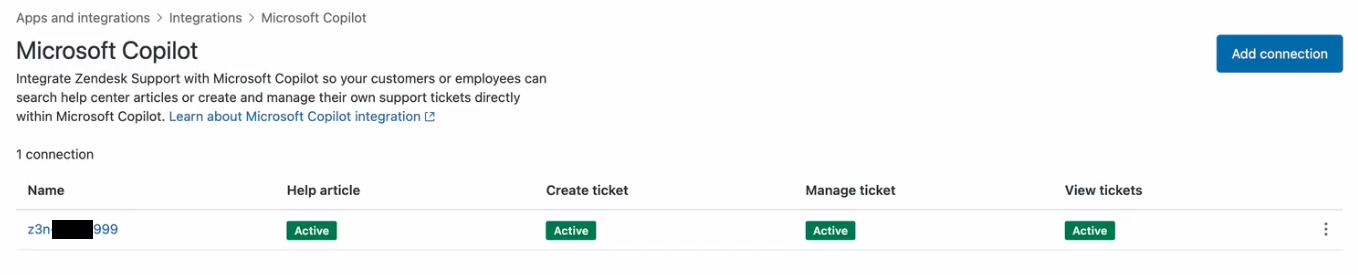
- Click the name of the connection to access connection settings.
- To deactivate a feature, clear the check box next to its name.
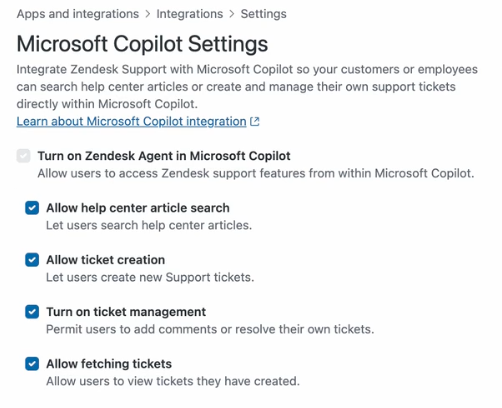
See Using the Zendesk agent in Microsoft 365 Copilot for more information about each of these features.
- Click Save.
Allowing users to install the Zendesk agent
After you've connected your Microsoft account to Zendesk, you must make the Zendesk agent available to your end users in Microsoft 365. For more information, see the Microsoft 365 admin center documentation.
To allow users to install the Zendesk agent
- Sign in to the Microsoft 365 admin center.
- Go to Copilot > Agents.
- Search for Zendesk Agent, then click on it to open settings.
- For Assign users, select which users at your company can install and use the Zendesk agent.
- Click Update.
Disconnecting your Microsoft account
You can disconnect your Microsoft account from Zendesk in Admin Center. After it's disconnected, Microsoft users can no longer access the Zendesk agent in Copilot.
- In Admin Center, click
Apps and integrations in the sidebar, then select Integrations >
Integrations.
- On the Integrations page, click Microsoft Copilot.
- Click the options menu icon (
 ) next to the Microsoft account you want to
disconnect, then click Disconnect.
) next to the Microsoft account you want to
disconnect, then click Disconnect.