Knowledge sources are the information your AI agent uses to create AI-generated answers to questions from your customers. After you import a knowledge source, you can manage it from the Knowledge sources page.
This article contains the following topics:
- Viewing all imported knowledge sources for an AI agent
- Reimporting a knowledge source manually
- Editing an imported knowledge source
- Deleting a knowledge source
- Viewing the import summary for a web crawler import
Related article:
Viewing all imported knowledge sources for an AI agent
On the Knowledge sources page, you can view all the knowledge sources currently connected to an AI agent. The AI agent uses these sources to generate answers to customer questions.
To view all imported knowledge sources
- In the AI agents workspace, select the AI agent you want to work with.
-
Click
 Content in the sidebar, then select Knowledge sources.
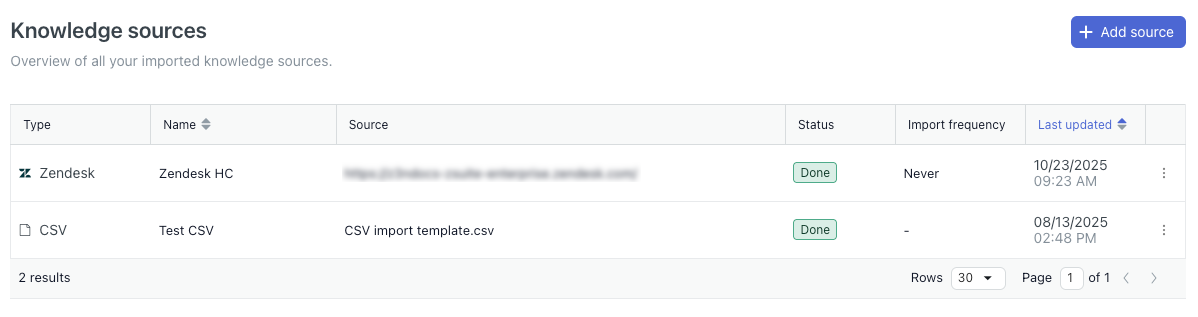
The Knowledge sources page shows a list of all knowledge sources that have been imported for the AI agent. The list includes the following columns:
- Type: The type of imported knowledge source.
- Name: The name of the knowledge source.
- Source: The URL or file name of the knowledge source.
- Status: The status of the import.
- Import frequency: How often the knowledge source is reimported.
- Last updated: When the knowledge source was last updated.
Reimporting a knowledge source manually
If you want to reimport a knowledge source outside the frequency you specified in its configuration, you can perform a manual reimport.
To reimport a knowledge source manually
- In the AI agents workspace, select the AI agent you want to work with.
- Click
Content in the sidebar, then select Knowledge sources.
- Find the knowledge source you want to reimport.
- Click the options menu (
 ) and select Reimport.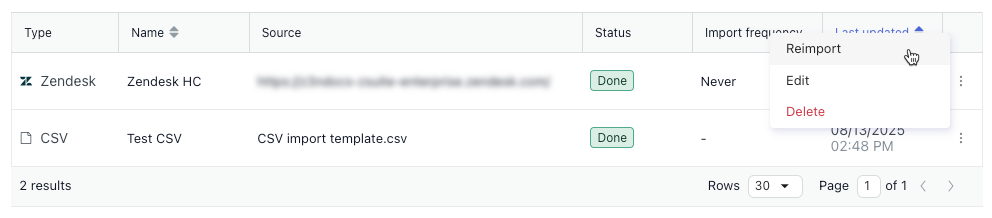
Editing an imported knowledge source
You can edit an imported knowledge source's settings at any time.
To edit an imported knowledge source
- In the AI agents workspace, select the AI agent you want to work with.
- Click
Content in the sidebar, then select Knowledge sources.
- Find the knowledge source you want to edit.
- Click the options menu () and select Edit.
The Edit source panel opens.

- Edit the settings as needed.
For help with any of the fields, see Importing a knowledge source.
- Click Save.
Deleting a knowledge source
You can disconnect a knowledge source from an AI agent to prevent it from using the information in that source when generating answers to customer questions.
To delete a knowledge source
- In the AI agents workspace, select the AI agent you want to work with.
- Click
Content in the sidebar, then select Knowledge sources.
- Find the knowledge source you want to delete.
- Click the options menu () and select Delete.
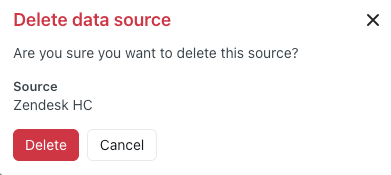
A confirmation window opens.
-
Click Delete.
Viewing the import summary for a web crawler import
When you import content using a web crawler, you can view a summary that shows the details of the import, including the specific content that was imported. This information can be especially useful when troubleshooting issues with web crawler imports.
To view the import summary for a web crawler import
- In the AI agents workspace, select the AI agent you want to work with.
- Click
Content in the sidebar, then select Knowledge sources.
- Find the web crawler knowledge source you want to view an import summary for.
- Click the options menu () and select Import summary.
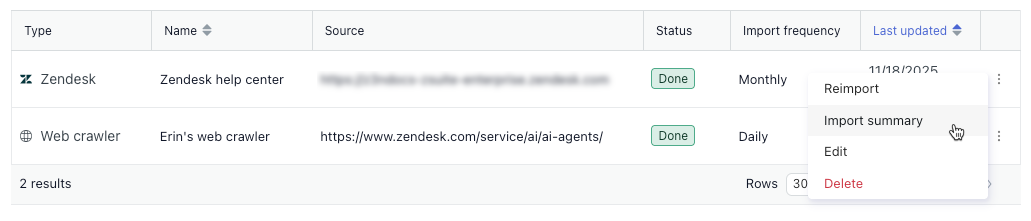
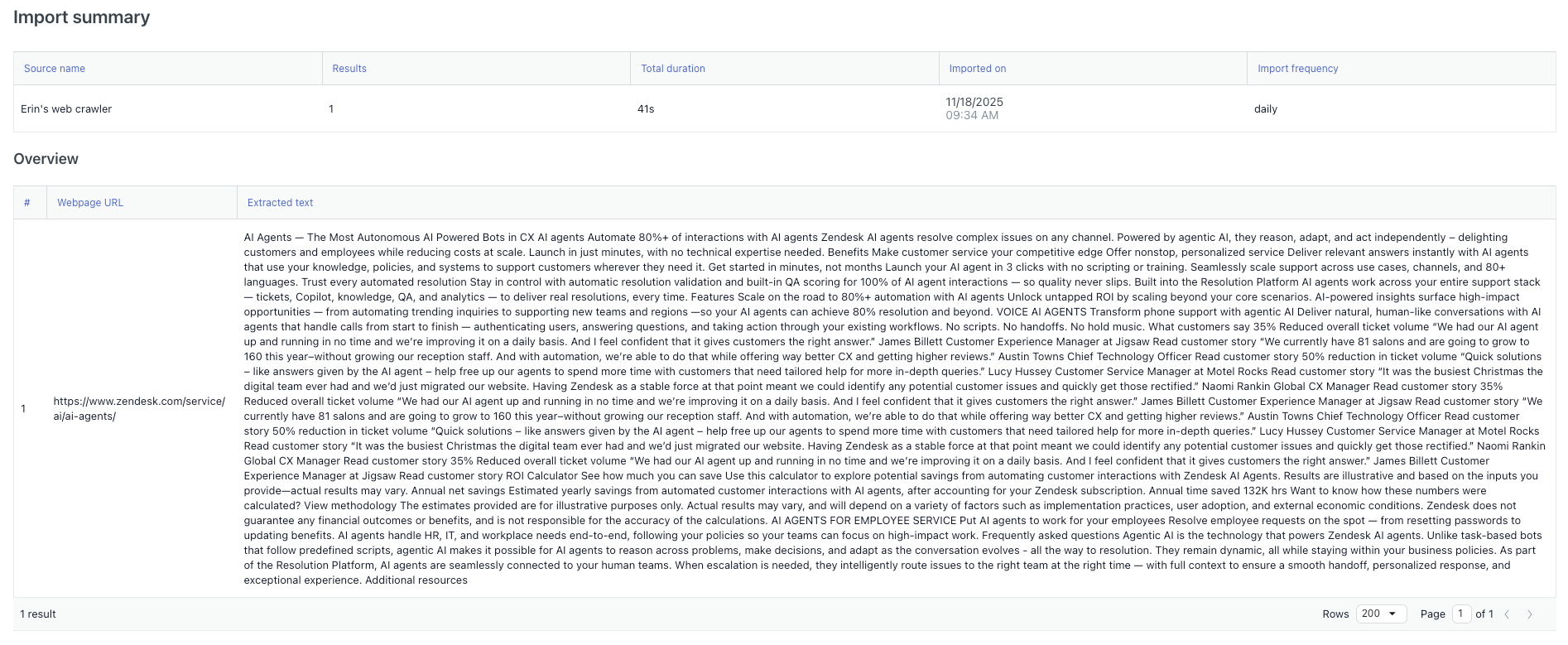
A new browser tab opens, showing the Import summary page. The summary includes the following information:
- Source name: The name of the web crawler import.
- Results: How many pages were imported.
- Total duration: How long the import took.
- Imported on: The date and time the content was imported.
- Import frequency: How often the import is scheduled to run.
-
Overview:
- Webpage URL: The URL of the imported page.
- Extracted text: The actual text the crawler imported.