Verified AI summary ◀▼
Enable end users to end messaging sessions when they feel no further discussion is needed. This feature, available on the Web Widget, requires multi-conversations to be active and prevents reopening conversations. When activated, it removes options for continuing chats through other channels and affects CSAT surveys. Manage this setting in the Admin Center under Messaging settings.
You can allow end users to end a messaging session with a human or AI agent if they think no further real-time discussion is needed. When an end user ends their messaging session, they’ll need to start a new conversation to contact your support team again.
This article includes the following sections:
- Considerations when allowing end users to end messaging sessions
- Turning on the end session feature for end users
- Turning off the end session feature for end users
- The end-user experience
Related articles:
Considerations when allowing end users to end messaging sessions
Consider the requirements and limitations described in this section when determining whether to allow end users to end messaging sessions.
To use this feature, your account must meet the following requirements:
- Multi-conversations must be turned on.
- The ability to reopen conversations must be turned off.
Currently, this feature has the following limitations:
- It is only available on the Web Widget.
-
When this feature is turned on, the Web Widget options to continue conversations through social channels are removed, and no longer available for end users.
- If you are using the legacy CSAT experience, you cannot send user satisfaction surveys after the end user ends the session.
-
Custom bot users: If you are using
conversational control,
when an end
user ends a conversation that conversation must be returned to its
default
state by releasing control. This clears any active switchboard integrations,
ensuring the conversation closes when the end user ends it.
- If you are using release control, this happens automatically.
- If you are using pass control, the conversation control is passed to another switchboard integration as defined in your configuration. You are responsible for fully managing when and how the conversation ends, and must make sure to release control once your custom flow is complete. Until control is released, the conversation will remain open.
Turning on the end session feature for end users
This feature is off by default for most accounts. Make sure your account configuration meets the requirements listed above before turning the feature on.
To turn on the end session feature for end users
-
In Admin Center, click
 Channels in the sidebar, then select Messaging and social >
Messaging.
Channels in the sidebar, then select Messaging and social >
Messaging.
- Click Manage settings.
-
Under Advanced, click
Ending sessions.

- Select End users can end messaging sessions at any time
- Click Save settings.
Turning off the end session feature for end users
If you don't want end users to be able to end messaging sessions, you can turn off this behavior.
To turn off the end session feature for end users
-
In Admin Center, click
Channels in the sidebar, then select Messaging and social >
Messaging.
- At the top of the Messaging page, click Manage settings.
- Under Advanced, click Ending sessions.
- Deselect End users can end messaging sessions at any time.
- Click Save settings.
The end-user experience
When you turn on the feature allowing end users to end their own messaging sessions, the action is added to their messaging UI. Additionally, any options to continue conversations through other channels are removed from the menu.
In the Web Widget, the End conversation button ( )
is added to the widget header.
)
is added to the widget header.
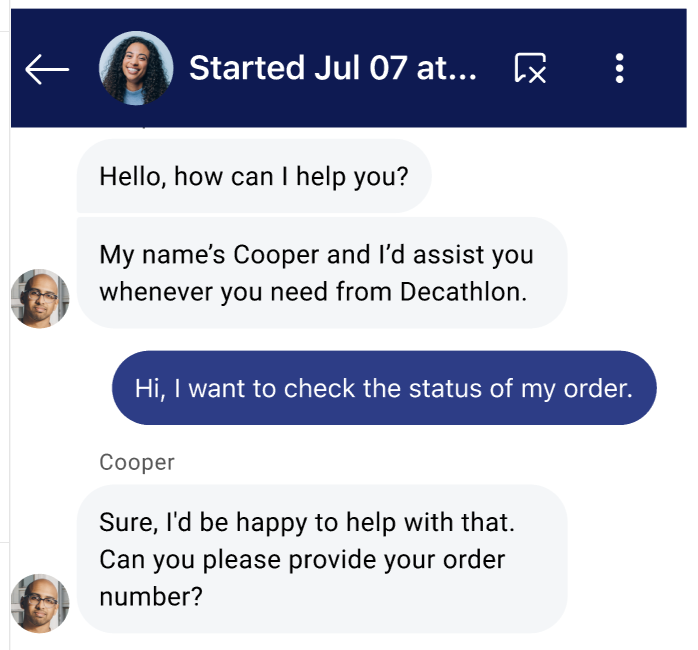
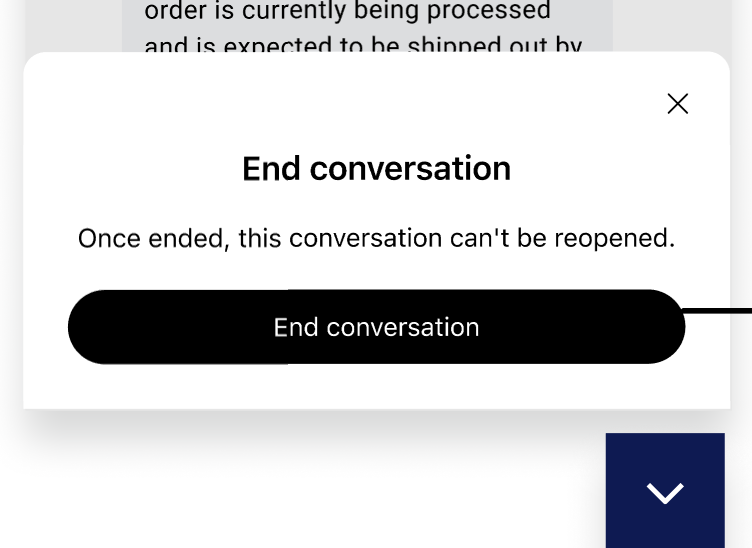
When an end user clicks the End conversation button, a confirmation dialog appears at the bottom of the UI. When the end user confirms they want to end the conversation, it is noted under the final conversation message.