Summary: ◀▼
You can connect Contentful as an external knowledge source to sync content from a Contentful space into Knowledge for use across knowledge experiences. As a Knowledge admin, you enter the space ID, API key, and public URL format, then start syncing. Added content is ingested on the next sync, removed content is deleted, and new spaces require a new connection.
You can connect Contentful to your Zendesk account to make the content available wherever external content is used. You must be a Knowledge admin to set up and manage external content connections.
Setting up a Contentful connection
You can set up a Contentful connection to connect and sync content from your Contentful spaces. After you connect a Contentful space, you can configure workflows to use this external content or manage the external knowledge connection.
- In Knowledge admin, click Manage articles
(
 ) in the sidebar.
 - Click External content > Connections.
- Under the Available sources section, click Connect on the Contentful card.
- Click Continue.
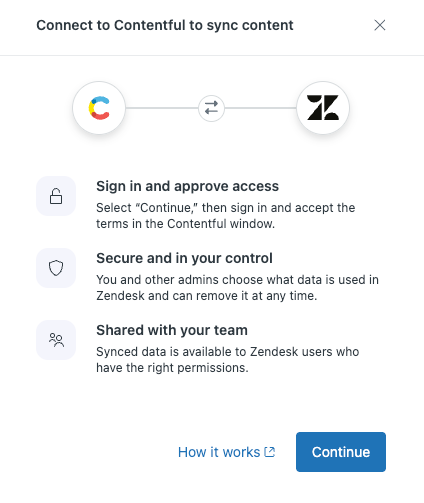
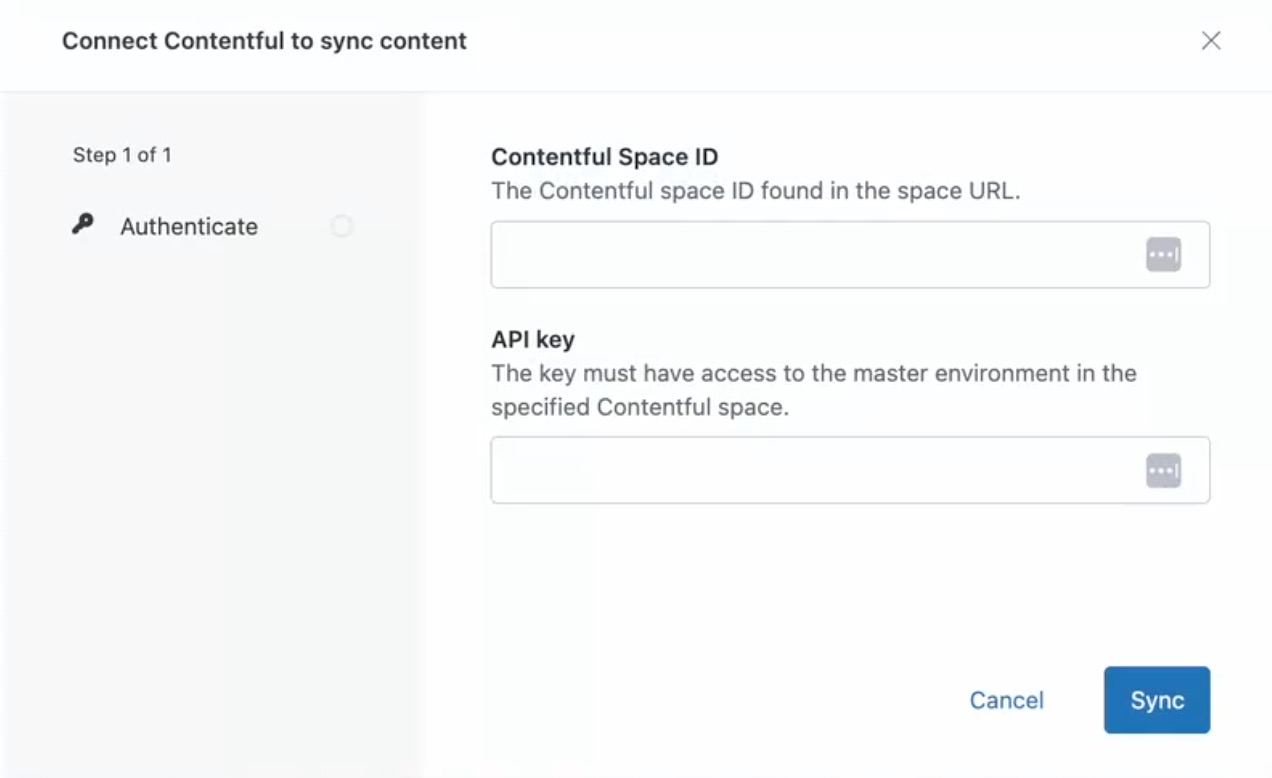
- On the Authenticate tab, enter the following information:
- Contentful Space ID: Identifier for the Contentful space that you want to connect to Zendesk. For more information about finding the Contentful Space ID see the Contentful help center.
- API key: (Content Delivery API - access token in Contentful) Credential that grants programmatic access to read content stored in your Contentful space.
- On the Add public URL tab, specify the URL format for the public page
that hosts your Contentful content. The URL format can be:
- a field containing the full URL, such
as
fields.url - a URL string with one or more placeholders, such
as
https://zendesk.com/{fields.slug}
fields.<fieldId>) and entry metadata (sys.<key>), such assys.id.Note: The knowledge connector only ingests content that can be associated with a URL. If the URL cannot be constructed from the URL format because required fields are missing, the record is skipped during content syncing.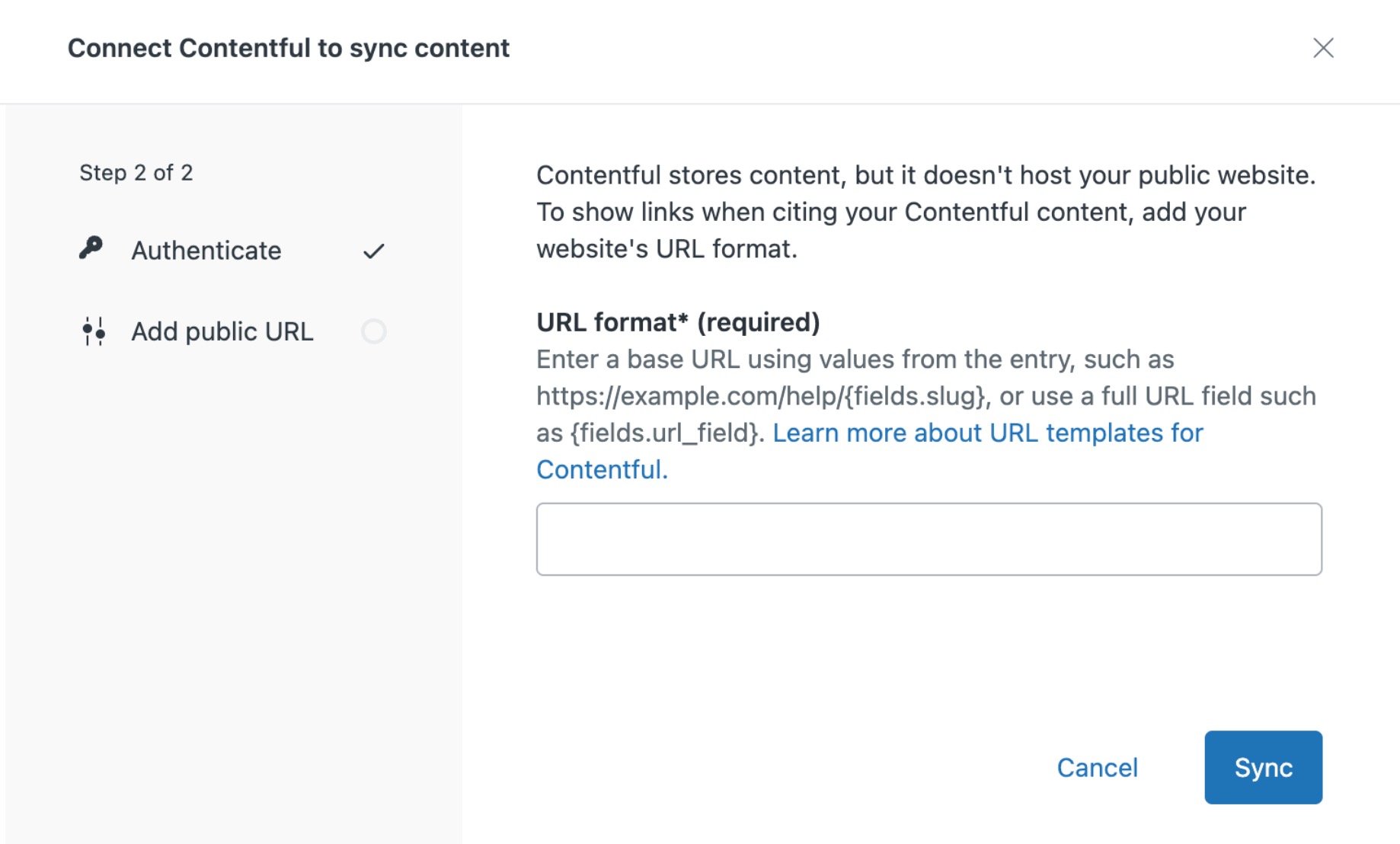
- a field containing the full URL, such
as
- Click Sync.
Contentful is added to your Connections page and your space begins syncing.
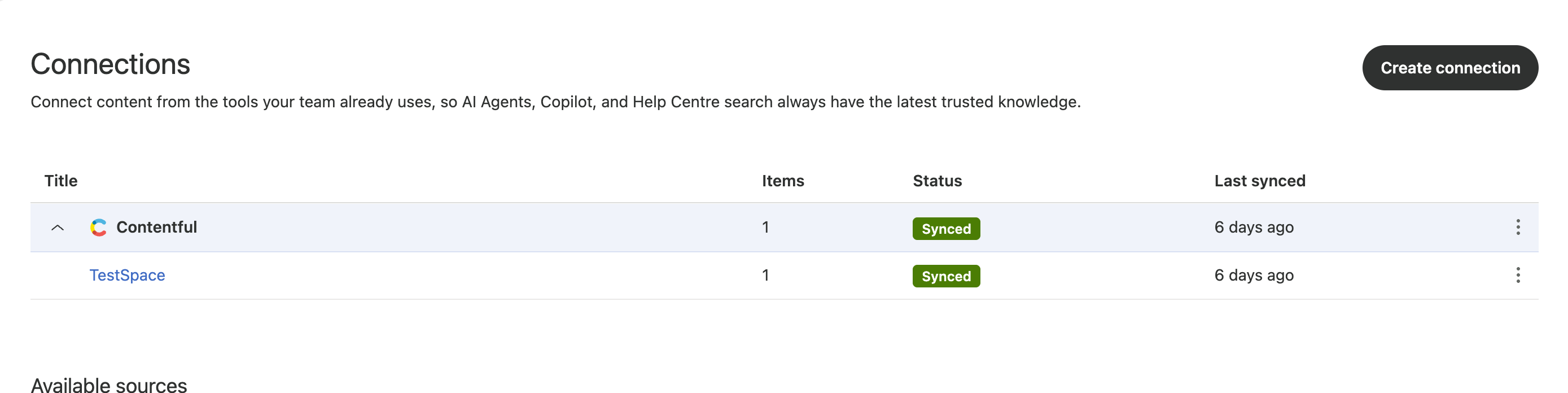
Adding or removing content from your Contentful connection
When you add or remove content in Contentful for a space that's connected to Knowledge, that content is automatically ingested to or removed from Knowledge during the next sync.
However, if you want to add a new space to your existing Contentful connection, you must remove the connection entirely and set up a new connection.