Summary: ◀▼
You can manage external knowledge connections by checking connection details, setting viewer permissions for signed-in users, agents and admins, or custom user segments, resyncing content on demand, and removing connections when you no longer need them. This helps you control who sees external content, keep synced knowledge up to date, and clean up unused content sources.
Once you've created a knowledge connection, you can view information about the connection, set viewer permissions for content, and manually resync or remove the connection.
Viewing connection details
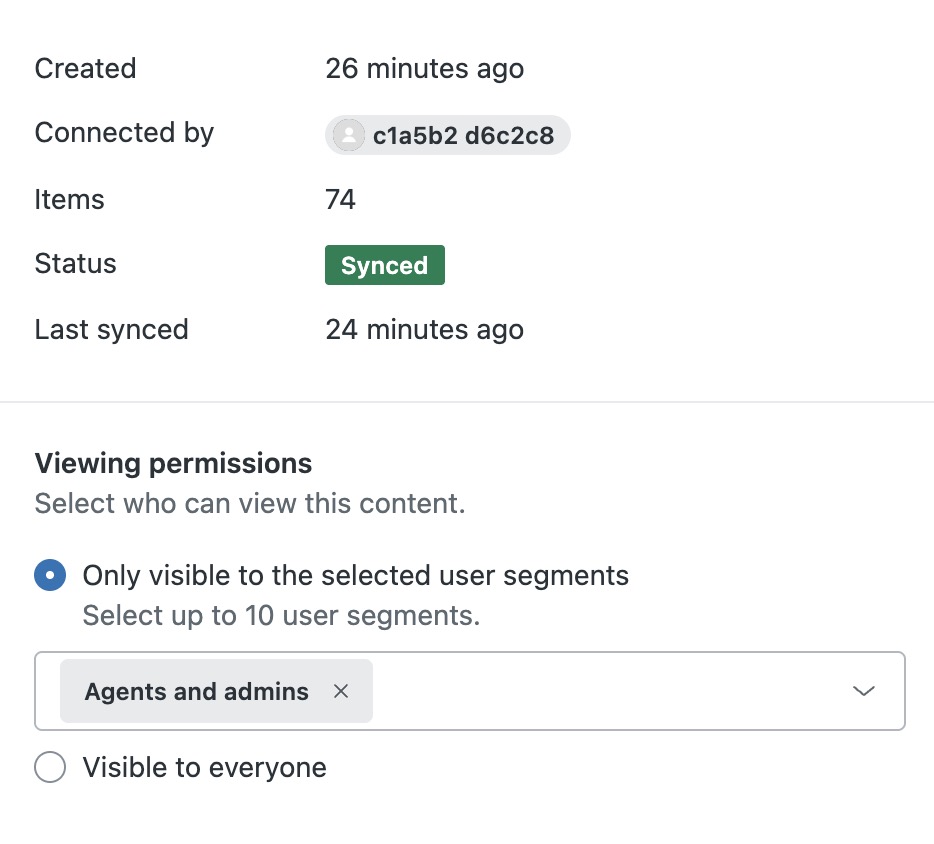
You can use the information panel to view information about the connection, when it was created and by whom, and when it was last synced.
- In Knowledge admin, click Manage articles
(
 ) in the sidebar.
 - Click External content > Connections.
- Click the options menu (
 ) on the row for the connection you want to
manage, then select Manage.
) on the row for the connection you want to
manage, then select Manage.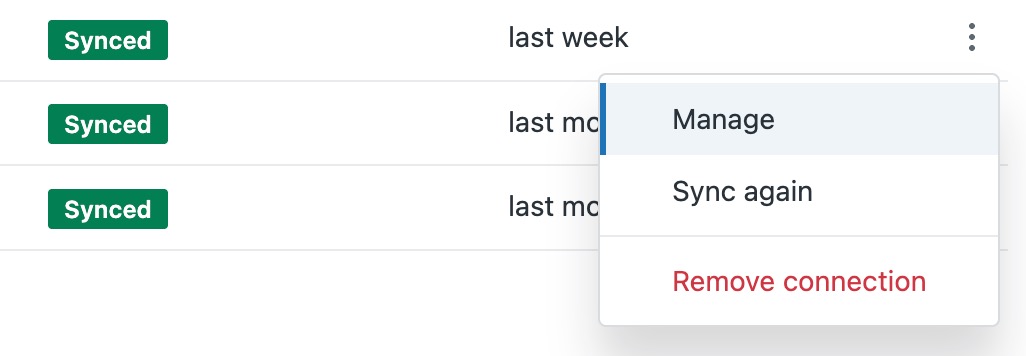
- View details about the connection:
- Created: When the connection was created
- Connected by: Name of the Knowledge admin who created the connection
- Items: Number of synced pages in the connection
- Status: Sync status
- Last synced: When the last sync occurred. Syncs are automatically performed every 24 hours, though they can also be triggered manually
Managing viewer permissions for content
You can set the viewer permissions for who can view connected content in your Zendesk workflows.
- In Knowledge admin, click Manage articles
() in the sidebar.
- Click External content > Connections.
- Click the options menu () on the row for the connection you want to
manage, then select Manage.
- Under Viewing permissions, select one of the following options to
determine which user segments can view content
from this space:
-
Only visible to selected user segments: Select up to 10 user
segments from any of the following (an Enterprise plan is required
to select multiple user segments):
- Signed-in users: Includes internal and external users who create an account and sign in to your help center.
-
Agents and admins: Includes team members only, so
that you can create content that is internal-only. Note: Light agents are included in this segment. For a list of light agent permissions, see Understanding and setting light agent permissions.
- Custom user segment: Allows you to restrict viewing access to specific users based on tags, organizations, or groups by applying user segments. See Creating user segments to restrict access.
- Visible to everyone: Includes anyone who visits your help center and does not require sign in. To make content visible to AI agents, you must select this option.
-
Only visible to selected user segments: Select up to 10 user
segments from any of the following (an Enterprise plan is required
to select multiple user segments):
- Click Save.
Manually resyncing content
When you connect an external content source, a sync process runs every 24 hours to update new or changed content. However, you can also manually resync content to trigger a sync process at any time.
- On the Connections page, click the options menu () for the connection you want to sync.
- Select Sync again.
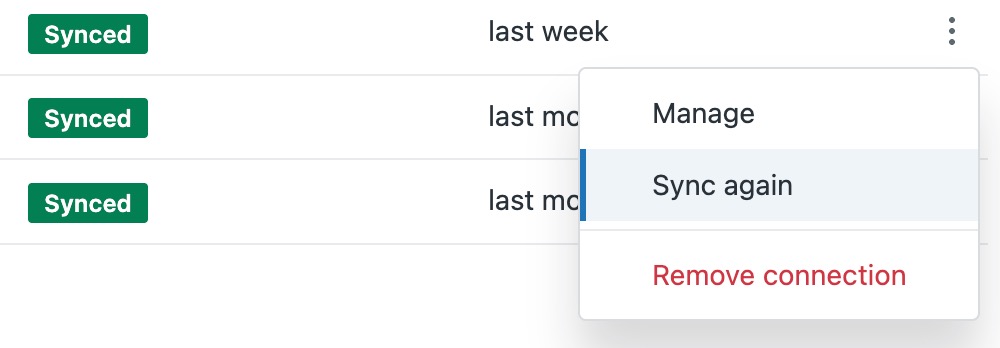 The connection syncs immediately, and the Last synced column is updated with the most recent sync time.Note: For Contentful connections, recent changes made in your Contentful account may take up to 6 hours to appear.
Removing a connection
You can remove a connection if you no longer want to sync its content. If you remove a connection, all content within that connection will be removed.
When you remove a connection, the related content is no longer available wherever external content is used.
- On the Connections page, click the options menu () for the connection you want to remove.
- Select Remove connection.
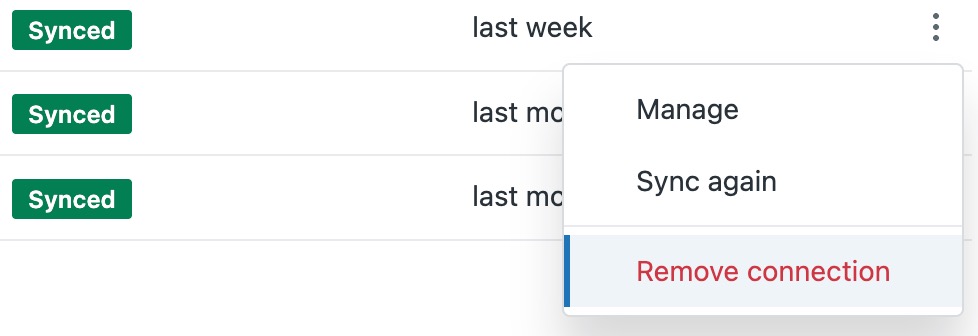
- Review the message, then click Remove.
The connection is removed from the Connection list, and is no longer available as an external content source.