Summary: ◀▼
You can create multiple AI-generated translations for a help center article at once, speeding up localization and maintaining content consistency across languages. After generating translations, you can review, approve, or reject them individually or in bulk to ensure quality before publishing. This feature supports multiple languages and helps you manage translation workflows while keeping control over accuracy and tone.
With bulk translations, you can create multiple translations for a help center article simultaneously. Instead of translating articles one at a time, you can generate translations in bulk, which helps you localize content faster and reduce repetitive work. Using bulk translation to localize article content helps you support customers in different regions and keep help center content consistent across languages.
You can generate multiple translations from within the translation panel of the article editor, then immediately review and approve or reject each translation. You can also review and approve or reject multiple translations at once from within the article list view of Knowledge admin. From either view, you can add translations, generate them for selected languages, review the results, and decide whether to approve, reject, or regenerate them before publishing. This gives you a faster translation workflow while still keeping review and quality control in your hands.
Requirements and limitations
Requirements
- Account level requirements
- Help center requirements
Limitations
Bulk translation has the following limits:
- You can create up to 30 translations per minute per account.
- You can have up to 210 translation jobs in progress per account at one time. This limit includes all articles in the account.
If you reach either limit, you can start more translations as jobs finish and capacity becomes available.
Creating bulk translations for an article
You can use bulk translations to create multiple AI-generated translated versions of your help center article simultaneously. Before you begin, make sure the article has a default language version and that the target languages are available.
- In your help center or Knowledge admin, create a new article or edit an existing article.
- In the article editor, click Translations (
 ) on the collapsible panel.
- Click Generate translations (
 ) to open the Generate translations
panel.
) to open the Generate translations
panel. - Select the languages for the translations you want to add from the
list.
This list displays all languages that you've enabled across all brands in your account. If you do not see a list of languages, then you first need to enable languages for your help center (see Configuring your help center to support multiple languages).
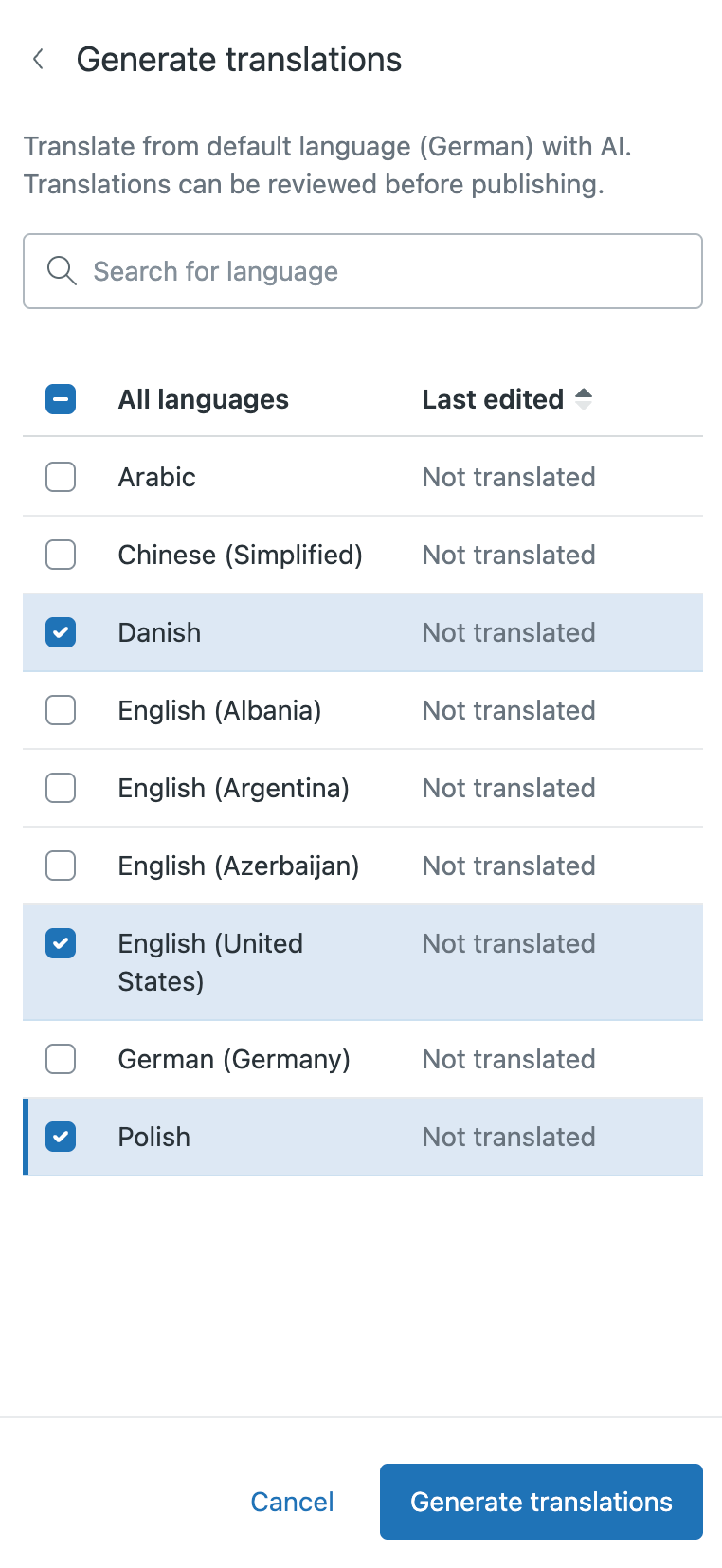
- Click Generate translations.
The system uses AI to generate translated versions of the article in the languages you selected.
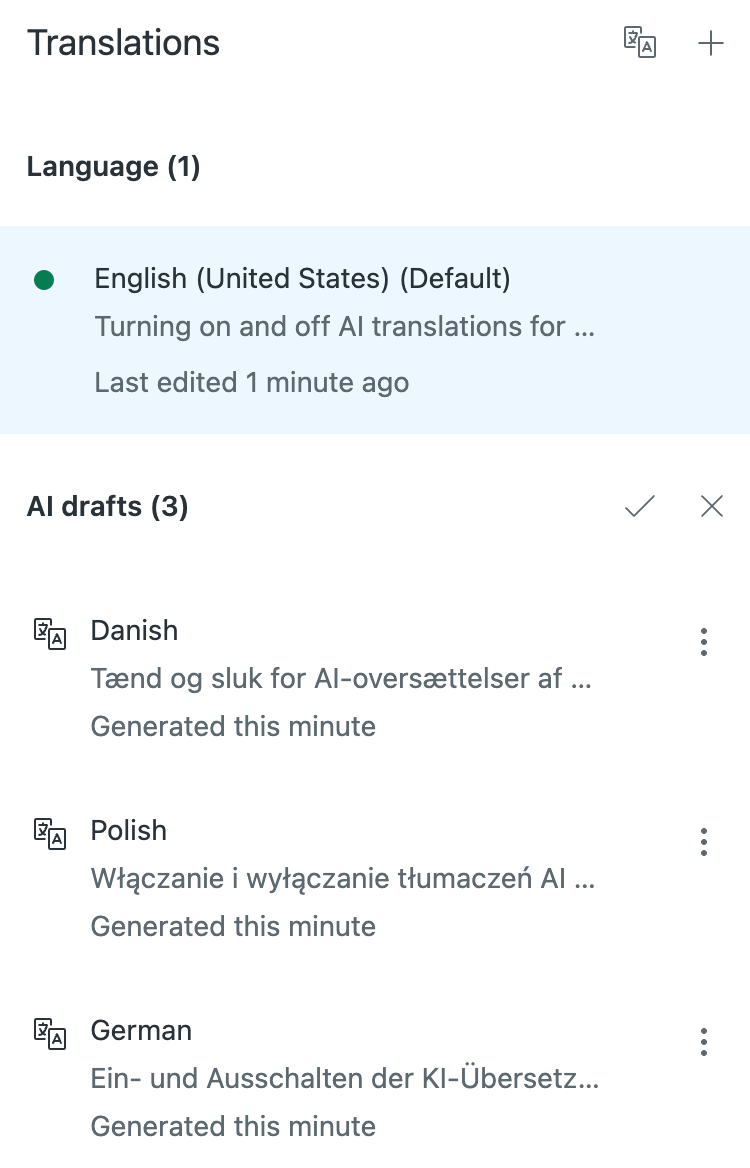
- If you want to review the translations before accepting or declining them,
continue to Reviewing bulk
translations to perform a side-by-side review of the source and
translated article before accepting or declining the
translation.
Otherwise, to accept or decline the translations without reviewing them, do one of the following:
- Click Accept all (
 ) or Decline all
(
) or Decline all
( ) under the AI drafts section
of the Translations panel to accept or decline all drafts at
once.
) under the AI drafts section
of the Translations panel to accept or decline all drafts at
once.
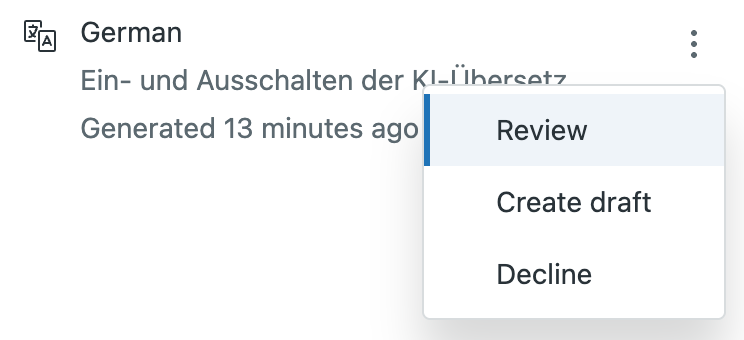
- Click the options (
 ) menu on individual translations in the
AI drafts section, then select:
) menu on individual translations in the
AI drafts section, then select:- Create draft to keep the translation and mark it as ready to publish. The translation then appears under the Languages section in the Translations panel, and is no longer labeled as an AI draft.
- Decline to decline the translation.
- Click Accept all (
Reviewing bulk translations before accepting or declining
After translations are generated in the editor, you can review them before publishing to make sure they are accurate and ready for your audience. Reviewing translations helps you check tone, terminology, and meaning before the content goes live.
- In your help center or Knowledge admin, create a new article or edit an existing article.
- In the article editor, click Translations () on the collapsible panel.
- Open the Translation review page by doing one of the following:
- Click the options () menu on the translation, then select
Review.
- In the Translations panel, select a generated translation.
The translation appears alongside the source language translation in a side-by-side comparison view.
- Click the options (
- Review the translation.
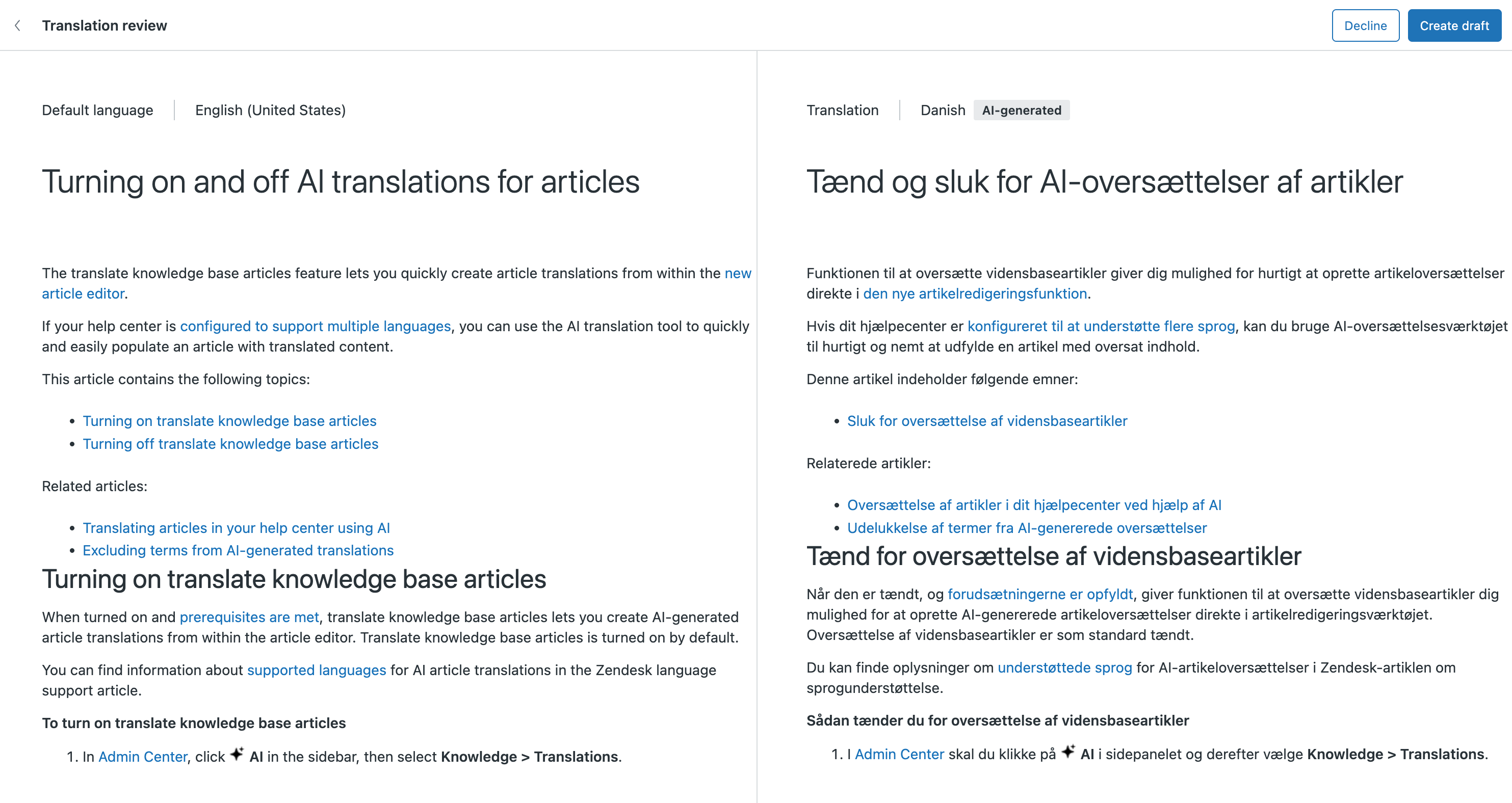
- Choose one of the following actions:
- Create draft to keep the translation and mark it as ready to publish. The translation then appears under the Languages section in the Translations panel, and is no longer labeled as an AI draft.
-
Decline to decline the translation.
The translation is removed from the AI draft list in the Translations panel. To regenerate this translation, see Creating bulk translations for an article above.
- Repeat the process for any other translations you want to review.