Summary: ◀▼
Reviewer QA lets you assign random graded tickets or filtered conversations to leads and admins so they can review reviewers anonymously, compare scores, and check consistency. You can set evaluators, reviewers, conditions, cycles, time zones, and review goals, or turn an existing conversation filter into an assignment. This helps you track reviewer performance and improve quality assurance.
Workspace assignments and assignment cycles help you evaluate and improve performance with a structured framework for measuring outcomes against established goals.
Reviewer QA randomly selects graded tickets and lets QA leads and admins review reviewers’ work anonymously.
Set up automatic assignment of reviews based on specific conditions to compare and review reviewer performance. Leads and managers are assigned reviewed conversations and must evaluate whether they agree with the scores given by reviewers.
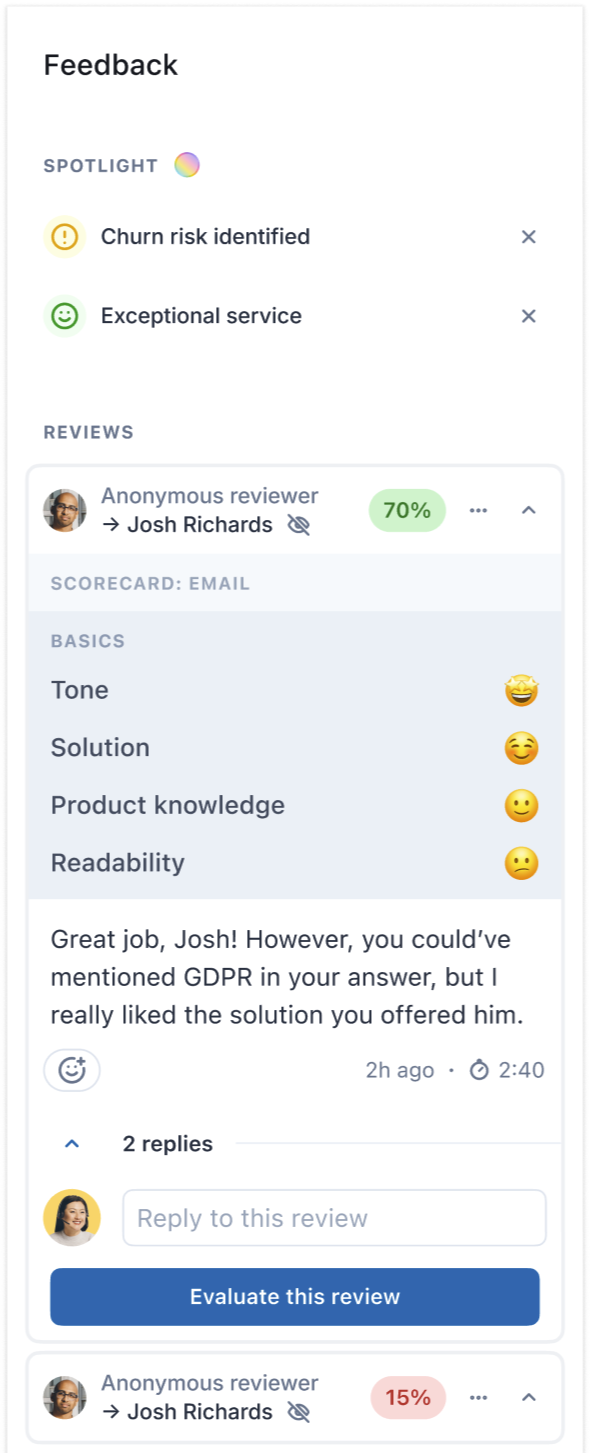
By integrating Reviewer QA into your quality assurance workflow, you ensure that your reviewers maintain consistency and high-quality standards. This approach ultimately fosters a culture of accountability and continuous improvement within your teams.
This article contains the following topics:
Related articles:
Creating reviewer QA assignments
Admins and leads can set up reviewer QA assignments. See Understanding roles and permissions in Zendesk QA.
To create a new reviewer QA assignment
- In Quality assurance, click your profile icon in the top-right corner, then select Users, bots, and workspaces.
- Choose your workspace, then click Assignments.
- Click Create assignment.
- Select the Reviewer QA assignment type.
- On the General tab, enter an Assignment name.
- Under Cycle settings, select how frequently the assignment cycle repeats: Never,
Daily, Weekly, Bi-weekly, or Monthly.Note: When the new cycle begins, Zendesk QA fetches all applicable conversations and then doesn't fetch or refresh them again until the next cycle.
- Select a Start date and time.
For monthly assignments, also specify the recurrence and whether you want the assignment cycle to start on the same day every month or on specific dates, for example, the first day of the month or every fourth Thursday.
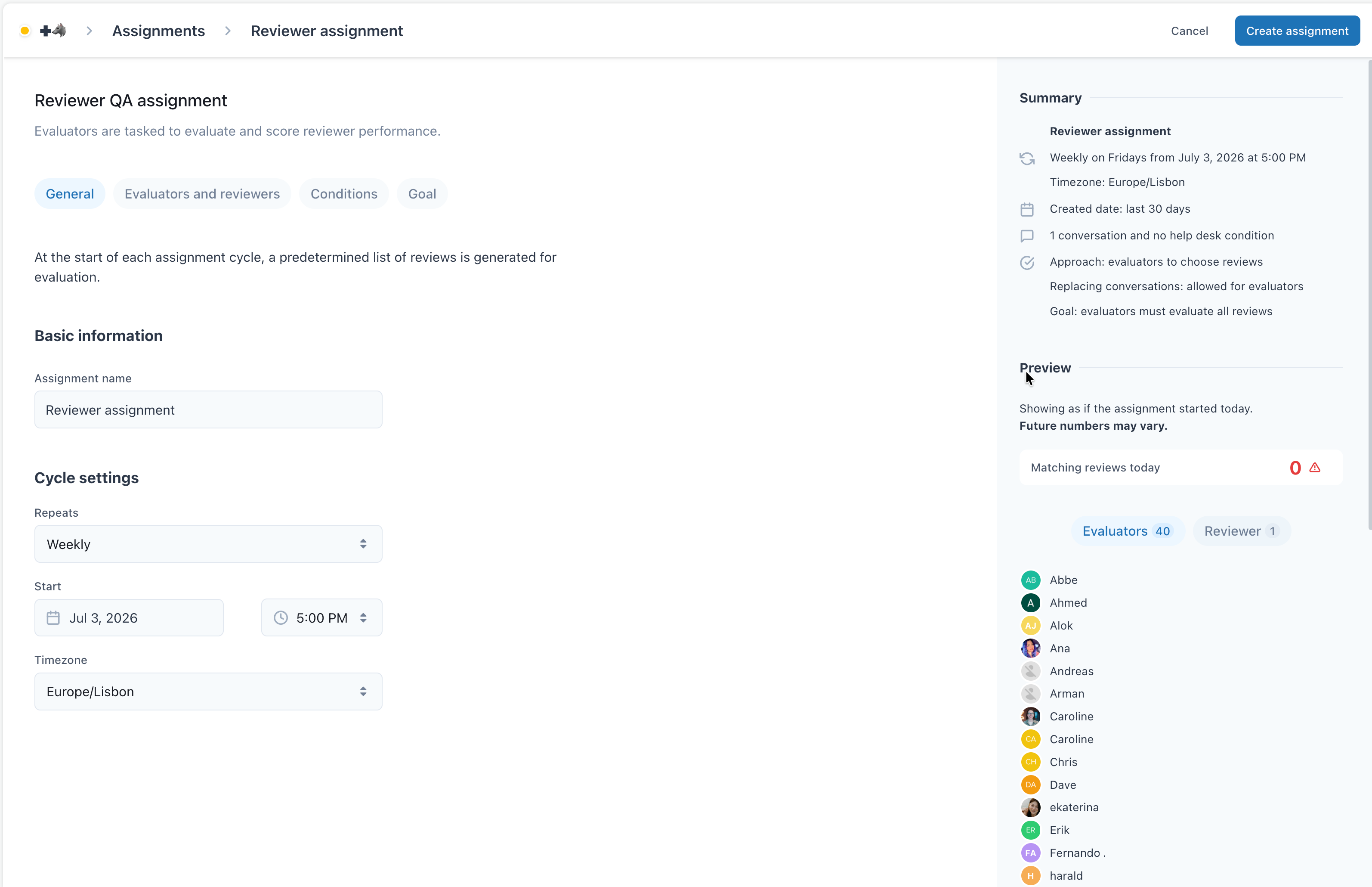
- Select the Timezone.
- Configure the assignment's evaluators and reviewers.
- Configure the assignment's conditions.
- Configure the assignment's goal.
- Click Create assignment.
Configuring reviewer QA assignment evaluators and reviewers
Use the Evaluators and reviewers tab to select which reviewers are evaluated and who evaluates them in your assignment.
When selecting who will evaluate reviews, you can select all workspace managers and leads, a group or selection of groups, a user, or a selection of users. You can also exclude users from evaluating and from being reviewed.
- Create a new reviewer QA assignment or edit an existing reviewer QA assignment.
- Click the Evaluators and reviewers tab.
- Under Evaluators, select who will evaluate reviewers from the following
options:
- All workspace managers and leads (default)
- A group or a selection of groups
- A user, or a selection of users
- (Optional) If you select all workspace managers and leads, or a group or list of
groups, you can also select the groups and users who shouldn't be evaluators in this
assignment under Exclusions.
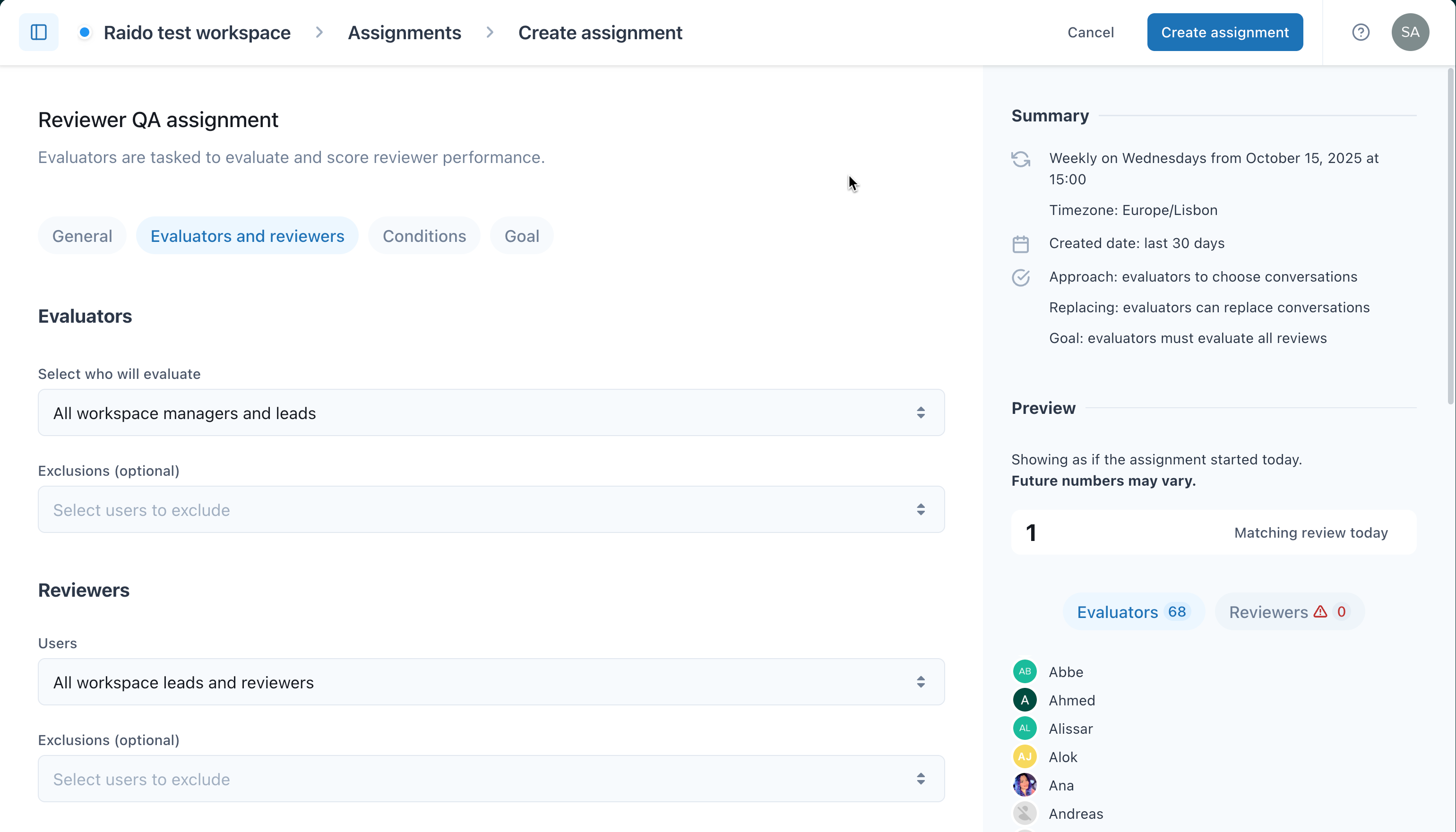
- Under Reviewers, select who will be evaluated from the following options:
- All workspace leads and reviewers (default)
- A group or a selection of groups
- A user, or a selection of users
- (Optional) Under Exclusions, select the groups, or users who shouldn’t be evaluated in this assignment.
- Click Create assignment if you’re creating a new assignment, or click Publish changes if you’re editing an existing assignment.
Configuring the conditions for the reviewer QA assignment
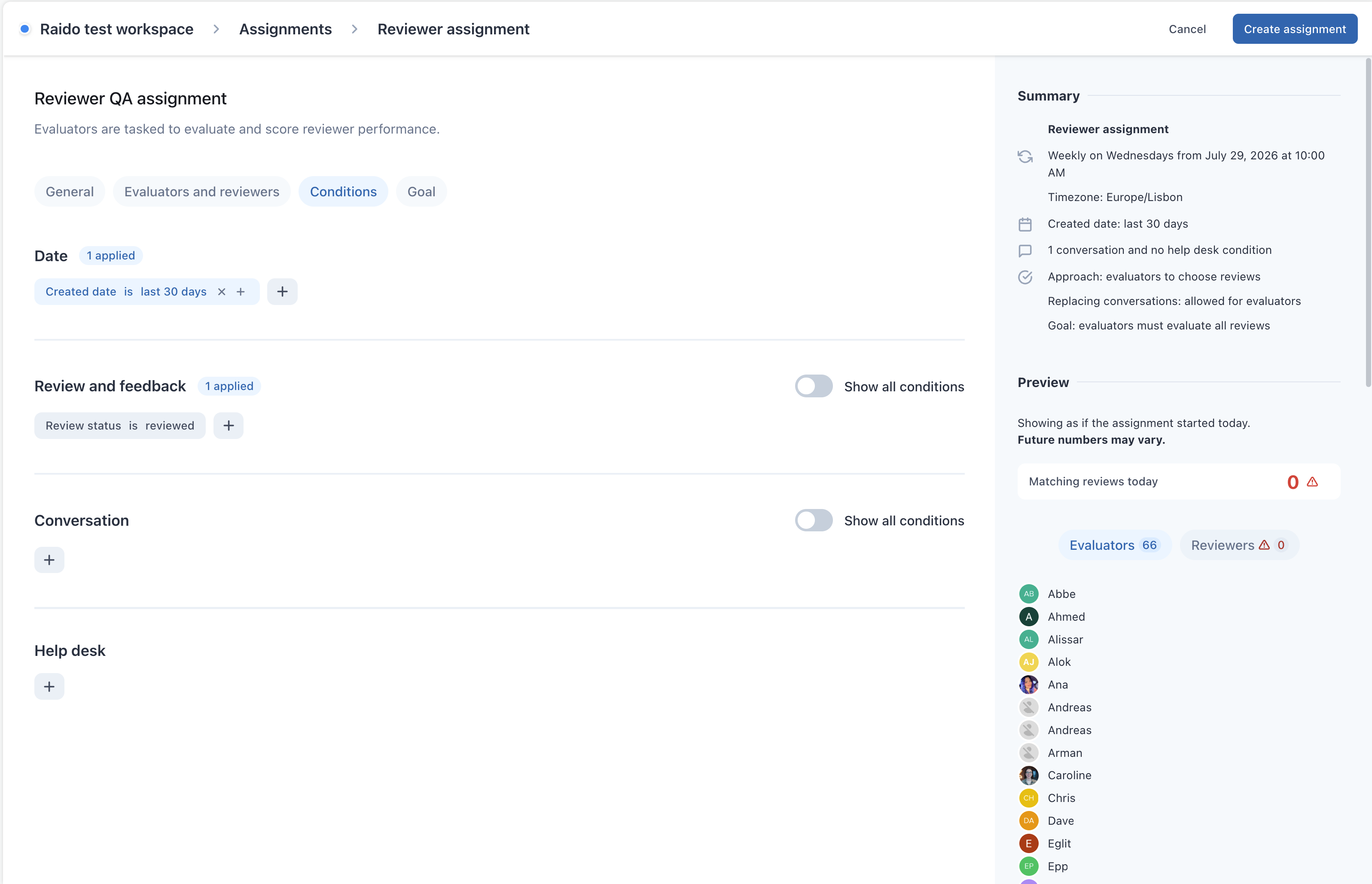
An assignment’s conditions describe the characteristics a conversation must meet to be assigned to an evaluator. The default review status of the conversation is Reviewed.
Assignment conditions in Zendesk QA are the same as the conversation filter types.
- Create a new reviewer QA assignment or edit an existing reviewer QA assignment.
- Click the Conditions tab.
- Under Date, Review and feedback, Conversation, or Help
desk, click the add icon (
 ) to add at least one condition to the
assignment.
) to add at least one condition to the
assignment.Turn on Show all conditions to display all available filters. You can either use the search box to find the filter type you want to create or scroll through the list until you find it. See Understanding conversation filter types in Zendesk QA.
- Click Create assignment if you’re creating a new assignment, or click Publish changes if you’re editing an existing assignment.
Configuring the reviewer QA assignment goal
The assignment goal is highly configurable. If you already have a QA approach, you can reflect the current process in these settings for how evaluators are tasked to evaluate and score reviewer performance.
- Create a new reviewer QA assignment or edit an existing reviewer QA assignment.
- Click the Goal tab.
- Under Assignment approach, select how reviews in a shared pool are assigned
to evaluators from the following two options:
- Evaluators can choose reviews from the shared pool
- Evaluators are assigned reviews from the shared pool
Note: Goals apply only to individual evaluators who are assigned reviewed conversations from a shared pool. They don’t apply to evaluators who can select reviews from this pool. - Under Review goal, enter the percentage or total number of reviews or
evaluations that must be completed from the following options:
- Set number of reviews must be evaluated collectively. You can set an exact number or a percentage of reviews that evaluators need to cover.
- Each evaluator must do a set number of evaluations. Specify the individual goal for each evaluator.
- Each reviewer must have a minimum number of their total reviews evaluated. Define the reviewer-based objective by setting a specific number or percentage of reviews that must be evaluated for each reviewer.
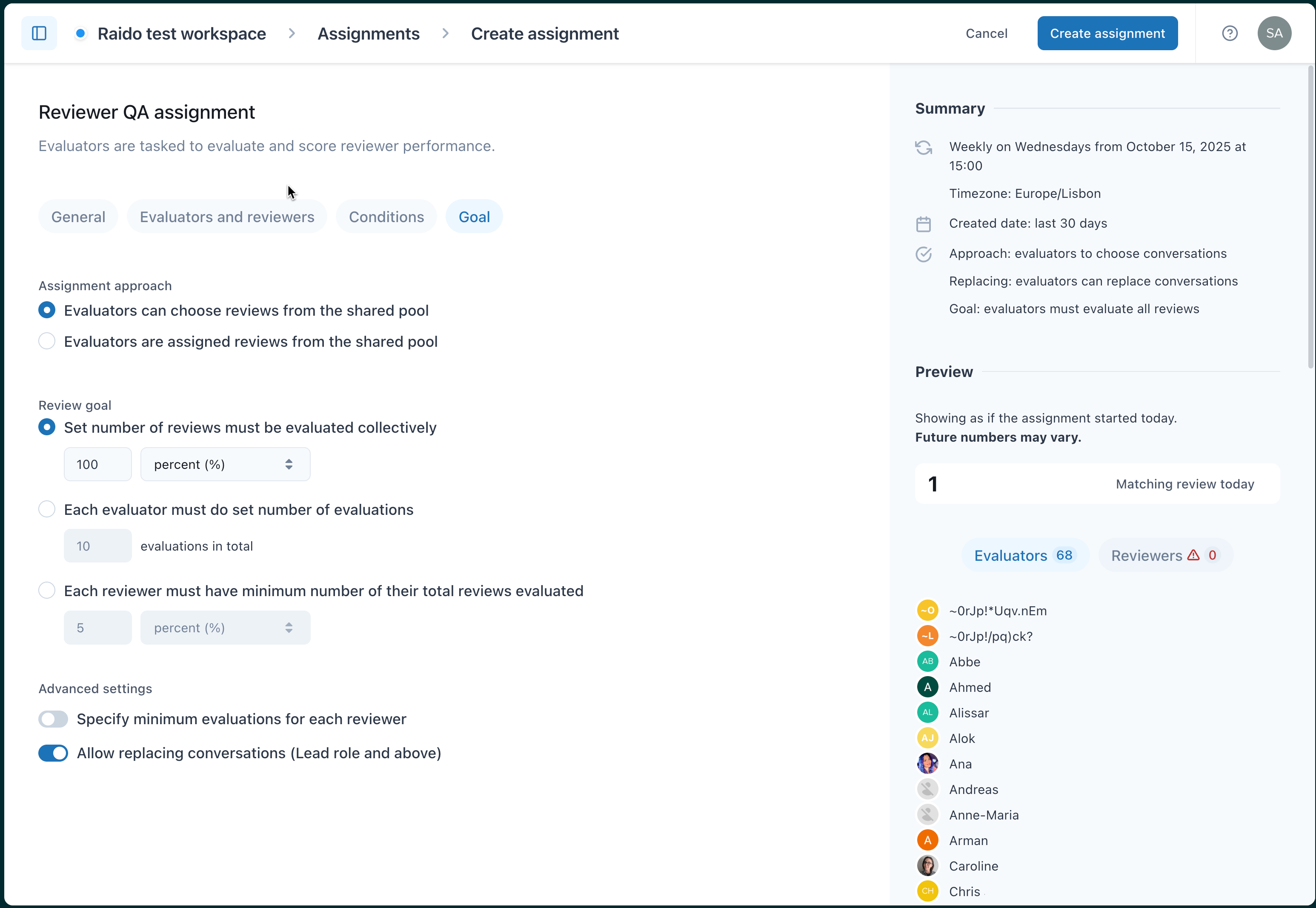
- (Optional) Under Advanced settings, you can configure the following:
- Specify minimum evaluations for each reviewer: Click the toggle to turn it on and enter a specific number to ensure that each reviewer meets the minimum number of evaluations.
- Allow replacing conversations (Lead role and above): Click the toggle to turn it on if you want evaluators to be able to choose a different review to evaluate, instead of the one provided from the list.
- Click Create assignment if you’re creating a new assignment, or click Publish changes if you’re editing an existing assignment.
Turning a conversation filter into a reviewer QA assignment
Another way to create an assignment is by turning a conversation filter into an assignment.
- In Quality assurance, click
 Conversations in the sidebar.
 - Click Public filters or Private filters to display a list of your public or private filters.
-
Create a new filter or click the options menu (
 ) next to the filter you want to turn into an
assignment and select Edit.
) next to the filter you want to turn into an
assignment and select Edit. - At the bottom of the page, click Turn into an assignment.

- Select Reviewer QA.
- Click Create assignment.
The assignment is automatically added to your Tasks list.