Summary: ◀▼
You can connect Jira as an external knowledge source to sync selected sites and spaces into your account, making Jira issue content available across knowledge experiences. As a Knowledge admin, you can choose which content to bring in, including issue key, summary, description, status, priority, type, labels, and comments. New, updated, or status-changed issues are synced automatically or by manual sync, with changes reflected in the Items count.
You can connect Jira to your Zendesk account to make content available wherever external content is used. You must be a Knowledge admin to set up and manage external content connections.
- Issue key
- Summary
- Description
- Status
- Priority
- Type
- Labels
- Comments
Setting up a Jira connection
You can set up a Jira connection to connect and sync supported content from your Jira account.
When you set up a Jira connection, you select the Jira site and related spaces that you want to sync. When the connector syncs, all supported content within that space will sync to your Zendesk account.
You can sync as many sites as you like; however, you must create a new connection for each one. After you create a Jira connection, you can configure workflows to use this external content or manage the external knowledge connection.
- In Knowledge admin, click Manage articles
(
 ) in the sidebar.
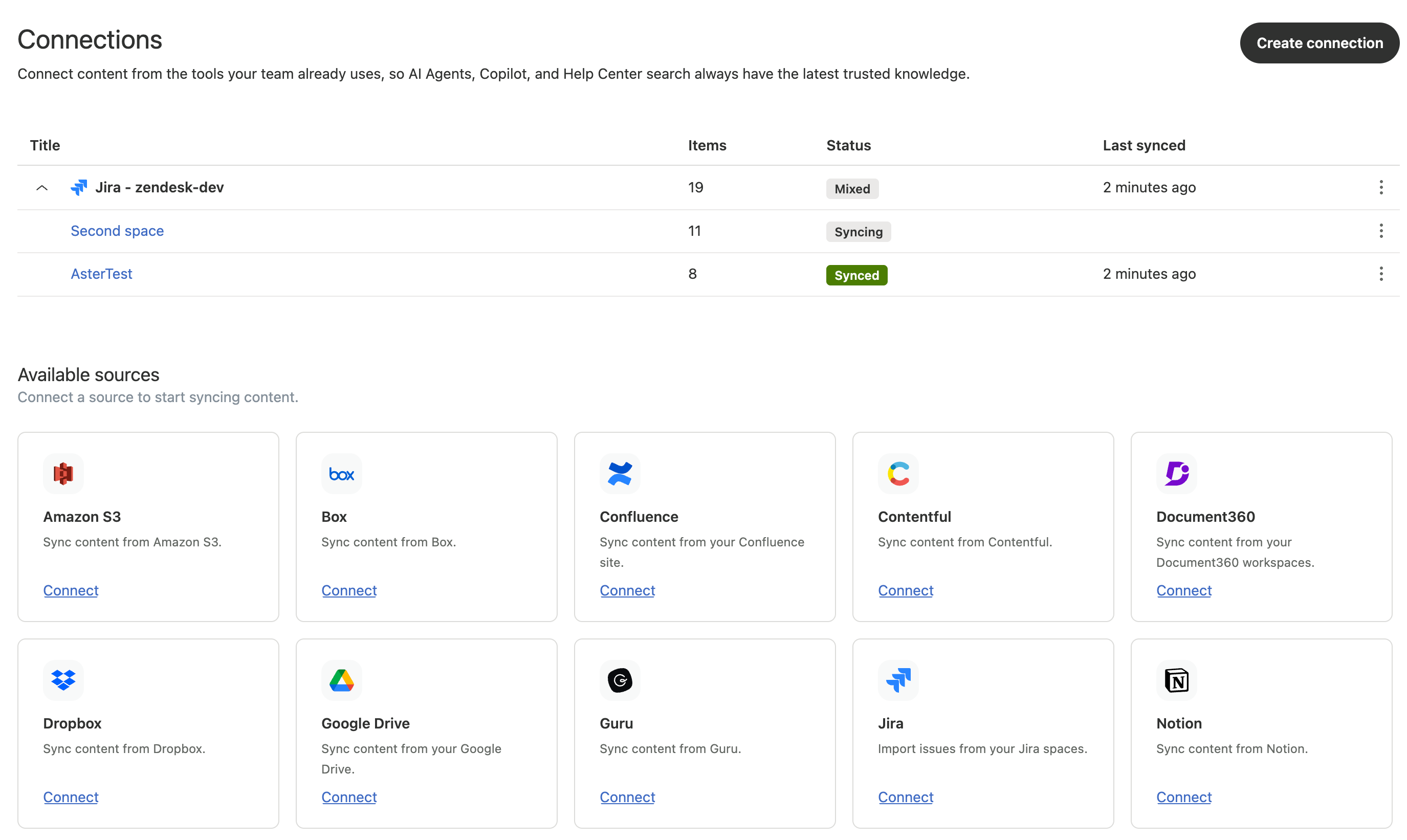
 - Click External content > Connections.
- Under the Available sources section, click Connect on the Jira card.
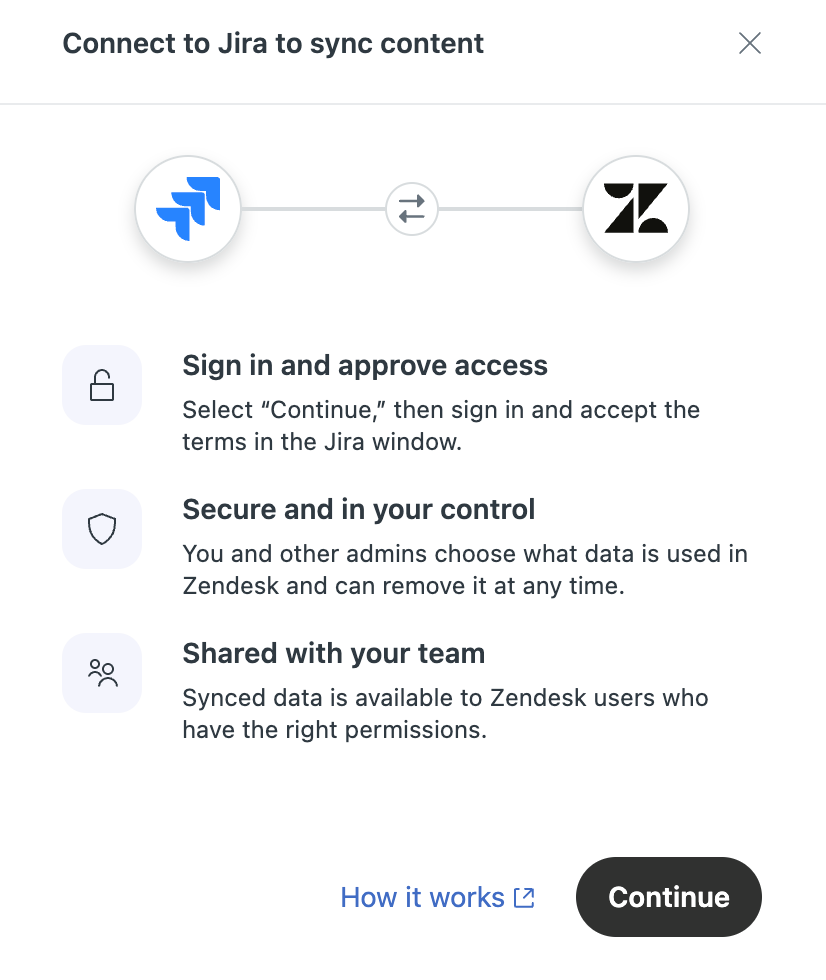
- Click Continue.
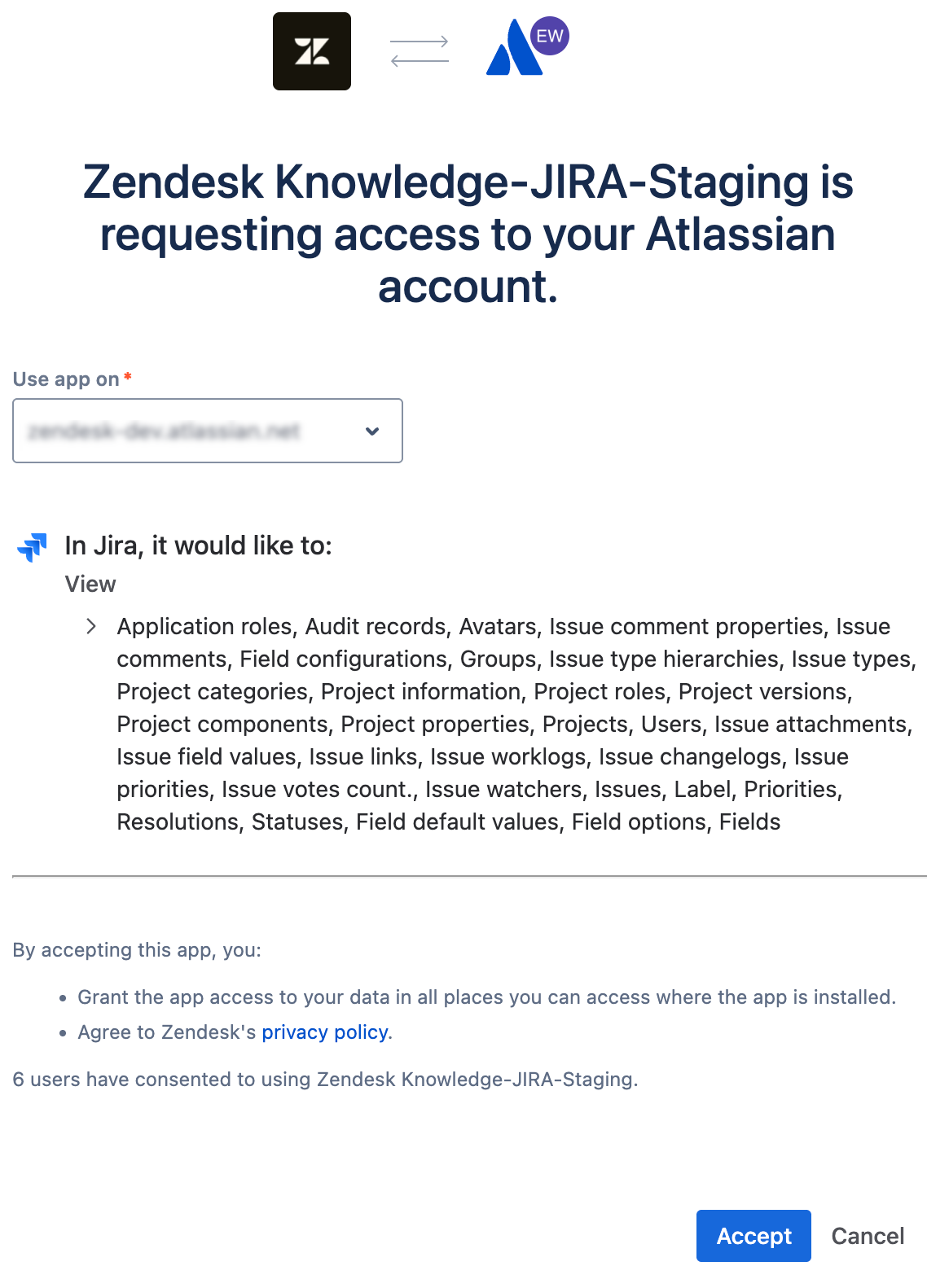
- In the Use app on* field, select the Jira account that you want to
sync with your Zendesk account, then click Accept.
- Select the Jira site and spaces that you want to sync to your Zendesk
account:
- Jira site: Displays all Jira sites that you have access to. Each Jira site maps to a single Jira connection. If you want to sync multiple sites, you must create a new connection for each site.
- Spaces: Displays all spaces in the Jira site you selected that you have access to. Each space that you select appears as a tag in the Spaces field. You can remove spaces that you selected in error by clicking the X icon on the space tag.
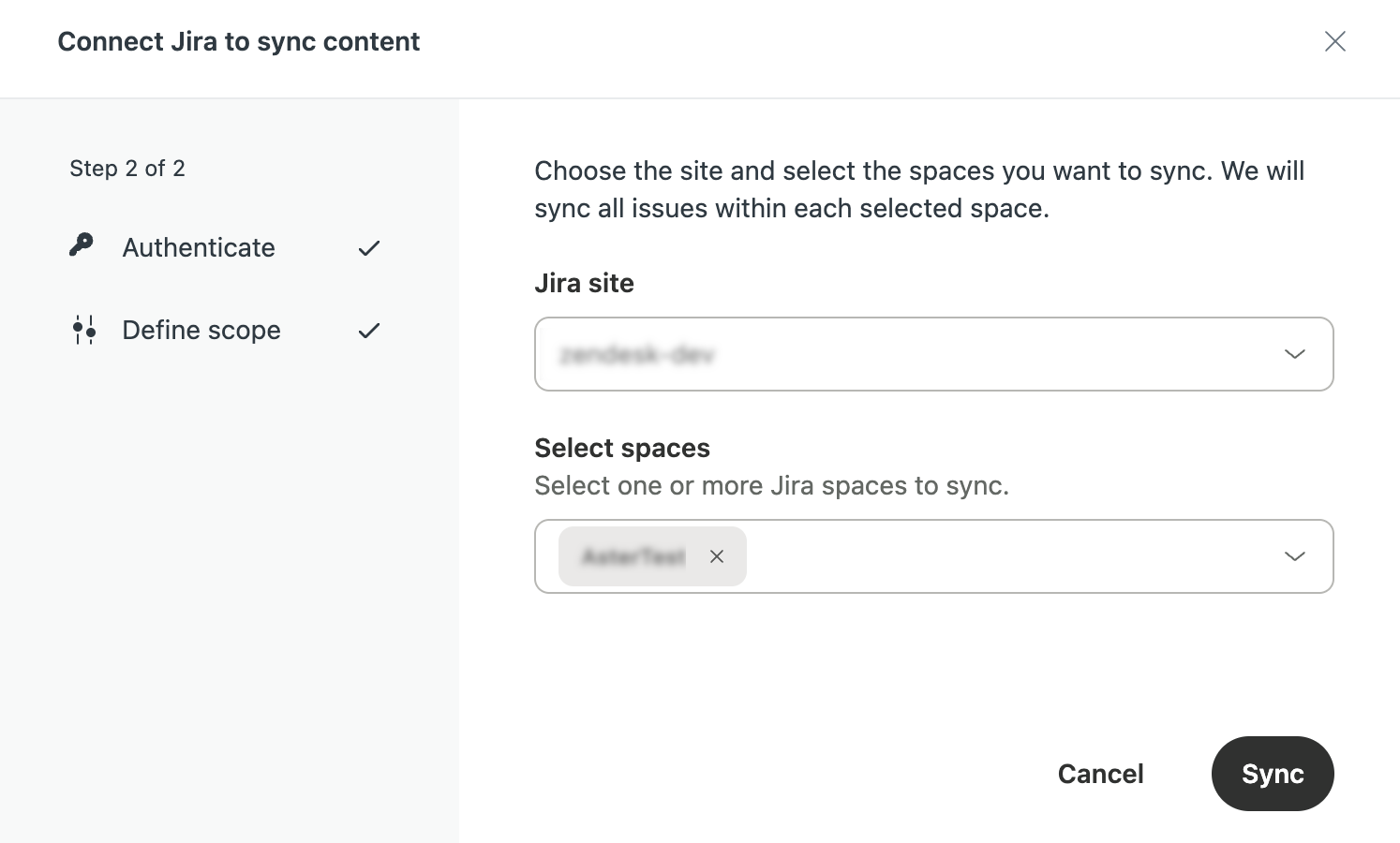
- Click Sync.
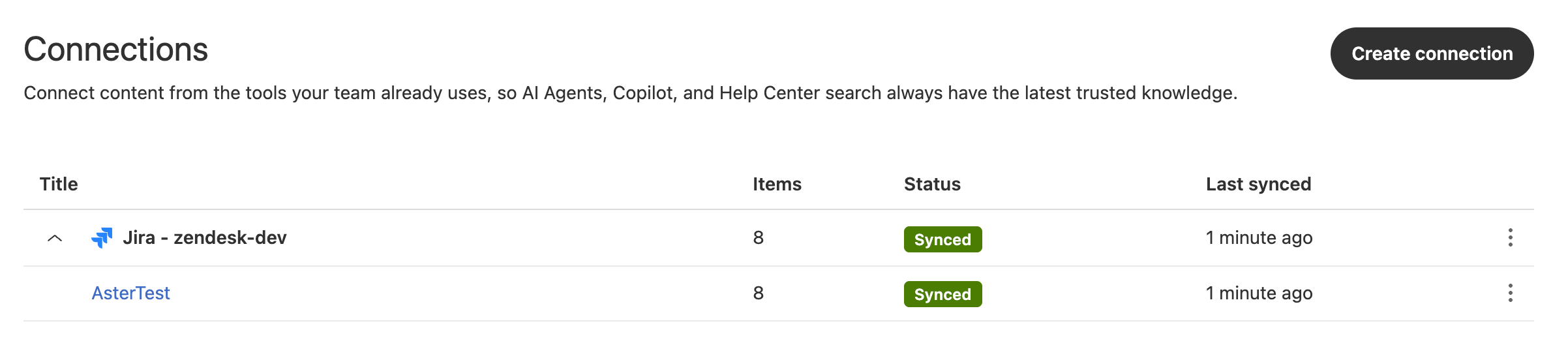
When the sync is complete, the page shows a green Synced status for each synced space. The number of Items reflects the number of issues that you synced from each space.
When Jira issues are created, updated, or have a change in status, the resulting changes are synced and updated in your Zendesk account. For issues to be synced to your Zendesk account, they must contain content.
Adding or removing content from your Jira connection
When you set up your Jira connector, you can create additional connections, with each connection containing a site. Within each site, you can select multiple spaces, each containing Jira issue fields. All supported content from within the selected sites and spaces are synced to the connection.
To add or remove content from a Jira connection, you can add or delete the content from your Jira space, then either wait for an automatic sync or manually sync your site. The new content item will be reflected in the Items number for the Jira connection on your Connections page.