Verified AI summary ◀▼
Learn how to manage email delimiters in notifications to control how replies are added to tickets. Turn on the delimiter to separate new content from old in replies, customize its appearance, and support multiple languages. Turn it off for a cleaner email look. Adjusting delimiters affects how ticket comments appear, especially with quoted or inline replies.
The email delimiter is a line of text used to inform the email recipient that any text entered into a reply must be above a certain line in the email.

You can include or exclude the delimiter from email notifications, depending on the email experience you want to give your end users. The email delimiter is turned off by default.
This article contains the following topics:
Related articles:
Adding the delimiter to email notifications
When the recipient's reply is received, the delimiter separates old content from new. The new content is added to the ticket as a comment. If the delimiter is turned on, you can customize the delimiter's text and font size, color, and type.
Turning on the delimiter
The delimiter is turned off by default. You can turn on the delimiter in email notifications if you want.
To turn on the delimiter
- In Admin Center, click
 Channels in the sidebar, then select Talk and email > Email.
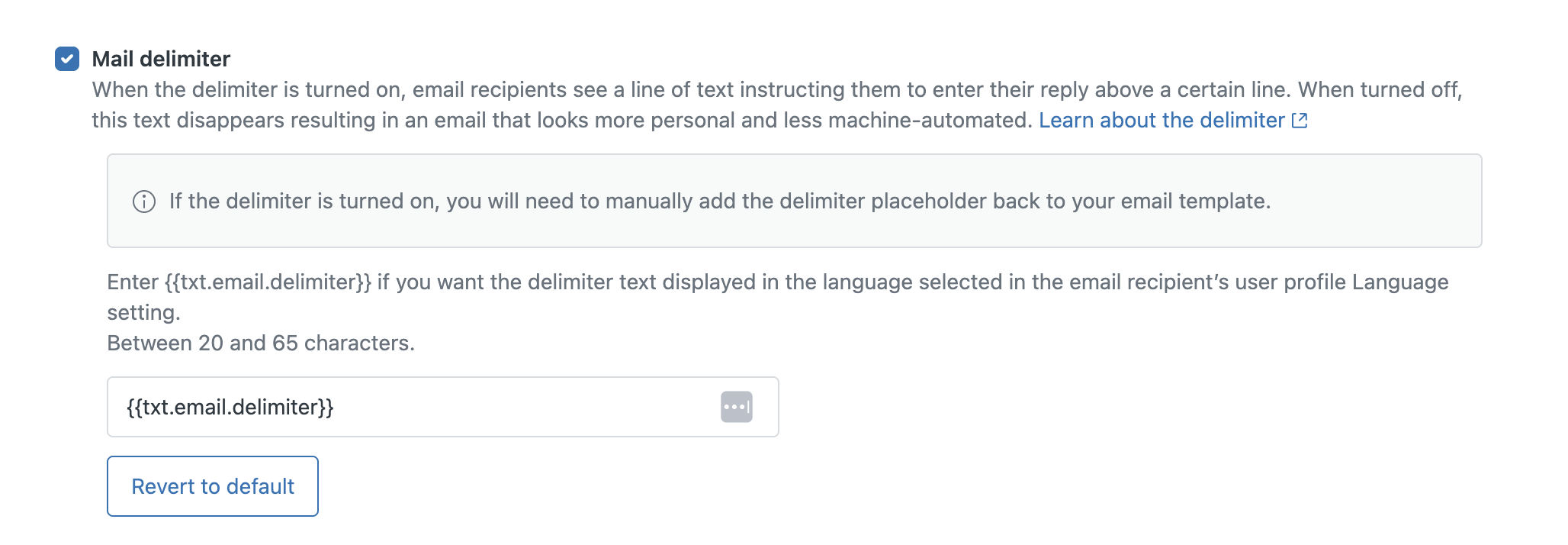
 - In the Email settings section, select the Mail delimiter checkbox.
- (Optional) If needed, edit the delimiter text.
-
Add the delimiter
placeholder to the email template.Note: Do not skip this step. If you do, new email notifications will include the entire email thread.
- Click Save.
After you complete these steps, new email notifications will include the delimiter. However, earlier email notifications did not include the delimiter, so replies to those notifications will include the entire email thread.
When the delimiter is turned on, if the email is too long (64 KB of text or greater), a Show more icon opens the original email in a separate browser window.
Adding the delimiter placeholder to the email template
If you turn on the delimiter, you must also add the delimiter code to the email template. If you don't, new email notifications will include the entire email thread.
To add the delimiter placeholder to the email template
- In Admin Center, click
Channels in the sidebar, then select Talk and email > Email.
- Click Edit email templates.
- Add the
{{delimiter}}placeholder and any surrounding CSS to the HTML template.For example:
<div style="color: #b5b5b5;">{{delimiter}}</div> - Make sure that the
{{delimiter}}placeholder comes before the{{content}}placeholder.For example:
<body {{attributes}} style="width: 100%!important; margin: 0; padding: 0;"> <div style="padding: 10px ; line-height: 18px; font-family: 'Lucida Grande',Verdana,Arial,sans-serif; font-size: 12px; color:#444444;"> <div style="color: #b5b5b5;">{{delimiter}}</div> {{content}} </div> <div style="padding: 10px ; line-height: 18px; font-family: 'Lucida Grande',Verdana,Arial,sans-serif; font-size: 12px; color: #aaaaaa; margin: 10px 0 14px 0; padding-top: 10px; border-top: 1px solid #eeeeee;"> {{footer}} {{footer_link}} </div> </body> - Click Save.
Editing the delimiter text
You can edit the delimiter text to reflect your organization better. Using placeholders, you can also support multiple languages in the delimiter.
To edit the delimiter text
- In Admin Center, click
Channels in the sidebar, then select Talk and email > Email.
- In the Mail delimiter field, enter a personalized delimiter that's between 20 to 65 characters long.
- Click Save.
Your delimiter can also support multiple languages if you use the
{{txt.email.delimiter}} placeholder. The text in the delimiter is drawn
from the translations provided for the languages supported in Zendesk. The language shown
in the email message is based on each user's language preference. This is a convenient way
to support different languages in your email template. However, it also means that you
have no control over the words in the translated versions of the delimiter.
Editing the delimiter font size, color, and type
You can edit your delimiter font size, color, and type in your email template HTML. Your edits should be on the same line as the placeholder. Don't make these changes on any other line, as it will affect the rest of your text.
If you are changing text color, use sufficient color contrast for accessibility. Follow the Web Content Accessibility Guidelines (WCAG) recommendations and utilize tools like WebAIM color contrast checker to check the contrast ratio between the text and the background.
Removing the delimiter from email notifications
If the delimiter is turned on in your email notifications, you may want to remove it so that emails look cleaner and feel more personal.
Turning off the delimiter
If the delimiter is turned on in your email notifications, you can turn it off. When the delimiter is turned off, all new outgoing email notifications will no longer include the delimiter. This is true for tickets that were created before turning off the delimiter. It doesn’t change the email experience for your end users in any other way.
For example, this email notification includes the delimiter. It's the first line of text used to inform the email recipient that any text entered into the reply must be above a certain line in the email.

When the delimiter is turned off, the delimiter text is not added to email notifications. For example:

To turn off the delimiter
- In Admin Center, click
Channels in the sidebar, then select Talk and email > Email.
- In the Email settings section, deselect the Mail delimiter checkbox.
- Click Save.
- Remove the delimiter code from the default email template (as described below).
To remove delimiter placeholder text from the default email template
If the delimiter is turned off, but you don’t complete the following steps, the delimiter text will be removed from email notifications, but any CSS styling applied to the delimiter placeholder's container may still render.
- In Admin Center, click
Channels in the sidebar, then select Talk and email > Email.
- Click Edit email templates.
- Do the following in your HTML template:
- Remove this code:
<div style="color: #b5b5b5;">{{delimiter}}</div> - If you customized the template, you need to remove
{{delimiter}}and any surrounding CSS.
- Remove this code:
- Scroll down and click Save.
If you turn the delimiter back on, you'll need to add the code back to your email template.
About comment appearance when the delimiter is turned off
Turning off the delimiter changes the appearance of comments from the ticket interface. This section explains what agents can expect to see when they are viewing comments in the ticket interface.
Quoted email replies
When viewing comments in the ticket interface, there's an ellipsis (…) below comments created from email. You can click the ellipsis to expand the quoted email reply.
Inline replies
Your end users may sometimes reply to emails by adding inline text to the body of the message. For example, they may say, “Please see my comment below,” and then add inline text to the body of the previous message. If they do this, here’s what the inline reply may look like:
-
If the reply is partially inline, an ellipsis (...) will be at the end of the comment. You can click the ellipsis to expand the reply and view the portion of the message that includes the inline text the end user added.

-
If the reply is completely inline, the entire email appears in the comment.
 Note: Inline replies aren't fully supported. Images in inline replies aren't sent as ticket comments.