Verified AI summary ◀▼
Manage how agents and end users access messaging conversation transcripts. Allow end users to download transcripts via the Web Widget. Configure agents to add transcripts to tickets as public replies or internal notes, controlling visibility. These settings help you streamline communication and maintain control over transcript access.
In Admin Center, you can manage how agents can add transcripts of messaging conversations to tickets, and whether they can be viewed by end users. You can also give end users permission to download conversation transcripts themselves in the Web Widget.
This article includes the following topics:
Allowing end users to download messaging conversation transcripts
You can choose to make messaging conversation transcripts available for download in the Web Widget. When this feature is turned on, end users can download transcripts without agent assistance from the Options menu.
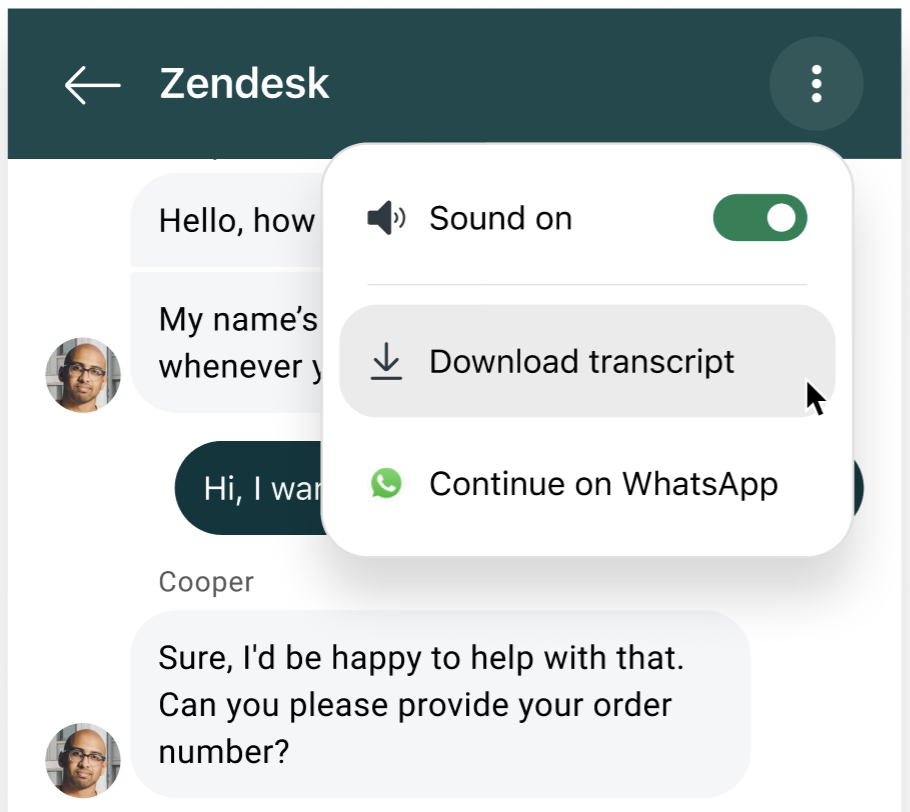
This setting is applied to all messaging Web Widgets on your account.
You can download transcripts from messaging conversations with AI or human agents. However, for AI agent-only transcripts:
- AI agent tickets must be turned on.
- The AI agent greeting message may not appear in the downloaded transcript.
To allow messaging transcript downloads
- In Admin Center, click
 Channels in the sidebar, then select Messaging and social >
Messaging.
Channels in the sidebar, then select Messaging and social >
Messaging. - Click Messaging settings.
- Under Advanced, expand the Downloading transcripts section.
- Select End users can download a transcript of the conversation. Deselect this option to prevent transcript downloads.
- Click Save settings.
Managing messaging conversation transcripts in tickets
Agents can add messaging conversation transcripts to tickets if needed. You can configure how conversation transcripts are added to the ticket.
There are two ways transcripts can be added to a ticket:
- As public reply (default setting) adds the transcript to the ticket history as a public reply, which is visible to ticket requesters and any other end users CCed on a ticket. Transcripts are included in email notifications and within the ticket when viewed in the help center. This setting also allows you to use ticket APIs to fetch conversation data.
- As internal note adds the transcript to the ticket events as an internal note, which is visible only to agents.
To configure transcript visibility
-
In Admin Center, click
 Objects and rules in the sidebar, then select Tickets > Settings.Note: For older accounts, transcript visibility is managed in the Chat dashboard. From the Chat dashboard, select Settings > Account > Zendesk Support tab.
 - Click Comment options for agents to expand it.
- Under Select how transcript will be added to the ticket, select As a
public reply or As an internal note.

- Click Save.