Verified AI summary ◀▼
Manage agents' time off requests through the Time off management page, where you can approve, deny, or reopen requests. Communicate with agents using comments and internal notes. Understand how full-day and partial requests align with scheduled shifts and billable hours. Notifications keep you informed of requests, and you can adjust closed requests as needed, ensuring accurate tracking and communication.
The Time off management page lets workforce management (WFM) admins and team members in custom roles with permission view agents’ time off requests and approve or deny them.
When agents submit a time off request, they select one of the time off reasons defined for your organization. You can approve, deny, or reopen requests. You can also choose to respond with a comment that is sent to the agent making the request or include an internal note that is visible to other admins.
Related articles
Understanding time off requests
A full-day request maps to the agent's scheduled shift for that day, such as a 9-hour shift instead of 24 hours. If an agent has multiple shifts starting in a day, all shifts will be covered by corresponding time off blocks.
Overnight shifts are attributed to the day they start and are fully covered if an agent requests a full day off.
Billable hours apply to both full-day and partial time off and represent the amount of paid time that time off covers. They equal the shift duration minus any unpaid portions, such as lunch or other unpaid tasks.
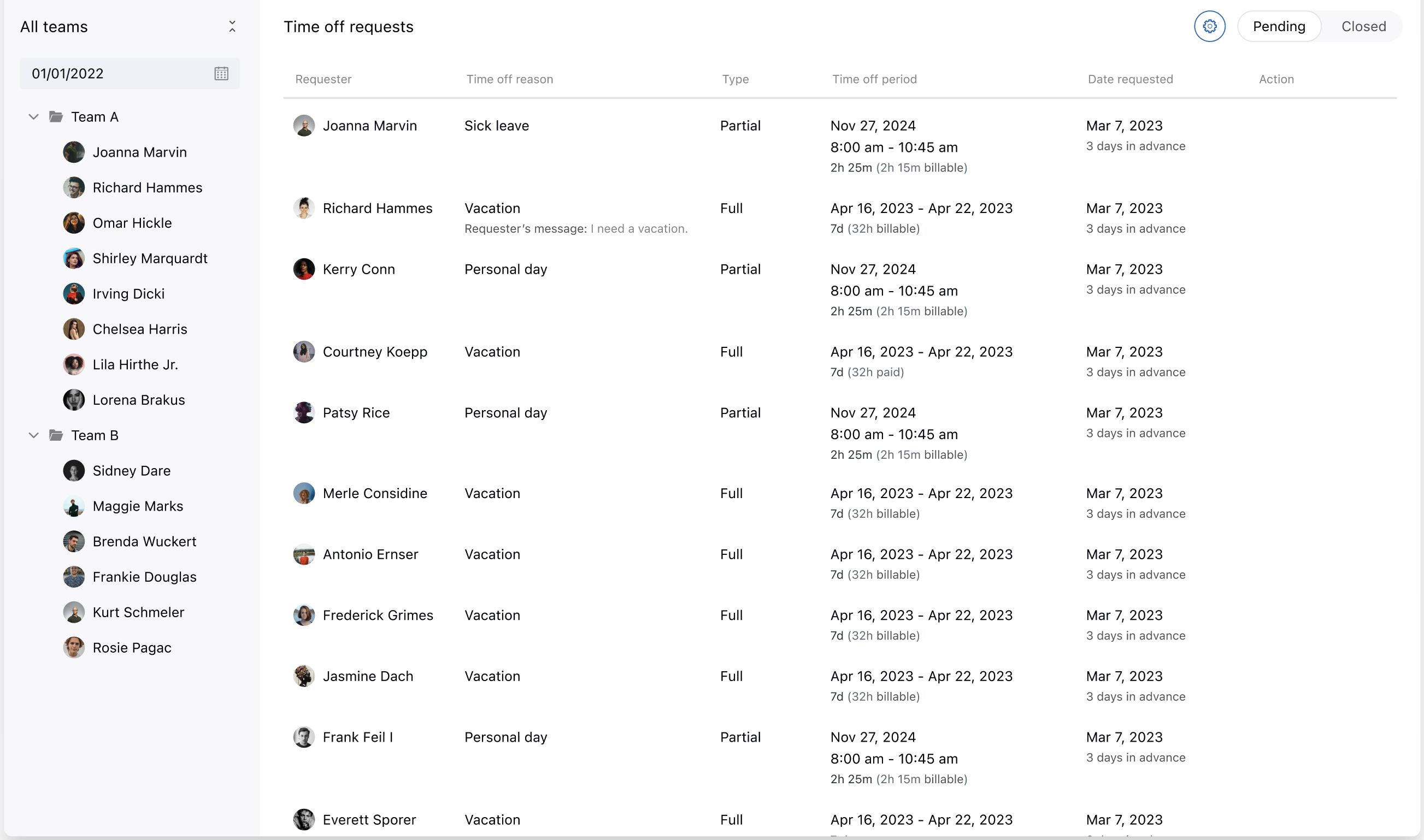
Billable hours are only counted on days when the agent is scheduled to work according to their assigned location settings. For example, if an agent never works weekends, a two-week time off spanning a weekend counts only the weekdays toward billable hours.
On the agent side, full-day time off requests map to the time zone of the agent’s assigned location. Agents see an in-product notification during the request. This ensures managers and agents share the same source of truth for time off timing.
Time off blocks and billable hours are calculated when the request is submitted and won't change retroactively if the agent’s shift changes later. You can delete a time off request and add it back to trigger a new calculation.
Agents can cancel a time off request anytime before the time off starts, whether the request is approved or still pending. This action doesn’t require manager approval.
Time off entries that a manager deletes from the Schedule page no longer appear in Time off management. Information about those entries remains available in Audit logs.
Viewing time off requests
You can view pending and closed time off requests by team or by a specific agent. Closed time off requests are requests that have already been approved or denied.
-
In Workforce management, click
 Scheduling in the sidebar, then select Time off.
By default, pending time off requests are displayed.
- (Optional) Select a team from the left sidebar to view that teams' time off requests.
- To view a specific agent's time off requests, select the agent from the sidebar. You
can also search for agents by name or email.

- To view approved or denied time off requests for a team or specific agent, click
Closed.

You can see who approved or denied the requests in the Status column.
Approving or denying a time off request
You'll receive an email notification when an agent requests time off. If the agent belongs to multiple teams, managers of all the teams the agent is assigned to receive the notification. If your organization hasn't set up multiple teams, then any WFM admin or team member with permission can manage requests.
- In Workforce management, click
Scheduling in the sidebar, then select Time off.
- Hover over the request you want to approve or deny, then click the options menu (
 ) in the Action column.
 - Select either Approve request, Deny request, or Respond with
comment.

- If you respond with a comment, enter a message to the requester.
You can also enter an internal note that will be visible to other managers and admins, but not to the requester.

After you approve or deny a request, it moves to the Closed tab.
Reopening closed time off requests
Closed time off requests are requests that were already approved or denied.
WFM admins and team members with permission can reopen closed requests as needed.
- In Workforce management, click
Scheduling in the sidebar, then select Time off.
- Find the agent or team whose closed time off requests you want to reopen.
- Click Closed.
- In the Status column, hover over the request's status and click the options menu
().

- Depending on the status of the request, select one of the following options:
- Approve request or Deny request
- Reopen request
- Reopen and respond with comment
If you reopen a request, it's moved to the Pending tab.