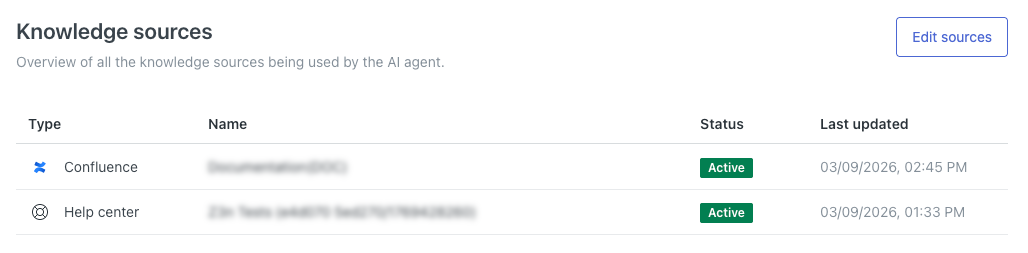
Knowledge sources are the information your AI agent uses to create AI-generated answers to questions from your customers. Adding knowledge sources to your AI agent lets it generate answers to help customers without requiring you to script every response.
This article contains the following topics:
- About knowledge sources
- Connecting a Zendesk help center to an AI agent
- Connecting an external knowledge source to an AI agent
- Disconnecting a knowledge source
- Viewing all connected knowledge sources
Related article:
About knowledge sources
You can connect the following types of knowledge sources to an AI agent:
- Zendesk help centers: The help center associated with your Zendesk account (or a specific brand, if you’ve set up multiple brands).
- External knowledge sources: Content from external sources, which is brought into your Zendesk account through a web crawler or a knowledge connector.
You can connect multiple knowledge sources to a single AI agent. For example, you can connect multiple Zendesk help centers, multiple external sources, or a combination of both. Nevertheless, we recommend keeping the overall number of knowledge sources within a reasonable limit. Having too many sources can in some cases lead to reduced accuracy and increased latency.
Connecting one or more knowledge sources is required in order for an AI agent to create an AI-generated answer. If you add a Generative replies block in a dialogue, or instruct a generative procedure to produce a knowledge reply, and you have no connected knowledge sources, a technical error will occur.
When an AI agent searches a connected help center, it searches the current content of the help center at the time the search is performed. However, when an AI agent searches a connected external knowledge source, it searches the information that was available as of the last sync, which usually happens every 24 hours.
If you’re using restricted help center content, AI agent responses respect the article view permissions, which means:
- If the customer is authenticated, the AI agent can use relevant restricted articles to generate its response.
- If the customer is unauthenticated, the AI agent can use only public articles to generate its response.
For more information, see Using restricted help center content in AI agent responses.
Connecting a Zendesk help center to an AI agent
You can connect a Zendesk help center associated with any of your brands to an AI agent. The AI agent can then use the help center content to generate answers to customer questions.
Your help center must be activated before you can connect it to an AI agent.
To connect a Zendesk help center
- In the AI agents workspace, select the AI agent you want to work with.
- Click
 Content in the sidebar, then select Knowledge sources.
 - Click Edit sources.
A Knowledge sources dialog appears.
- In the field at the top, select Help center.
- In the list, select the Zendesk help center you want to connect to the AI
agent.
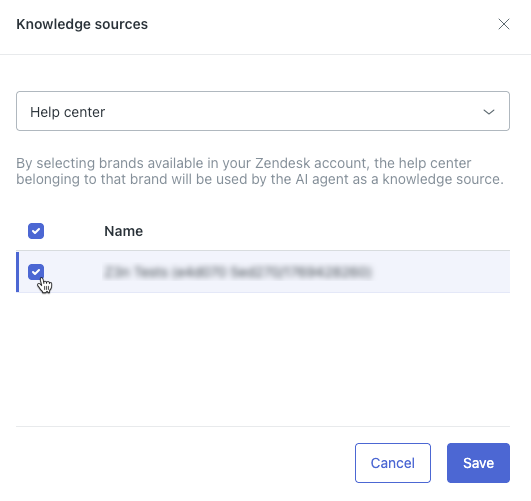 Tip: If you don’t see your help center, make sure you’ve activated it.
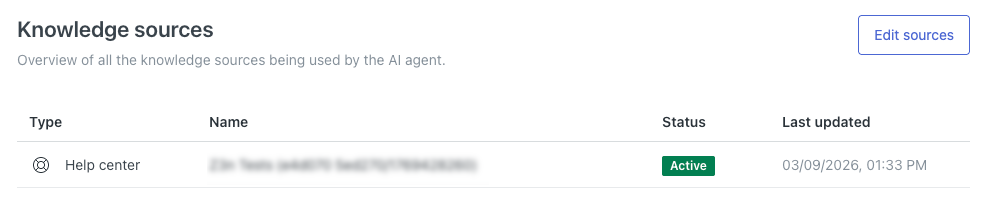
 - Click Save.
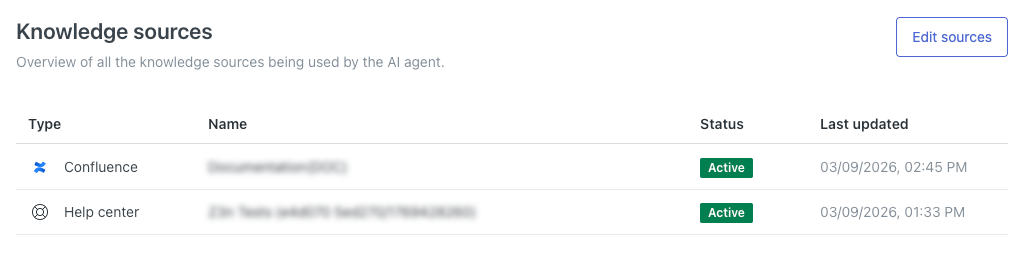
Your help center appears in the Knowledge sources list.
Connecting an external knowledge source to an AI agent
You can also connect an external knowledge source to an AI agent so the AI agent can use the information from that source when generating answers to customer questions.
To connect an external knowledge source
- If you haven’t already, connect an external knowledge source to your Zendesk account.
- In the AI agents workspace, select the AI agent you want to work with.
- Click
Content in the sidebar, then select Knowledge sources.
- Click Edit sources.
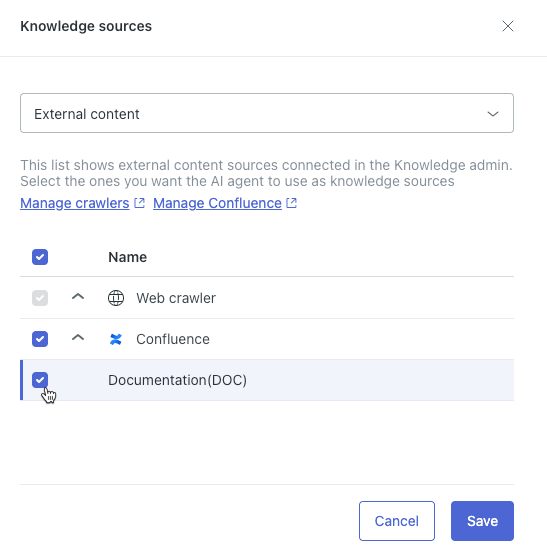
A Knowledge sources dialog appears.
- In the field at the top, select External content.
- In the list, expand the type of external knowledge source if necessary, then
select the source you want to connect to the AI agent.
- Click Save.
Your external knowledge source appears in the Knowledge sources list.
Disconnecting a knowledge source
You can disconnect a knowledge source from an AI agent to prevent the AI agent from using the information in that source when generating answers to customer questions.
To disconnect a knowledge source
- In the AI agents workspace, select the AI agent you want to work with.
- Click
Content in the sidebar, then select Knowledge sources.
- Click Edit sources.
A Knowledge sources dialog appears.
- In the field at the top, select either Help center or External
content.
In the list, deselect the knowledge source you want to disconnect.
- Click Save.
The disconnected knowledge source is removed from the Knowledge sources list.
Viewing all connected knowledge sources
In your AI agent’s settings, you can view all the content sources currently connected to it. The AI agent will use these sources to generate answers to customer questions.
To view all connected content sources
- In the AI agents workspace, select the AI agent you want to work with.
-
Click
Content in the sidebar, then select Knowledge sources.
This page shows you a list of all knowledge sources currently connected to the AI agent.