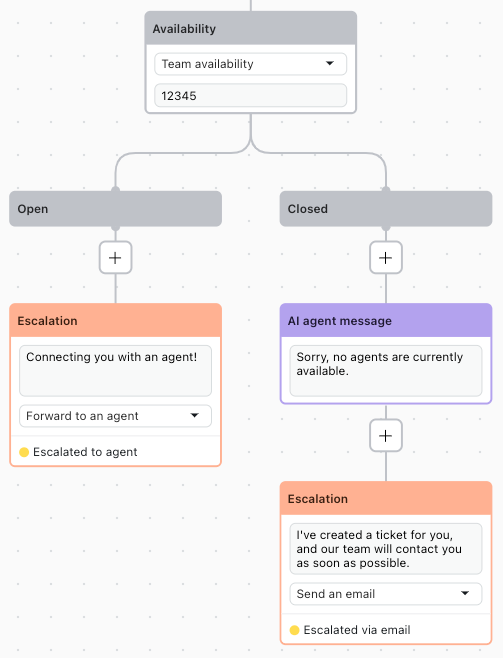
During conversations between users and AI agents, business hours and agent availability can be used to determine how the AI agent should respond based on those factors.
- Escalation flows: When a user asks to be escalated to a human agent, the AI agent can check whether it's within business hours and whether any team members are available.
- Processes with team-specific transfer flows: For teams working different hours, the AI agent can check hours and change the response as needed.
- System replies for welcome, default, and failed escalation: When system replies are sent, the AI agent can provide different responses based on business hours.
Related article:
Defining your business hours
Business hours define the working hours for your human agents. You can define different time zones and business hours for different teams to support multi-region teams.
You can set business hours in one of two ways:
Creating a schedule to define business hours (Recommended)
You can use a schedule to define the business hours for your Zendesk Support instance, including AI agents. With schedules, you can select a time zone, define business hours, and set holidays. For more information, see Setting your schedule with business hours and holidays.
Editing an operating hours rule (Legacy)
- In the AI agents workspace, select the AI agent you want to work with.
- Click
 Settings in the sidebar, then select Operating hours.
 - In Rule name, enter a descriptive name for the rule.
- In Time zone, select a time zone.
- Select the appropriate days of the week and specify the operating hours for each
day.
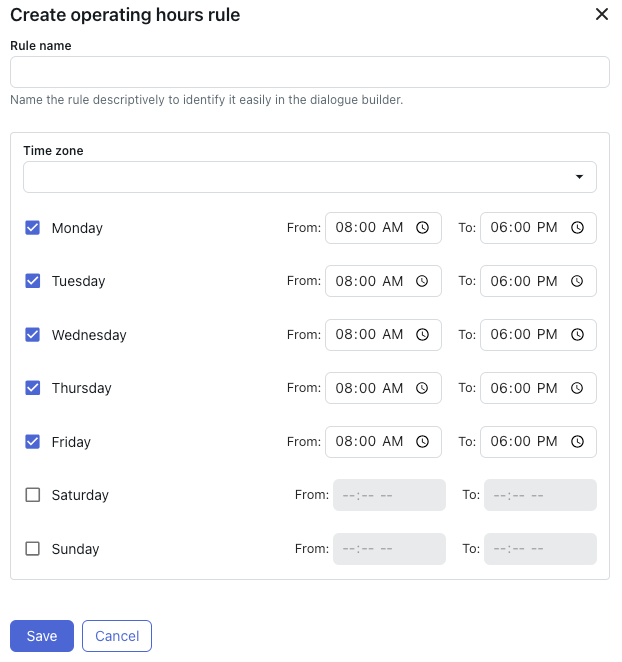
- Click Save.
Checking business hours in a conversation flow
After you define your business hours, you can check them during conversations to determine how your AI agent should respond.
To check business hours
- Create a new dialogue or open an existing one.
- Add an Availability block.
For help, see Creating dialogues to define scripted conversation flows for AI agents.
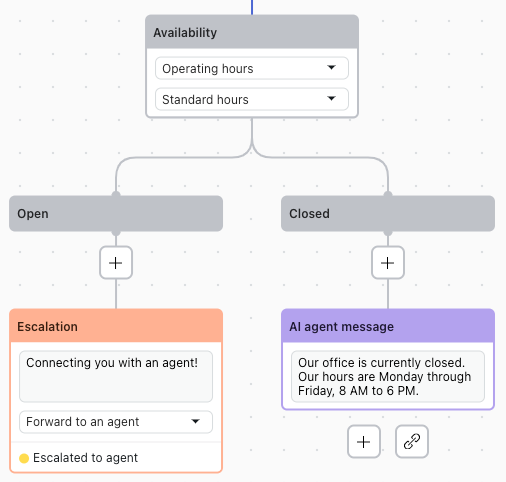
- In the first drop-down, select either Schedules or Operating hours,
depending on how you defined your business
hours.Note: Operating hours doesn't appear for customers who didn't create an operating hours rule prior to July 2, 2026.
- In the second drop-down, select either the schedule or the operating hours rule you created above.
- Define the AI agent's response based on the branch:
- Open: Add an Escalation block with a message and escalation method.
-
Closed: Add an AI agent message block explaining your hours, or
additional follow-up options for the customer as needed.
For additional help, see Configuring escalation strategies and flows for AI agents.
- Click Save to save your work for later, or click Publish to make your changes live.
Checking team availability in a conversation flow
You can check whether agents are available before escalating or offering additional options.
Regardless of whether you use omnichannel routing, this check assesses the Support status for the agents within the escalation group. If any agent is online, the team is considered available. If you want to check for agents' messaging status instead, contact Zendesk customer support and ask that messaging-based team availability be turned on.
To check team availability
- Create a new dialogue or open an existing one.
- Add an Availability block.
For help, see Creating dialogues to define scripted conversation flows for AI agents.
- In the first drop-down, select Team availability.
- In the second drop-down, enter the ID of the team (group) you want to check availability
for.
For help, see How can I retrieve the group ID in Support?
- Define the AI agent's response based on the branch:
- Open (agents are available): Add an Escalation block with a message and escalation method.
-
Closed (no agents are available): Add an AI agent message block
explaining that no agents are available, or additional follow-up options for the
customer as needed.
For additional help, see Configuring escalation strategies and flows for AI agents.