Summary: ◀▼
Actions automate tasks by suggesting updates to ticket fields, statuses, and integrations, saving agents time. You can use standard actions without setup or create custom actions via APIs to connect external systems. Pre-approved actions run automatically in procedures, ideal for information-gathering or high-confidence tasks. Auto assist limits suggestions to four actions, balancing efficiency and control in customer support workflows.
Actions are available for use by auto assist, which is part of the Copilot add-on, and by action flows, which perform a pre-defined series of automated actions. There are two types of actions: standard and custom actions.
This article describes what actions are and how they are used in Zendesk.
Understanding actions for automated tasks
Auto assist suggests relevant actions and action flows to your agents to help them solve customer requests. When auto assist suggests an action, the agent can approve it and the system carries out the action automatically, saving the agent time. Similarly, when auto assist suggests an action flow, the agent can approve it and the system carries out all of the steps automatically.
Actions and action flows can be linked directly in procedures to ensure that auto assist performs the correct action for a user's request. Additionally, you can include custom actions as steps in action flows.
There are two types of actions: standard actions for auto assist that require no configuration from you and custom external actions that you configure based on an API.
Standard actions don't appear on the Actions page in Admin Center and can't be modified.
Auto assist action limits
Auto assist can suggest up to four actions at a time in most cases. Reply suggestions and agent instructions count towards this limit.
For example, if auto assist suggests a reply, agent instructions, and two actions, such as updating the ticket status and the ticket priority. In this case, the action limit will be met.
The exception to this limitation is if auto assist suggests a macro as an action. When this happens, then the suggestion can include only agent instructions in addition to the macro. Auto assist can't suggest a macro and any other type of action at the same time.
Keep these limitations in mind when writing procedures, especially when including steps that combine multiple actions.
Understanding standard actions for auto assist
Auto assist includes the following standard actions:
- Update ticket status to any standard or custom status
- Update the priority, type, and tags ticket fields
- Update checkbox, date, decimal, dropdown, number, or regex custom ticket fields
- Leverage a Shopify integration to look up a Shopify order, cancel and refund an entire Shopify order, or refund selected items from a Shopify order. (See Workflow recipe: Canceling and refunding a Shopify order with auto assist.)
You can also update the ticket assignee and group, but these capabilities don't appear in the standard actions list. To update the ticket assignee or group in a procedure, enter an instruction such as, "Set the ticket assignee to [Agent name]" or "Change the ticket group to [Group Name]." Auto assist recognizes the instruction and applies its built-in logic automatically when the step is triggered.
When you insert a standard action in a procedure, you must specify the value you want auto assist to update the ticket or field to. The reference to value is entered directly after the standard action in the procedure.

You can reference the value by entering it in plain text or by using a value from the conversation, another field, or another action.
Change field 'Language'. You
could enter any of the following to specify a value:-
Change field 'Language'to Spanish -
Change field 'Language'to the value from "Product language" field -
Change field 'Language'to the language used by the customer -
Change field 'Language'to language returned by Action or Action flow
If you insert a standard action in a procedure that updates a conditional ticket field, then you must position the action to update the conditional field before the action that updates its parent ticket field. This is because actions are executed sequentially and required fields must be set first for the subsequent actions to succeed.
For example, if the parent field in a conditional ticket field is named "Product" and is configured to display the conditional field "Model" when the value "Laptop" is selected. In this case, you should position the action to update the "Model" field before the action to updated the "Product" field.

Understanding custom actions
Custom actions allow you to update data outside of Zendesk using an API you define. These actions allow you to query and modify your internal business systems or perform a third-party action. The more actions you configure, the more options are available to AI agents during conversations with customers and to auto assist when it generates suggestions for agents.
Using Zendesk APIs with custom actions
Because you can create custom external actions using any API, it's possible to create an external action that points to a Zendesk API. If you do this, however, there are some considerations to keep in mind:
- These API requests count against your overall Zendesk API rate limits. See Managing API usage in your Zendesk account.
- Custom actions support bursts of up to 280 action executions, and can then continue at a rate of 6 executions per second during a recharge period. This limit applies to custom action executions in action flows and auto assist cumulatively.
- As part of action setup, you’ll create a connection to authorize the request, which uses a Zendesk API token or OAuth token. This connection might have greater access privileges than your agents and end users, so you’ll need to be cautious that you don’t accidentally expose information they shouldn’t see.
- In the future, you’ll need to migrate your Zendesk API actions to out-of-the-box Zendesk actions if and when equivalent actions become available.
- Be mindful of how changes made by these API requests may interact with other parts of your Zendesk configuration, such as triggers, automations, and apps.
About inputs for custom actions
An input for a custom action is the information that the action uses in order to run.
-
Generated information, based on the conversation between the end user
and the agent
AI agents and auto assist use generative AI to extract information from the conversation and pass it to an action or action flow as an input.
For example, say you have an input named "order_id" with the description “the customer’s order number, which is typically an integer of 9 or 10 digits”. If an agent asks, "Can I please have your order number?" and the end user replies, "Sure, it's 987654321", the action will pass this information to the "order_id" input.
-
Ticket fields
Custom ticket fields, and certain standard ticket fields listed below, can be used as inputs. When using a ticket field as an input, enter a name and description that's detailed enough that auto assist understands which ticket field you're specifying.
For example, entering "email" as an input isn't clear enough. Instead, you may want to name an input "requester_email" with a description such as "the email address of the end user who requested help."
-
Ticket ID
When using the ticket ID as an input, you must use the specific name zendesk_ticket_id and set the type as a number. The AI agent or auto assist populates that input with the ID of the ticket.
When making use of the input in your API configuration, you can wrap the input placeholder in quotes to convert it to a string, or incorporate it into a larger string.
For example, you could have the following property in your API body:
"note":"Ticket number {{zendesk_ticket_id}} has been updated!"
AI agents and auto assist have access to read custom ticket fields and the standard ticket fields below:
- Assignee email
- Assignee name
- Brand
- Custom ticket fields
- Priority
- Requester email
- Requester name
- Status
- Subject
- Type
Understanding pre-approved actions for auto assist
In auto assist procedures, you can mark custom actions and action flows as pre-approved.
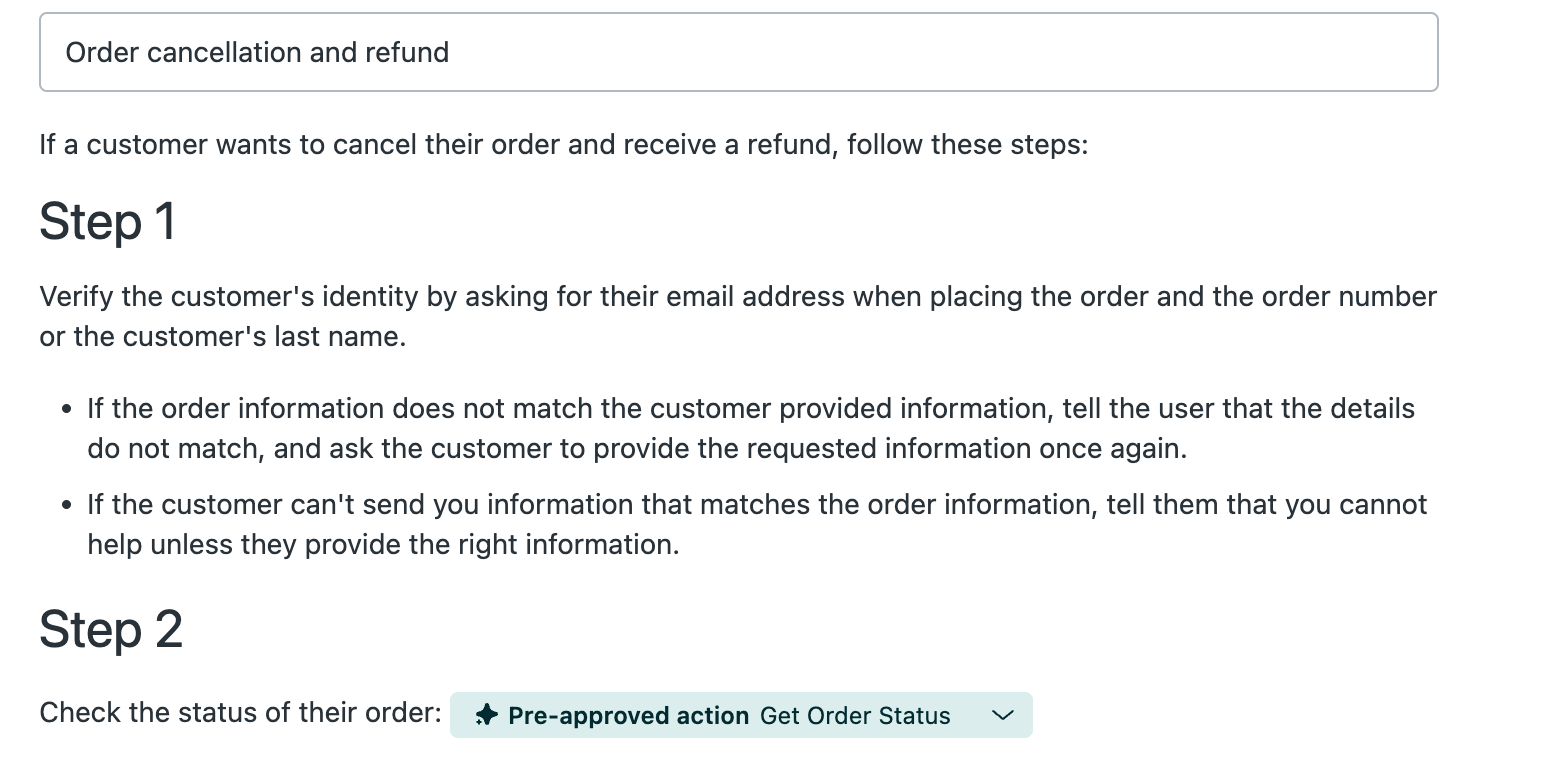
Marking a custom action or action flow as pre-approved means that it won't be suggested to an agent for approval. Instead, it's automatically executed in the specific part of the procedure where it was inserted.
For example, say you have a custom action that checks if an order can be returned. You can mark this action as pre-approved in a procedure and auto assist will automatically perform this action when a customer asks about returning an order.
As a best practice, the following types of actions are good candidates for marking as pre-approved:
- Information-gathering actions: Actions that only read data (such as checking the shipping status) and can be executed multiple times without changing existing data. Actions that write data, such as an action that refunds an order, should be marked as agent-approved so that an agent can validate the action before it's executed.
- High-confidence actions: Actions in procedures that have a high agent acceptance rate. You can check actions' acceptance rate in your reporting. See Metrics and attributes for Zendesk AI.
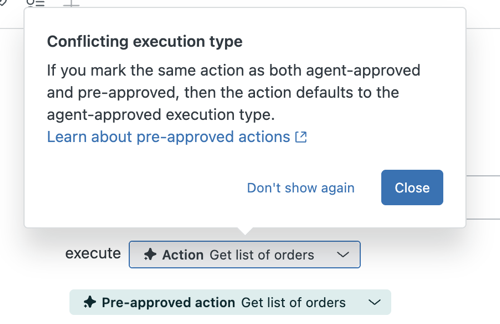
Note that if you insert the same action into a procedure more than once and mark one as pre-approved and another as agent-approved, the action defaults to agent-approved.
- It's not guaranteed when actions will run in a conversation and pre-approved actions may be executed in a different order than specified in a procedure. This can happen if auto assist determines a pre-approved action should be executed sooner or later than specified in a procedure, based on the ticket's context. For example, if an end user asks at the beginning of the ticket for something that's covered by the action at a later stage of the procedure, then the action might be executed sooner than specified in the procedure.
- For actions that should be executed only if prior conditions are satisfied, it's possible that auto assist may execute the action without satisfying its prior conditions.
To mark a custom action or action flow in a procedure as pre-approved, see Creating procedures for auto assist.
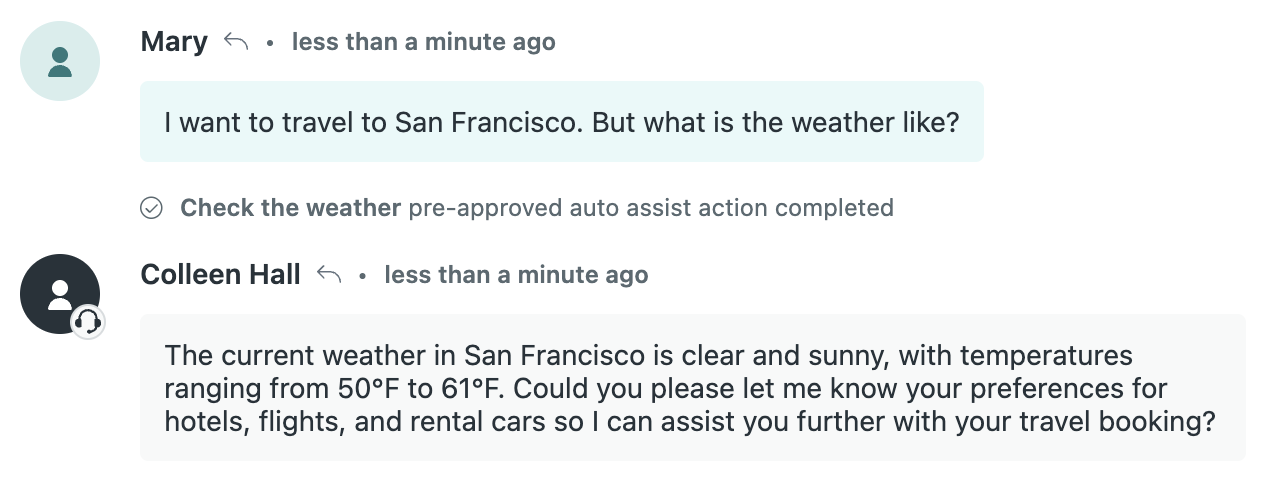
When a pre-approved action is executed automatically, an event is logged in the ticket's events.

The conversation log also displays executed pre-approved actions so that agents are aware.