Summary: ◀▼
Admin copilot provides weekly insights and personalized recommendations to help you monitor account performance, identify inefficiencies, and optimize workflows. It suggests automating tasks, cleaning up unused rules, improving routing, and enhancing AI configurations. You can review data behind recommendations, implement changes, and manage your recommendations list to maintain a healthy support environment and improve team productivity.
Admin copilot proactively monitors your account to identify performance trends and suggest optimizations. By combining weekly insights that highlight shifts in metrics like resolution times and reopen rates with personalized recommendations, you can quickly resolve inefficiencies.
These tools provide actionable guidance to automate manual tasks, clean up unused business rules, and refine your auto assist and omnichannel routing configurations. Together, they allow you to maintain a healthy support environment and improve workflows with minimal manual effort.
This article includes these sections:
- Understanding your latest insights
- Understanding admin copilot recommendations
- Reviewing and implementing recommendations
- Managing your recommendations list
Related articles:
Understanding your latest insights
Admin copilot provides proactive insights on a weekly basis to identify key trends and potential risks within your Zendesk account. Insights surface when there are substantial week-over-week changes in your metrics that meet defined thresholds. They are personalized to your account based on your current operational performance.
Admin copilot monitors the following metric categories:
- Ticket volume and speed metrics: Changes in ticket volume, first reply time, and resolution time
- Satisfaction and quality signals: Changes in ticket satisfaction scores
- Reopens and replies: Changes in reopen rates and ticket reply metrics
- Wait time and on-hold time: Changes in how long customers wait and agents are on hold
- Assignee and group count changes: Changes in ticket distribution across assignees and groups
For each metric, admin copilot can detect changes in overall performance (such as a spike or drop) as well as performance changes by specific dimensions, including first reply time changes for specific triggers, macros, or automations.
You can access your latest insights from Admin Center Home.
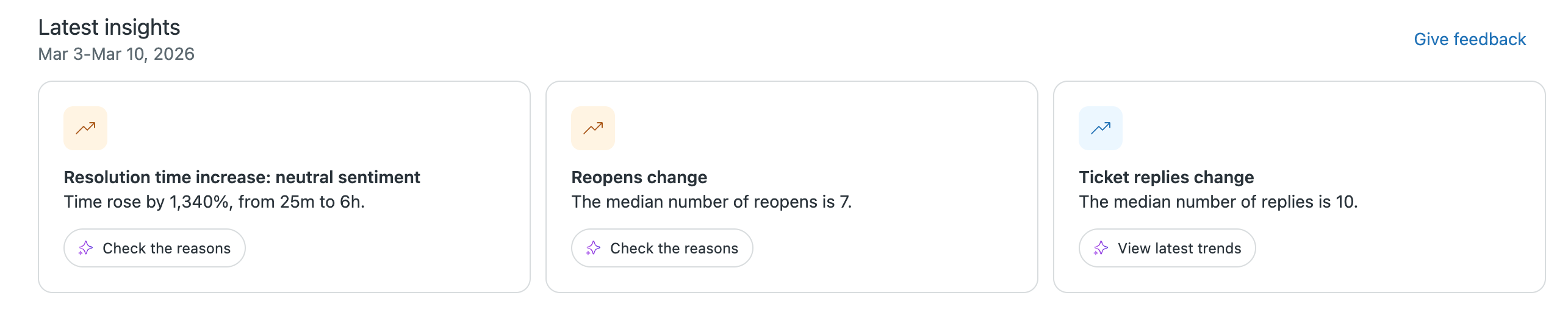
Additionally, you can provide feedback on these insights to help refine future accuracy and relevance. By surfacing this data automatically, the tool helps you address account health issues before they escalate.
Responding to account insights
Each insight provides a specific way to explore the data:
- View dashboards and trends: For many insights, you can click View dashboard to open a report in Zendesk analytics or View latest trends to see how your data compares to previous weeks.
-
Investigate with conversational assistance:
When an insight identifies a shift
that requires further investigation, you can use quick prompts
to dig deeper. Click a
quick prompt such as Check the reasons
or How to improve it to open admin
copilot.
When you click Check the reasons, admin copilot explains why the insight was flagged and investigates what is likely causing the change. You can then:
- Review the reasons behind the change
- Preview the recommended solution admin copilot suggests
- Have admin copilot apply the change
This allows you to perform a root-cause analysis and receive guided instructions on how to address the shift. See Using admin copilot to learn more.
Understanding admin copilot recommendations
Admin copilot recommendations proactively identify opportunities to automate repetitive tasks, improve ticketing workflows, clean up unused business rules, and tailor Zendesk AI to your needs. Your recommendations are updated weekly on the Recommendations page in Admin Center, in Admin Center Home, and contextually on relevant Admin Center pages.
These recommendations are categorized by the type of optimization they provide to your account:
|
Recommendation type |
Description |
Available on |
|---|---|---|
| Workflow management |
Suggestions to review and deactivate unused or redundant triggers, automations, and macros. |
Suite Professional and above |
| Omnichannel routing |
Recommendations for operational settings, such as capacity rules and routing queues, to manage how work is distributed across your team. |
Suite Professional and above |
| Macro content suggestions |
Suggestions for new macros or edits to existing macros based on how your agents resolve tickets. |
Suite Professional and above |
| Trust and safety |
Recommendations that flag missing security controls in your account, such as turning on two-factor authentication or downgrading inactive agents. |
Suite Professional and above |
| Task automation |
Suggestions for creating or updating triggers and autoreplies based on intelligent triage classifications such as intent, sentiment, language, and detected entities. |
Copilot add-on |
| Auto assist configuration |
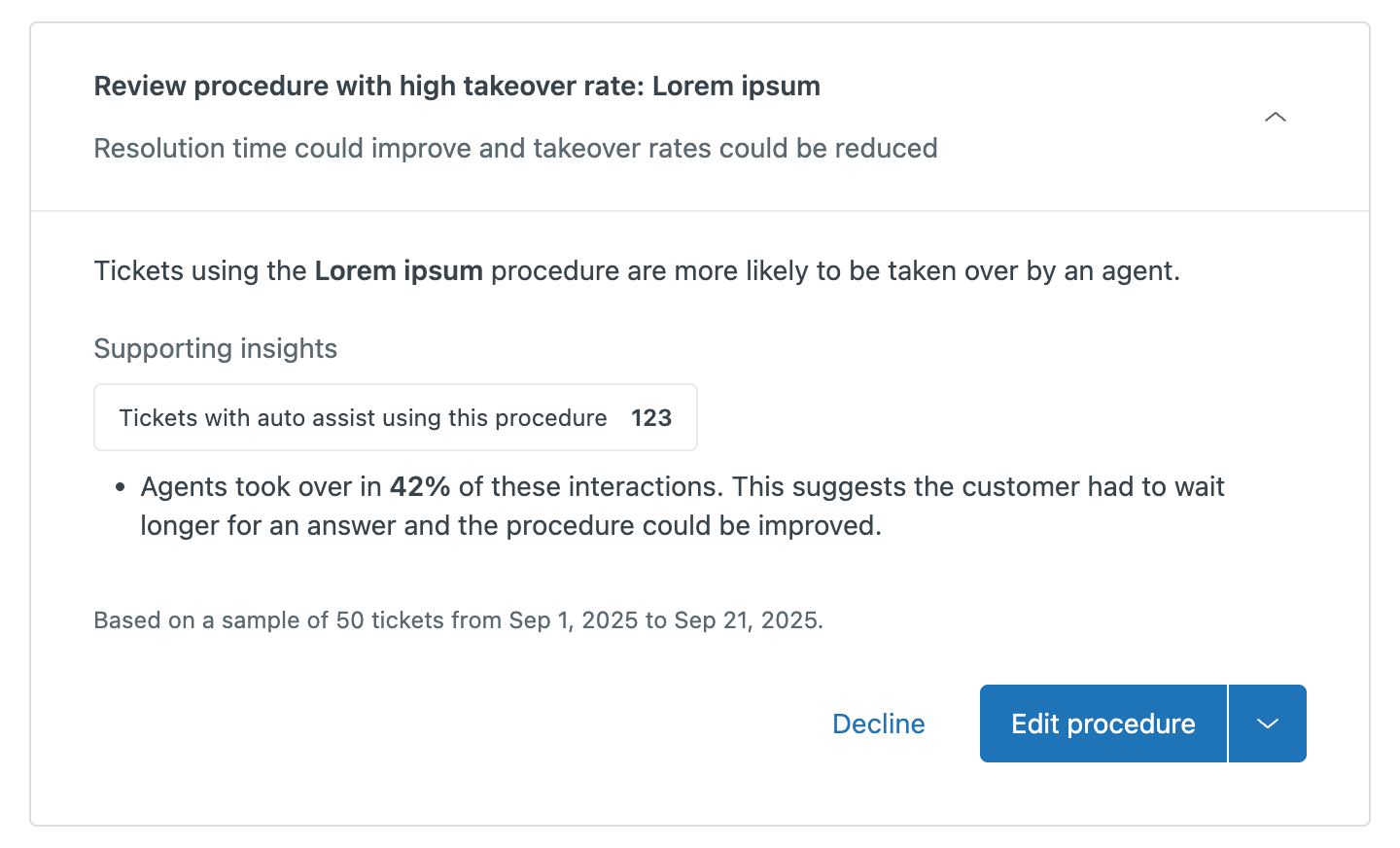
Guidance for improving your auto assist setup, including recommendations for reviewing procedures with a high takeover rate. |
Copilot add-on |
| AI-generated procedures |
Alerts when your account has new AI-generated procedure drafts to help improve auto assist quality. |
Copilot add-on |
Supporting insights and actions
Before implementing a recommendation, you can view the information and data used to generate the suggestion. This helps you decide if the change aligns with your current goals and support strategy.
Supporting insights include:
- Actions: Detailed information on what the recommendation will perform, such as routing a ticket to a specific group, updating ticket priority, or sending an automatic response.
- Benefits: Expected results such as improved resolution times, reduced manual effort, or more standardized agent responses.
- Triage and usage data: Information on how many tickets matched a specific intent or sentiment, and when a business rule or macro was last used in your account.
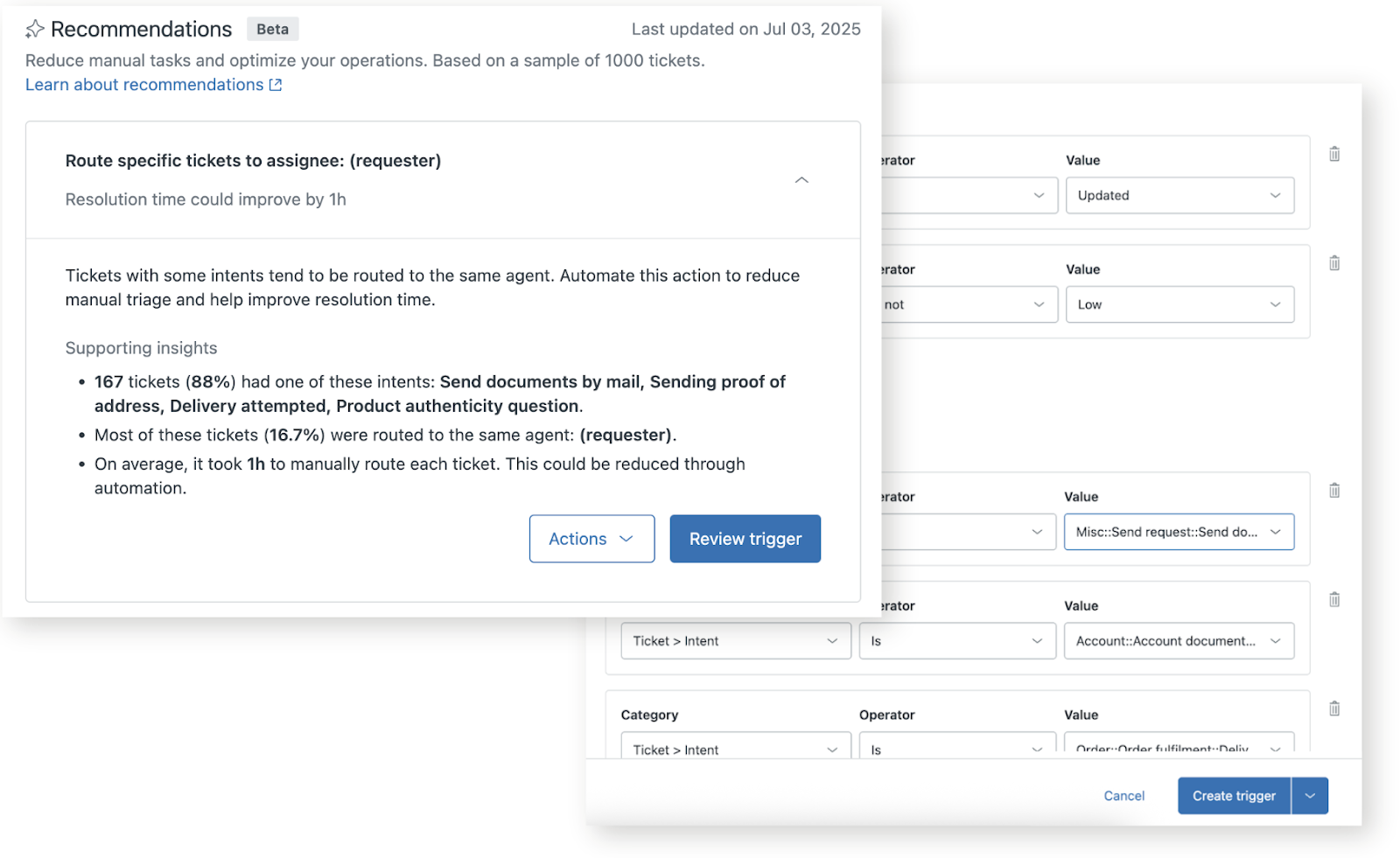
If you choose not to act on a recommendation, you can provide feedback about why you dismissed it. This helps ensure your future recommendations are more accurate and useful over time. As an admin, you always have full control over what recommendations are implemented in your account; any decisions and actions require your final approval.
Reviewing and implementing recommendations
You can review and implement recommendations from the Recommendations page, the Admin Center Home page, or contextually on relevant pages in Admin Center. Keep in mind that you might not have recommendations if your account doesn't have enough data or you're all caught up.
To review and implement recommendations
-
In Admin Center, click
 AI in the sidebar, then select Admin copilot > Recommendations.
-
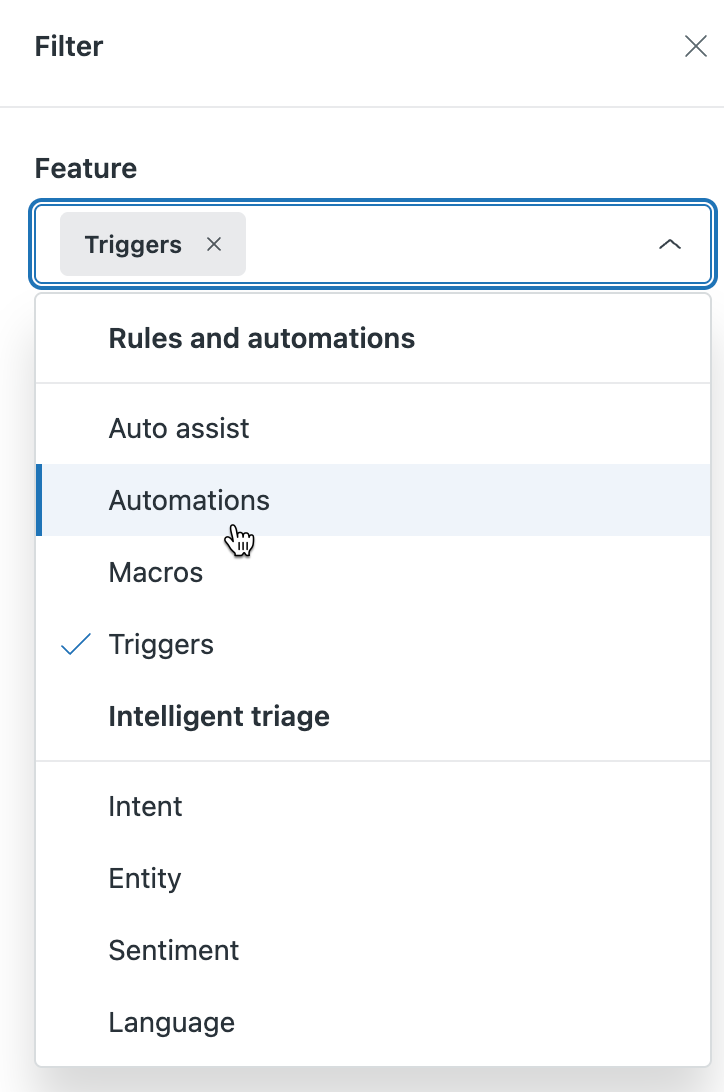
(Optional) To quickly find a recommendation type, click
Filter. From the
Feature menu, select one or more options,
then click Apply
filters.
-
To learn more and take action, click a recommendation to expand it.
Depending on your ticket data, the options available to you will differ:
Create a recommended trigger or autoreply
Click Review trigger.
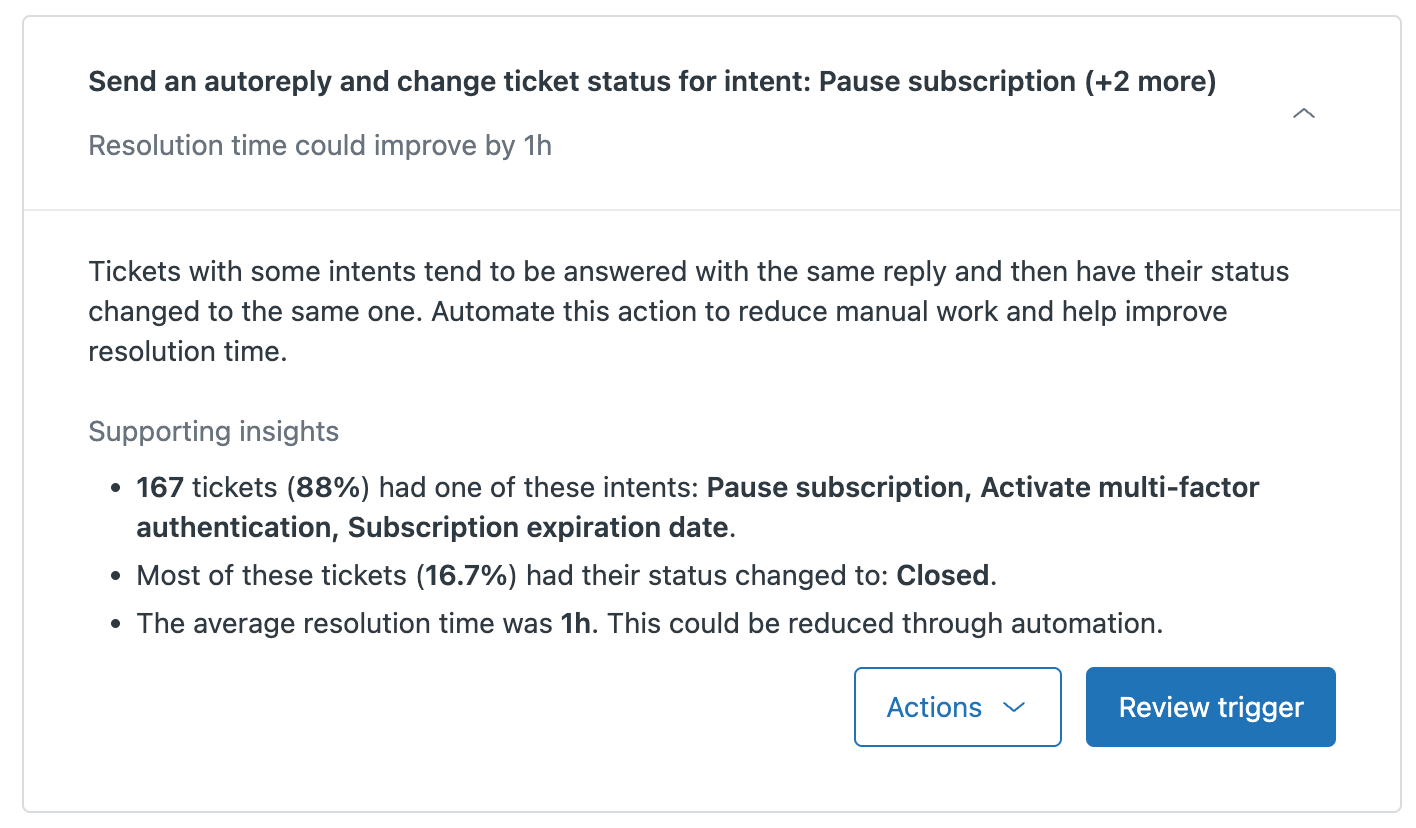
The Create ticket trigger page opens with prefilled trigger information.
Review the prefilled information and enter a Trigger name and Trigger category. Click Create trigger.
Review an unused business rule or macro
Click the button to navigate to the relevant page.
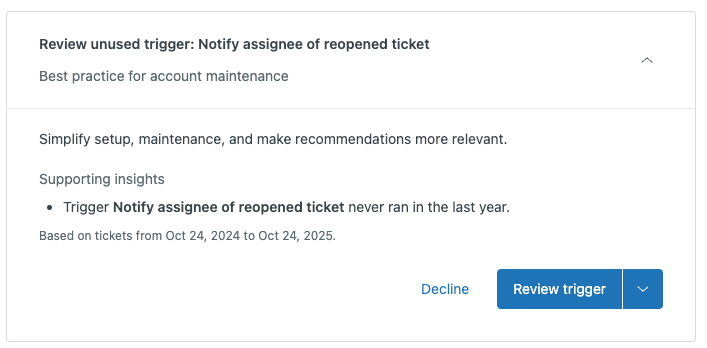
Review the unused trigger, automation, or macro and delete it if necessary.
Improve an auto assist procedure
Review an AI-generated procedure draft
Click the name of one of the procedures in the recommendation to open it in Knowledge admin.
Alternatively, click Review procedures to open your list of procedures in Knowledge admin.
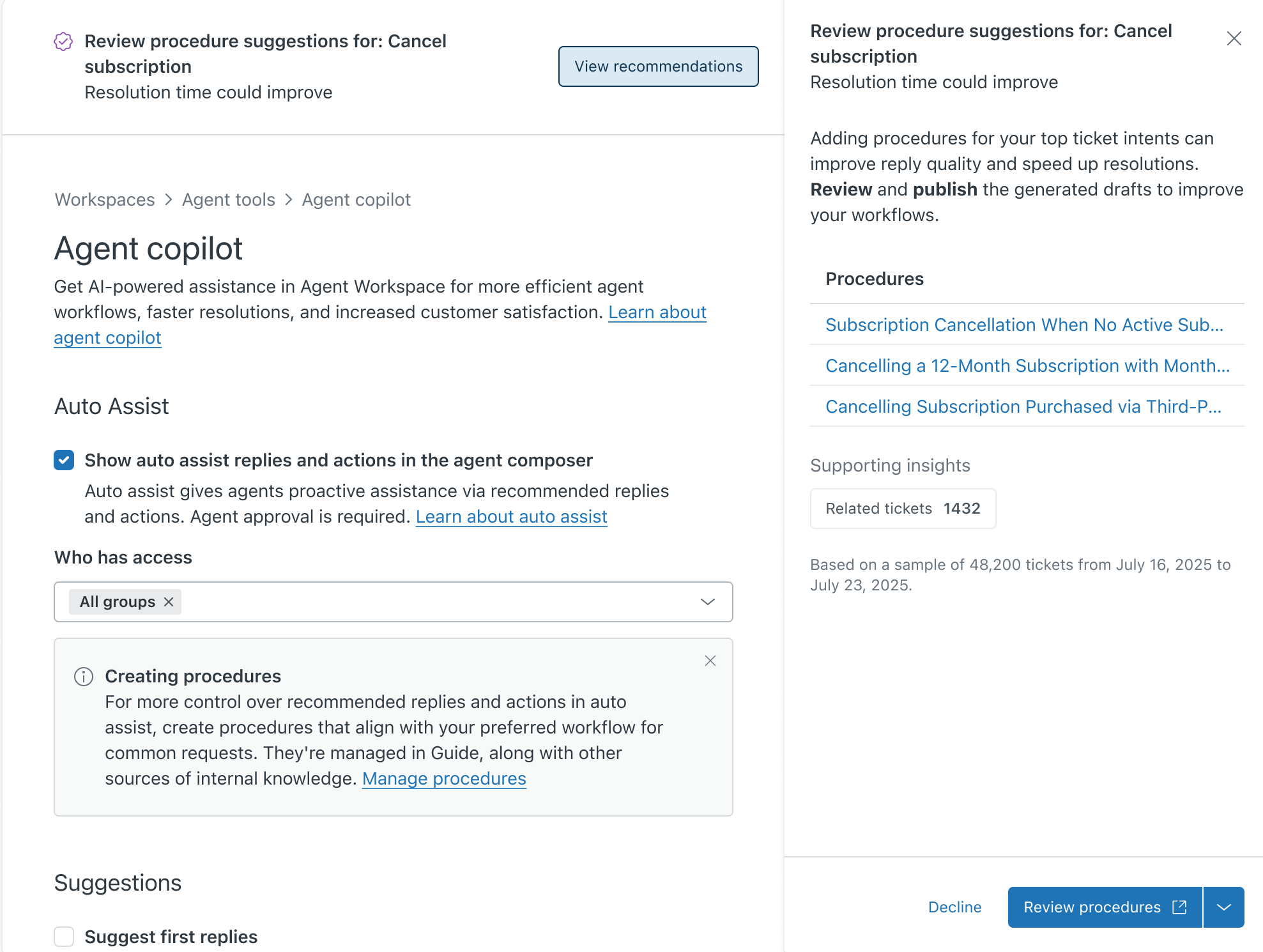
You can review and edit the procedure draft and must publish it before it's available to auto assist. See Reviewing and publishing AI-generated procedures for auto assist.
Activate or update Omnichannel routing
Click Review routing settings.
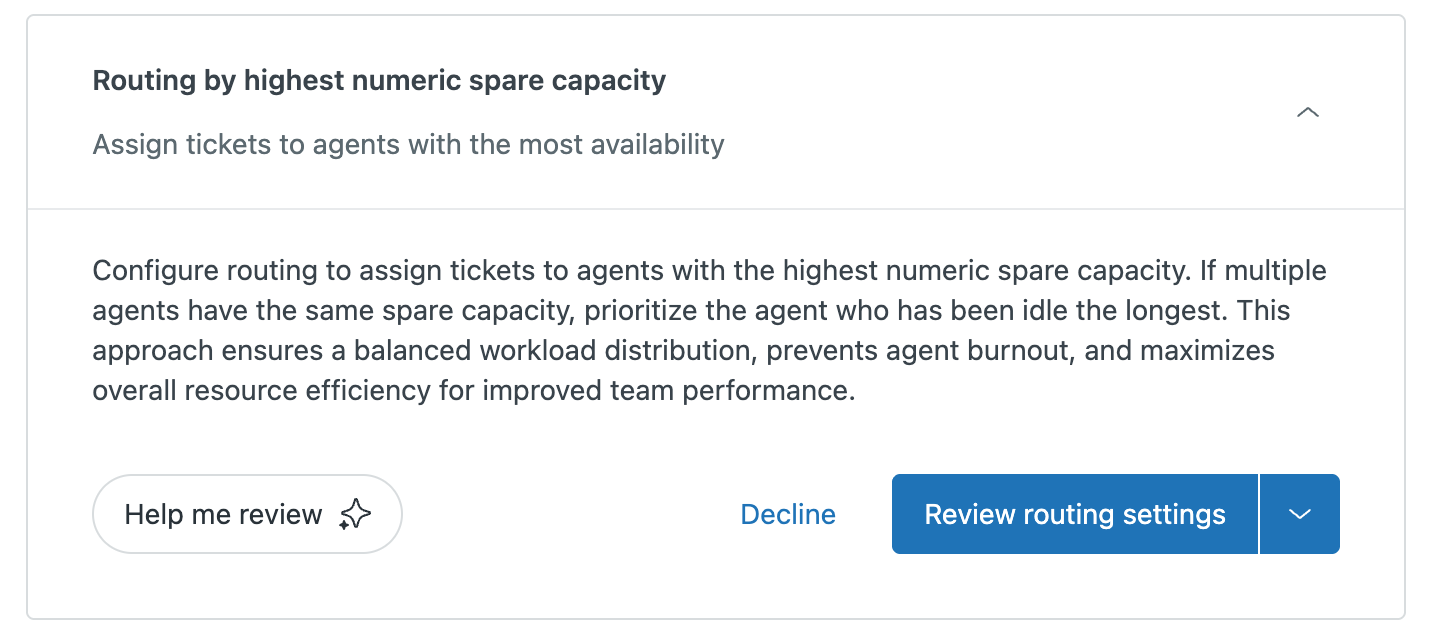 For routing-related recommendations, clicking the action button takes you to a specific setting in the omnichannel routing configuration. Because routing is a connected system, you might need to update additional account configurations to ensure the recommendation works correctly. See Managing your omnichannel routing configuration to learn more.
Create or update a macro
Click Review macro.
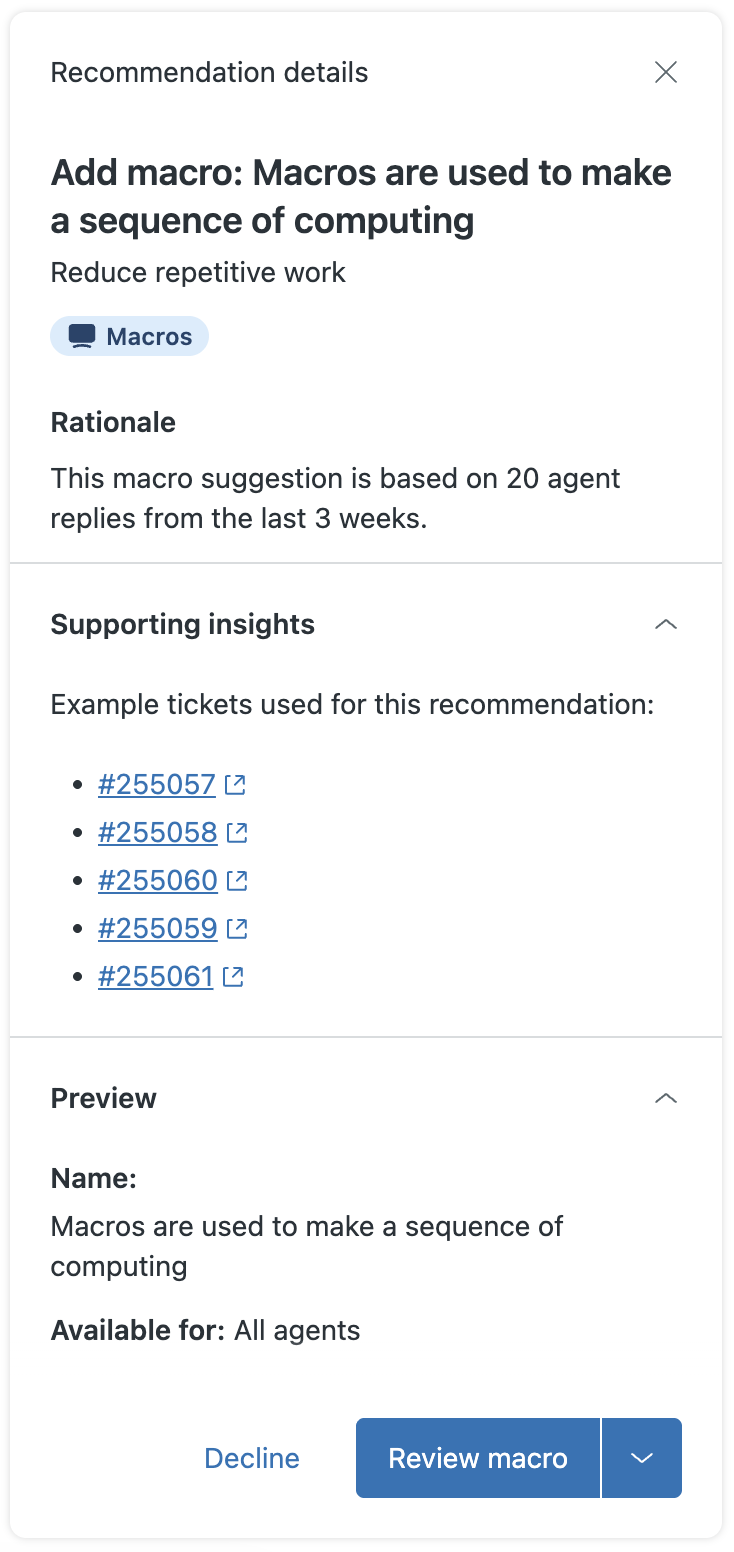
The recommendation provides links to tickets used to generate the suggestion.
Strengthen account security
Depending on which trust and safety recommendation you clicked, the options available to you will differ.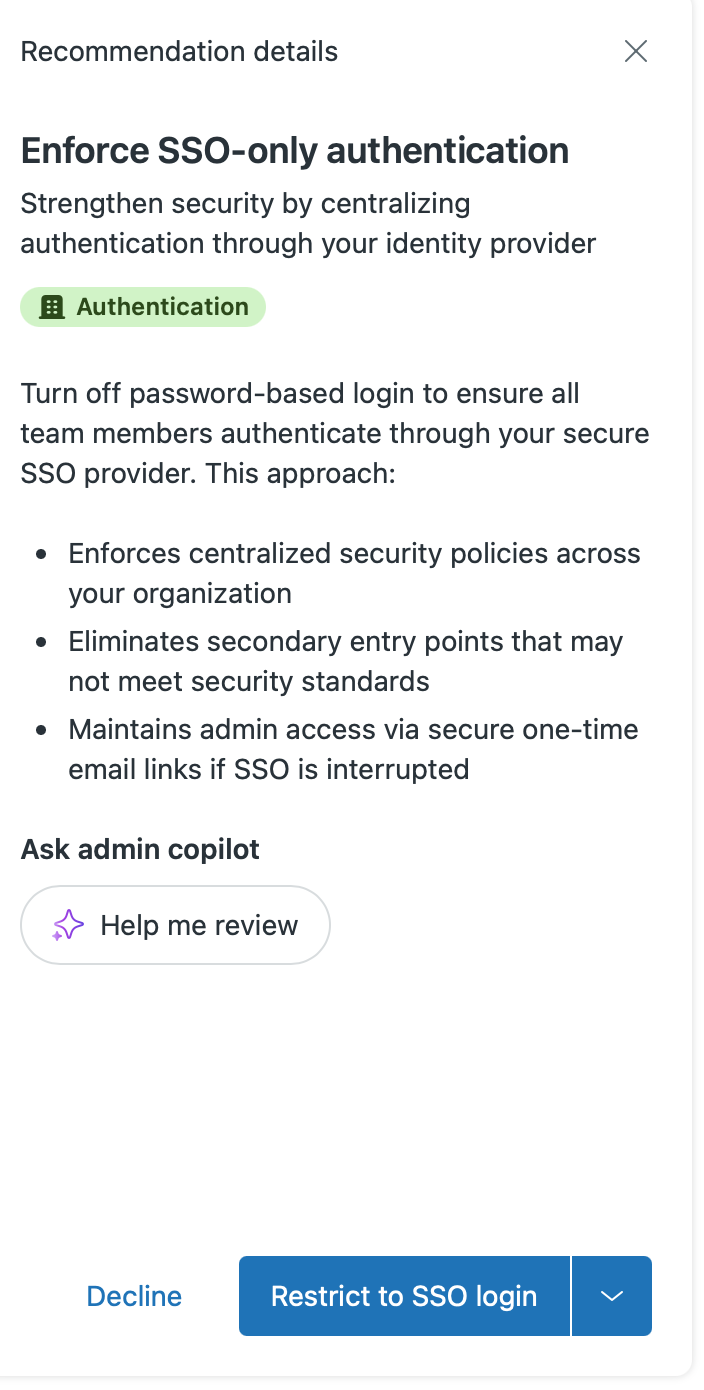
For example, click Restrict to SSO login to turn off password-based login.
When you're done, return to the recommendation and mark it as done.
Managing your recommendations list
To keep your workspace organized, you can manage active recommendations by marking them as done or dismissing them. You can access your managed recommendations from the archive.
To manage your list of recommendations
-
In Admin Center, click
AI in the sidebar, then select Admin copilot > Recommendations.
-
To manage recommendations you reviewed, open the
Actions menu at the bottom of
the recommendation. Depending on what action you took, you can:
-
Select Mark as done if you've
implemented the recommendation.
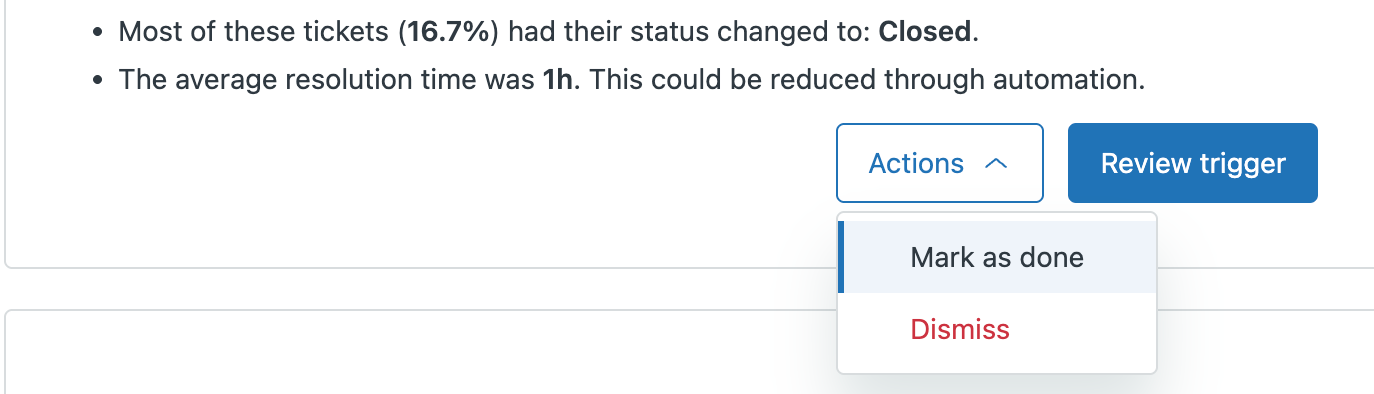
The recommendation is removed from the list.
-
Select Dismiss if you didn't
take any action on the recommendation.
The recommendation is removed from the list and you can optionally give feedback about why you dismissed it.
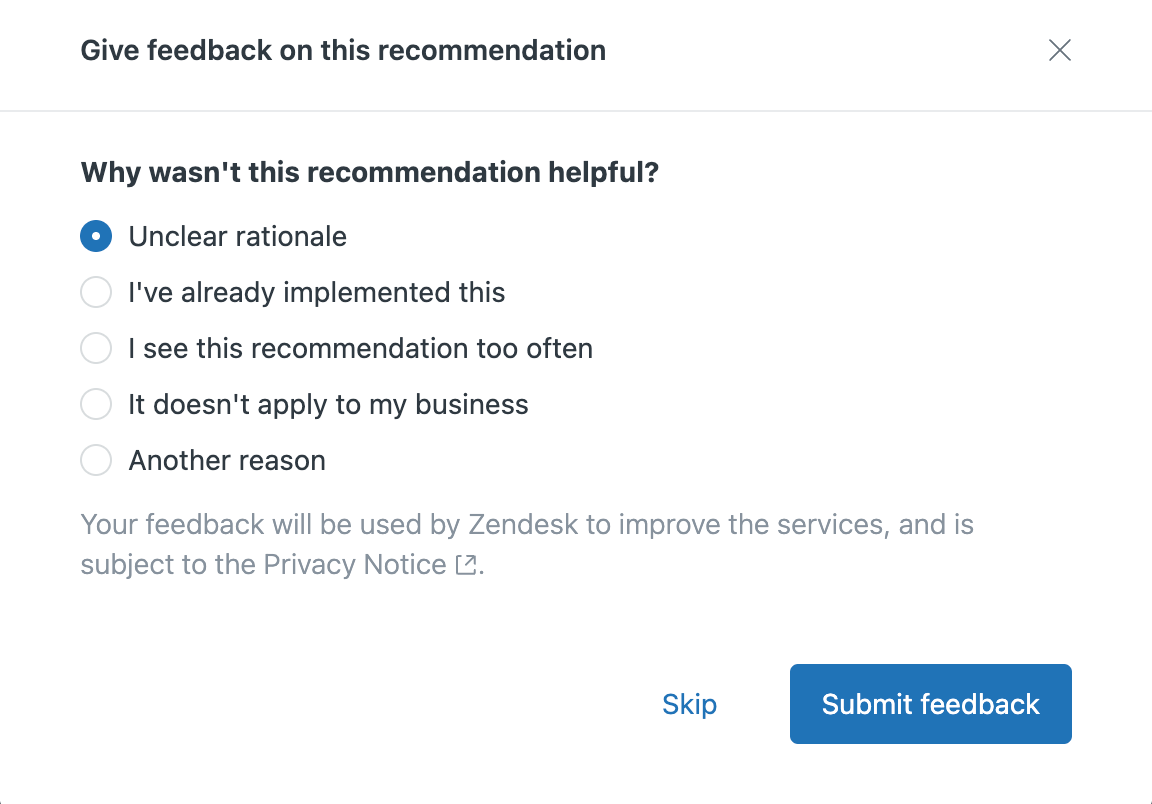
It's important to share your feedback to help improve the accuracy and relevance of future recommendations.
-
Select Mark as done if you've
implemented the recommendation.
-
To access recommendations you managed, click
View archive.
Your Recommendations archive opens.
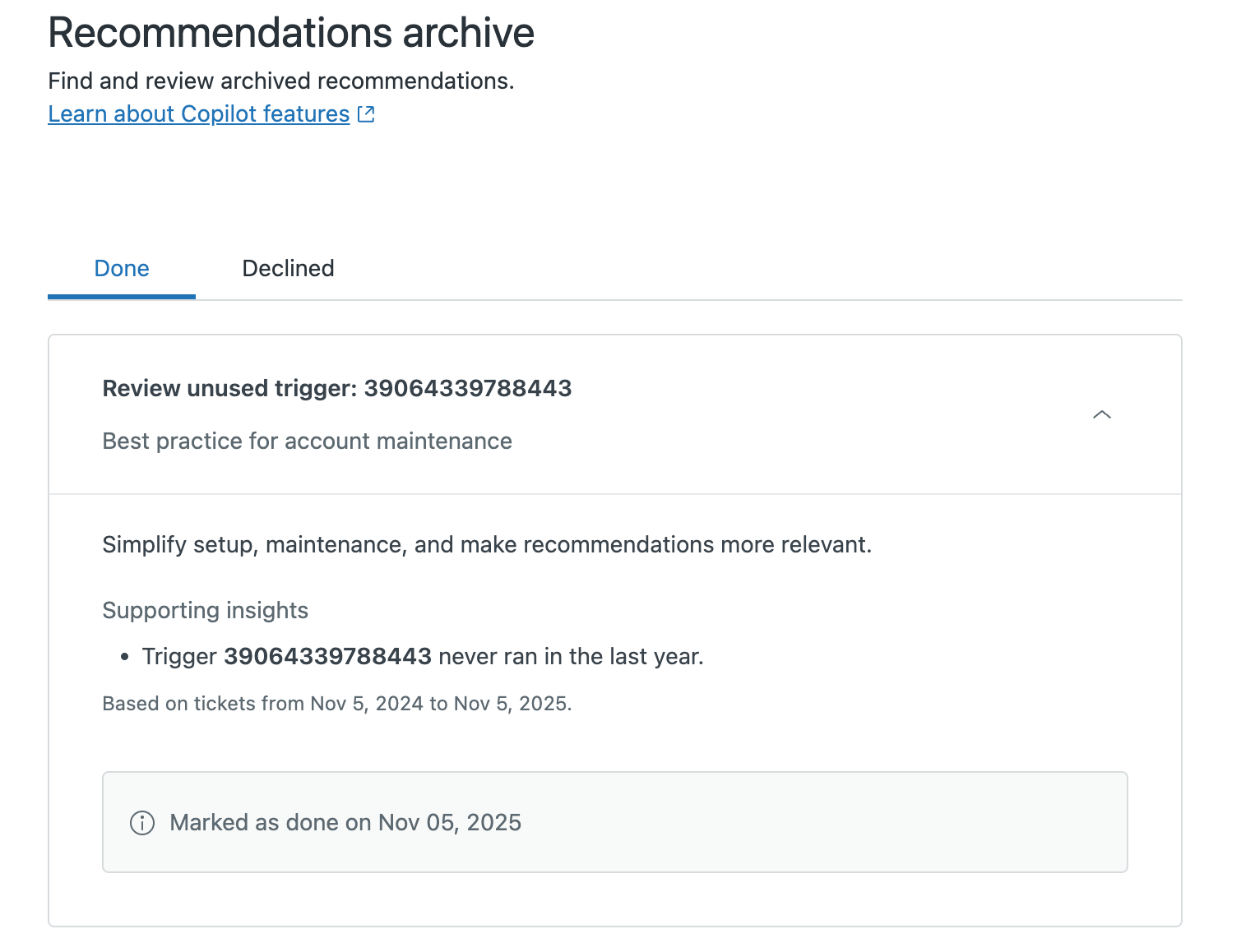
- Click an archived recommendation to learn more.