Summary: ◀▼
You can connect Notion as an external knowledge source to sync content from your Notion Teamspace for use in your workflows. Only one Notion connection is allowed per account, syncing top-level pages and subpages with content. You can manage connection details, viewer permissions, manually resync content, or disconnect the Teamspace when needed. Adding new top-level pages requires reconnecting.
You can connect Notion to your Zendesk account to make the content available wherever external content is used. You must be a Knowledge admin to set up and manage external content connections.
Setting up a Notion connection
- In Knowledge admin, click Manage articles
(
 ) in the sidebar.
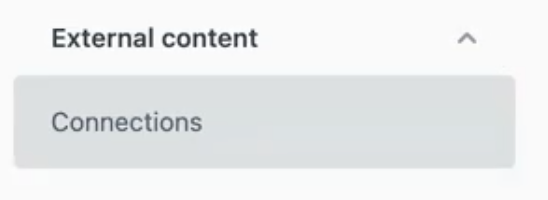
 - Click External content > Connections.
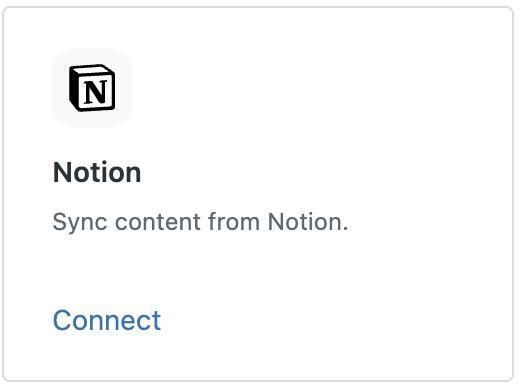
- Under the Available sources section, click Connect on the source that
you want to connect.
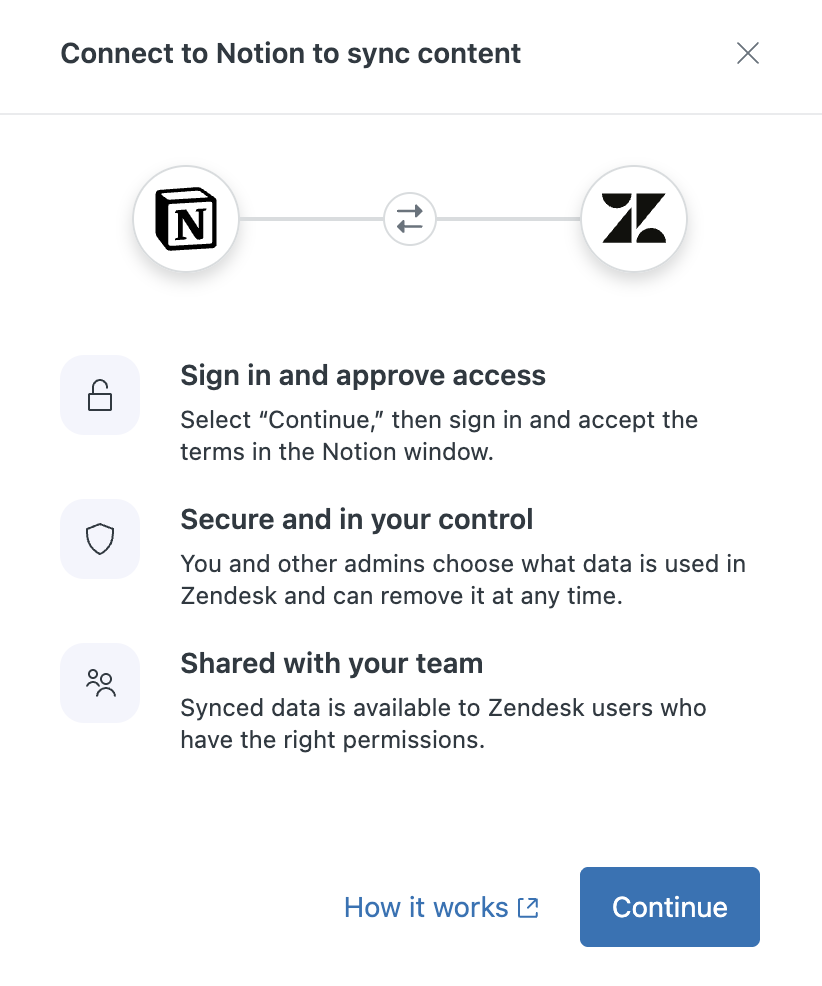
- Click Continue.
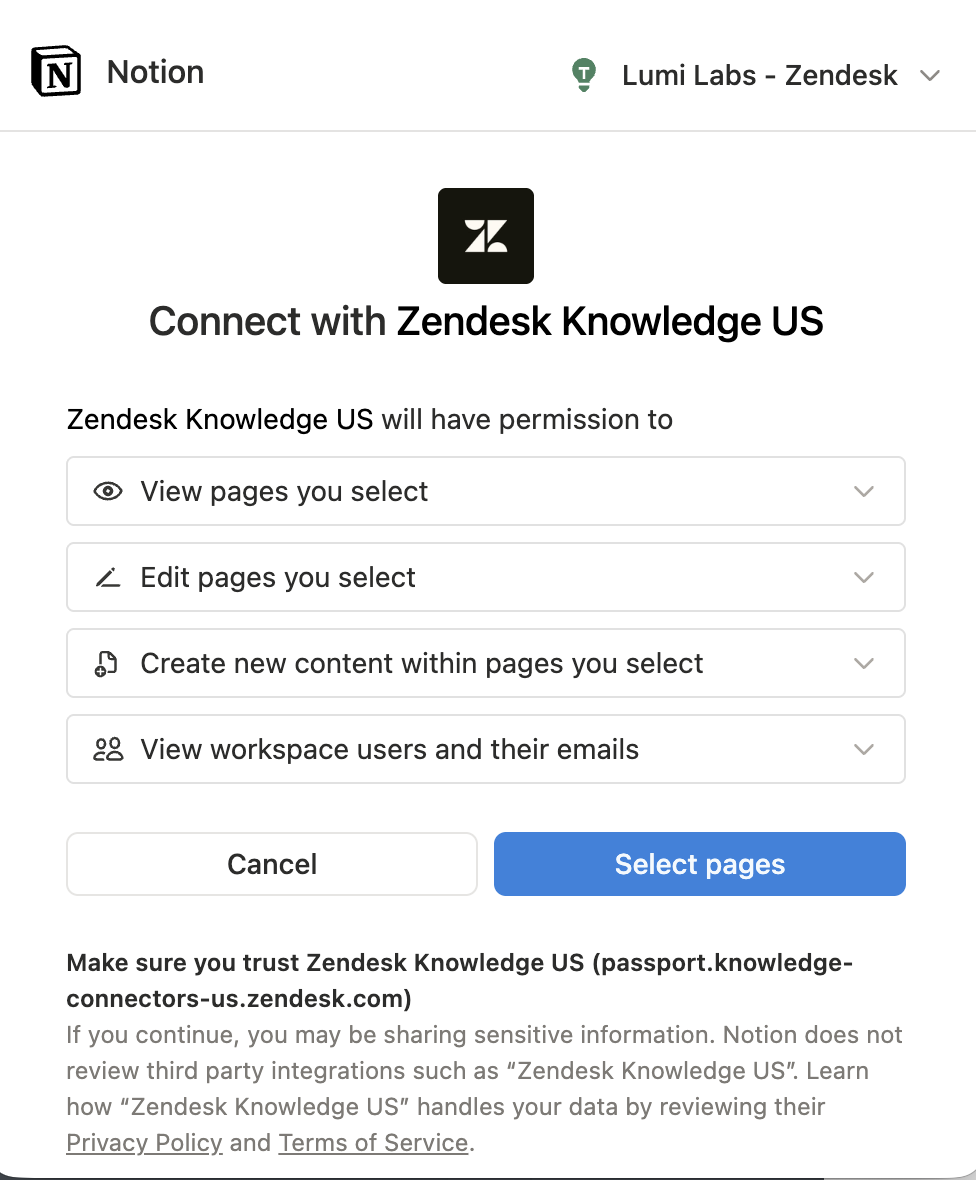
- Select your Notion Workspace from the drop-down list in the upper right,
then click Select pages.
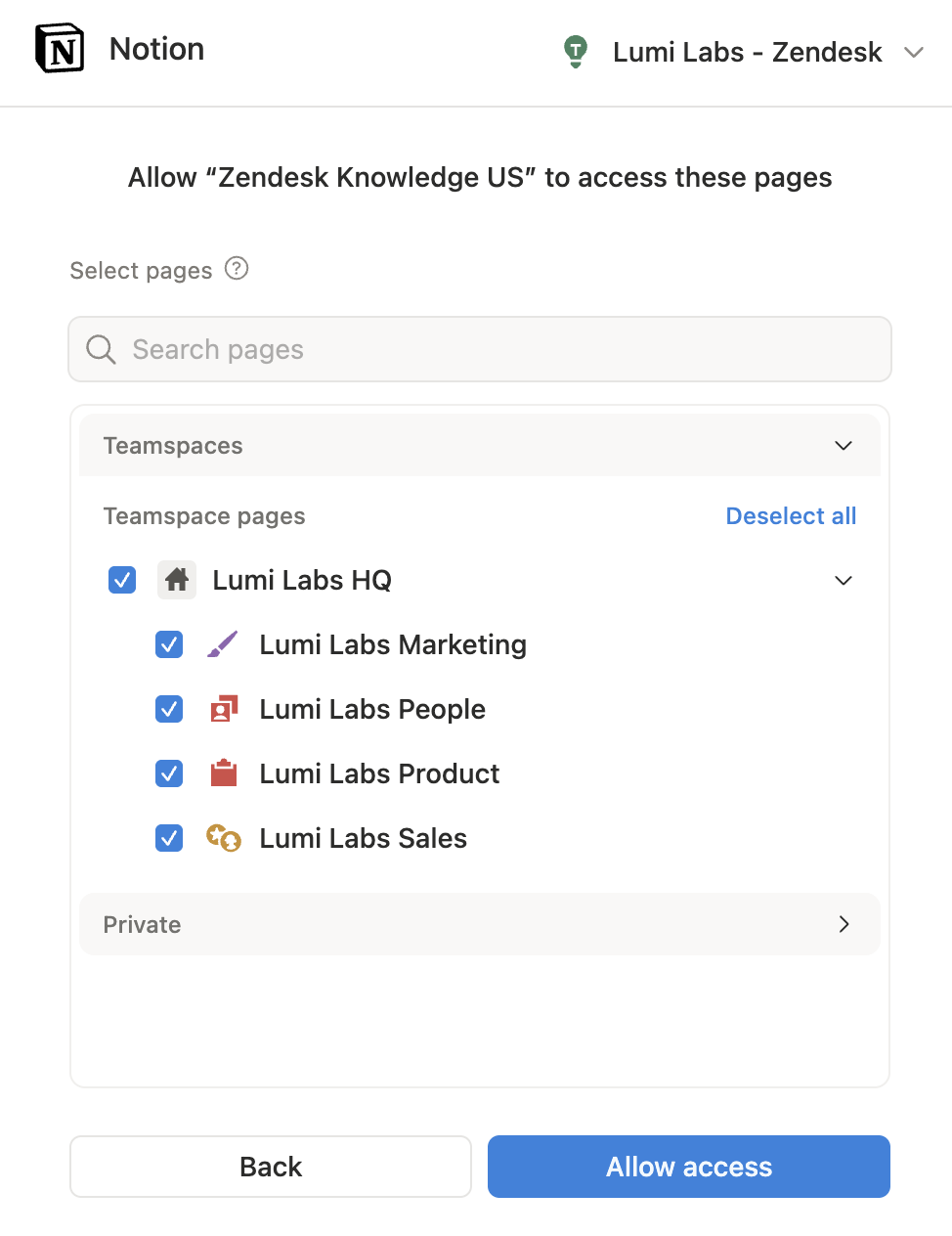
- Select the pages within your Teamspace that you want to sync, then click
Allow access.Note: For pages to be synced to your Zendesk account, they must have content within the body of the page.
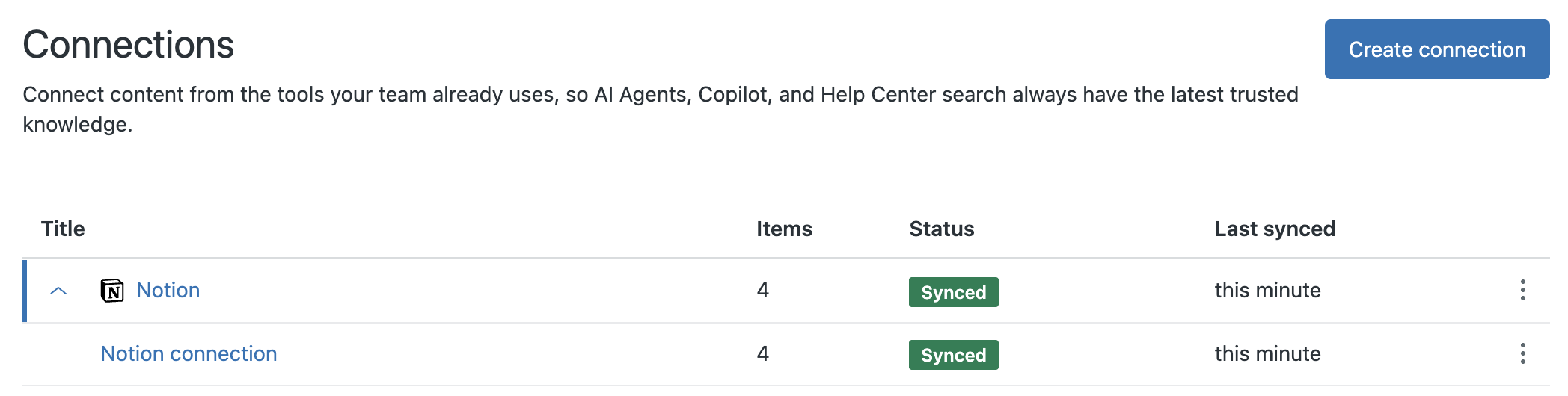
When the sync is complete, the page shows a green Synced status for each synced Teamspace. The number of Items reflects the top level pages that you synced and all sub pages beneath the top level pages.
Adding or removing content from your Notion connection
Due to limitations with Notion, you can only set up a single Notion connection. When you set up your Notion connection, you specify the Teamspace you want to connect and the top level pages within that Teamspace that you want to sync. All subpages with content underneath the top level pages you selected are synced during each manual or automatic sync.
When you add one or more subpages beneath a synced top level page in Notion, those pages are automatically ingested to Knowledge during the next sync. However, if you want to add a new top level page to your existing Notion connection, you must remove the connection entirely and set up a new connection.
Managing Notion Teamspaces connected to your Zendesk account
Once you've created a Notion connection, you can view information about the connection, set viewer permissions for content, and manually resync or remove the connection.
Viewing Notion connection details
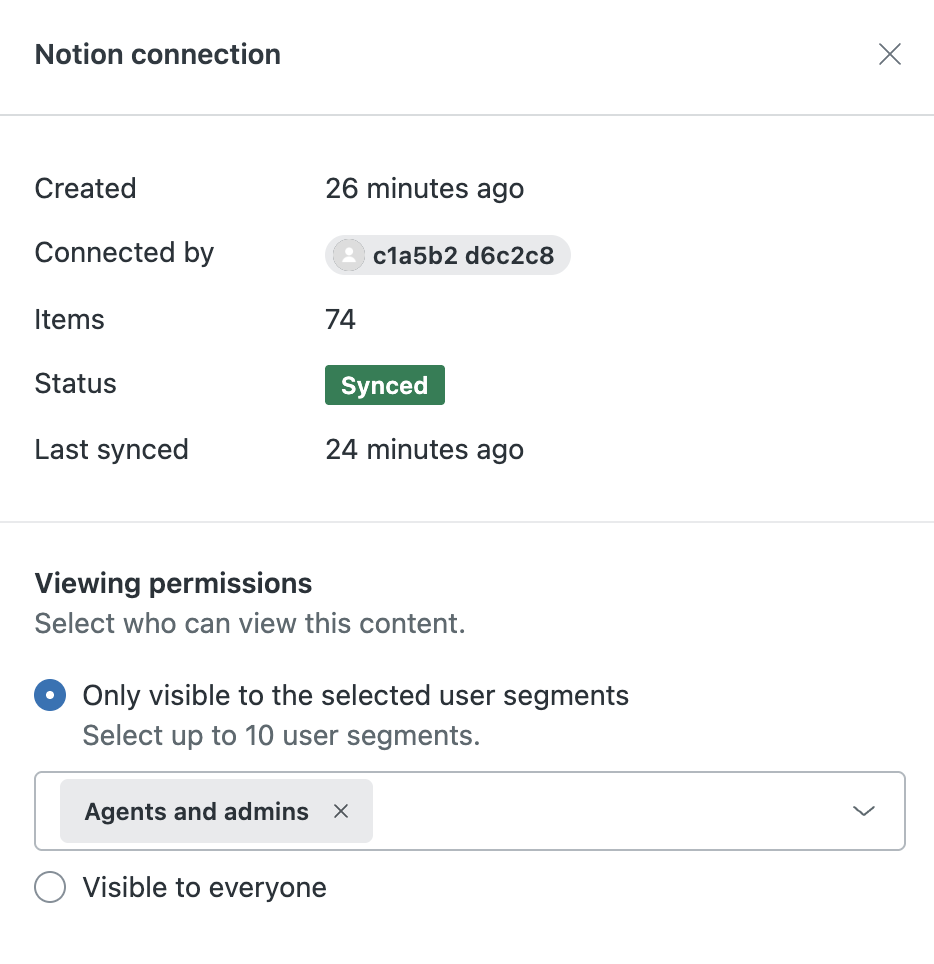
You can use the information panel to view information about the Notion connection, when it was created and by whom, and when it was last synced.
- In Knowledge admin, click Manage articles
() in the sidebar.
- Click External content > Connections.
- Click the options menu (
 ) on the row for the connection you want to
manage, then select Manage.
) on the row for the connection you want to
manage, then select Manage.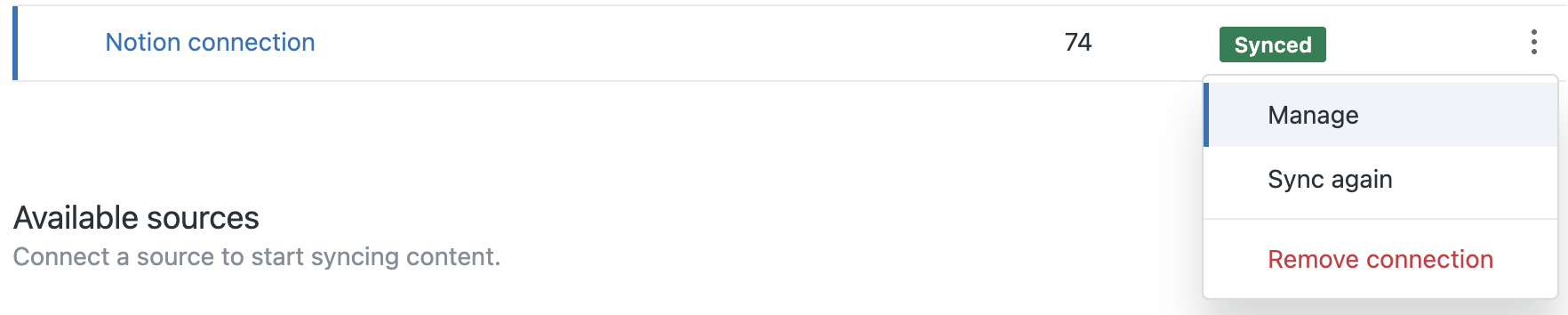
- View details about the connection:
- Created: When the connection was created
- Connected by: Name of the Knowledge admin who created the connection
- Items: Number of connected pages in the Teamspace
- Status: Sync status
- Last synced: When the last sync occurred. Syncs are automatically performed every 24 hours, though they can also be triggered manually
Managing viewer permissions for Notion content
You can set the viewer permissions for who can view connected Notion content in your Zendesk workflows.
- In Knowledge admin, click Manage articles
() in the sidebar.
- Click External content > Connections.
- Click the options menu () on the row for the connection you want to
manage, then select Manage.
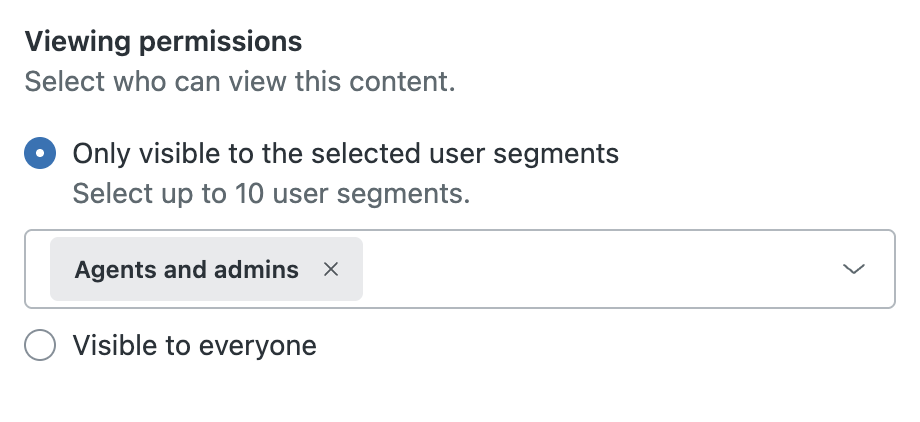
- Under Viewing permissions, select one of the following options to
determine which user segments can view content
from this space:
-
Only visible to selected user segments: Select up to 10
user segments from any of the following (an Enterprise plan is
required to select multiple user segments):
- Signed-in users: Includes internal and external users who create an account and sign in to your help center.
-
Agents and admins: Includes team members only, so
that you can create content that is internal-only. Note: Light agents are included in this segment. For a list of light agent permissions, see Understanding and setting light agent permissions.
- Custom user segment: Allows you to restrict viewing access to specific users based on tags, organizations, or groups by applying user segments. See Creating user segments to restrict access.
- Visible to everyone: Includes anyone who visits your help center and does not require sign in.
-
Only visible to selected user segments: Select up to 10
user segments from any of the following (an Enterprise plan is
required to select multiple user segments):
- Click Save.
Manually resyncing Notion content
- On the Connections page, click the options menu () for the connection you want to
sync.

- Select Sync again.
The Notion connection syncs immediately, and the Last synced column is updated with the most recent sync time.
Disconnecting a Notion Teamspace
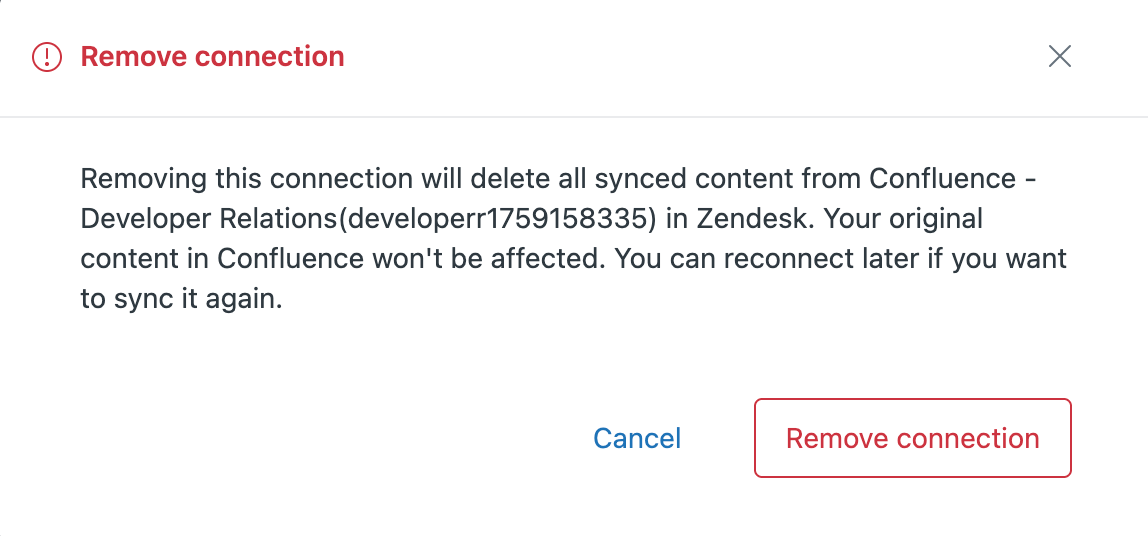
You can remove the connection to Notion if you no longer want to sync its content. If you remove a connection, all Teamspace content within that connection will be removed.
When you remove a connection, the related content is no longer available wherever external content is used.
- On the Connections page, click the options menu () for the Teamspace you want to
disconnect.

- Select Remove connection.
- Review the message, then click Remove.
The Teamspace is removed from the Connection list, and is no longer available as an external content source.