Summary: ◀▼
Use the Contact Center agent interface to handle calls, access call controls from tickets, and set voice preferences like softphone or deskphone, audio devices, ringtones, browser notifications, missed-call behavior, and Jabra call control. You also need supported browsers, headset, and workstation requirements to use voice features and troubleshoot call issues.
The Zendesk Agent Workspace is your interface to handle customer contacts and associated work.
This article contains the following topics:
- Understanding Contact Center system requirements
- Accessing the call console
- Accessing ticket call controls
- Configuring voice preferences
- Accessing the Connect agent workspace
Understanding Contact Center system requirements
Zendesk has base system requirements for operating systems, memory, network bandwidth, and supported browsers as detailed in Zendesk system requirements. Because Amazon Connect doesn’t support Safari, the supported browsers for Contact Center are the latest 2 versions of Chrome, Edge, and Firefox.
As an agent, you must also meet Amazon’s Agent headset and workstation requirements for using Contact Control Panel (CCP).
Accessing the call console
To access the call console
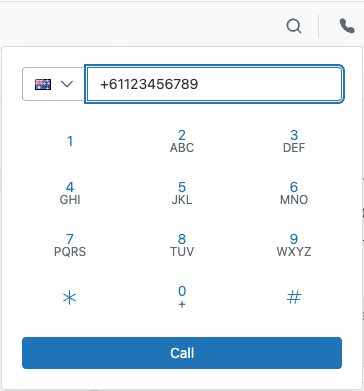
- In Support, click the Voice icon
(
 ) in the top bar.
You can use the dialpad to make a call. For more information, see Making outbound calls in Contact Center.
Accessing ticket call controls
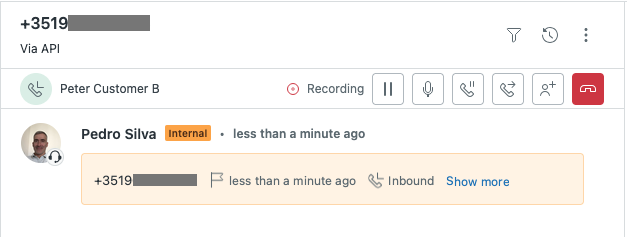
When you're on a call, you can access the call controls for the ongoing call at the top of the associated ticket.
To access the call controls in the ticket
- Access the controls at the top of the ticket.
Configuring voice preferences
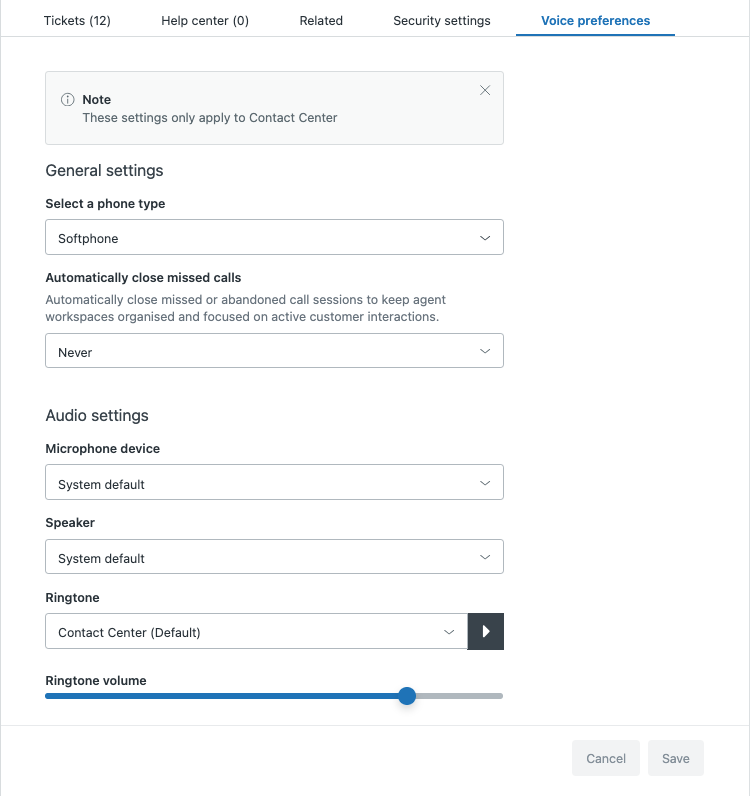
Configure your agent voice preferences to choose how you answer calls and which audio devices you use.
To configure voice settings
-
In Support, click your profile icon in the top right corner, then select Manage profile.
-
Click the Voice preferences tab.
-
Configure the following settings:
-
General settings
-
Select a phone type:
- Softphone: Answer calls using your browser.
- Deskphone: Answer calls using your phone, including mobile phone.
-
Automatically close missed calls, to determine when Zendesk automatically closes missed or abandoned calls:
- Never
- After 30 seconds
- After 2 minutes
- After 5 minutes
-
- Download logs: Access the Amazon Connect Customer logs to troubleshoot telephone issues. For more information, see How to access and analyze agent logs in Contact Center.
-
Audio settings
-
Microphone device: Select the device used to speak with callers. The system default microphone or a custom microphone configured on your computer.
-
Speaker: Select the device used to listen to callers. The system default speaker or a custom speaker configured on your computer.
-
Ringtone: Select the sound you want to hear to alert you of an incoming contact. The default ringtone or a custom ringtone. You can play a preview to hear the selected ringtone.
-
Ringtone volume: Set the ringtone volume. If the ringtone volume is still too low at the maximum setting, increase your system volume.
-
- Turn on browser notifications: Receive Zendesk notifications for incoming calls. For more information, see Configuring Contact Center browser notifications.
- Jabra Call Control: Control call functions directly from your Jabra device.
-
Configuring your Jabra device
Contact Center supports Jabra devices so that you can control call functions using the buttons on your Jabra device.
- In Support, click your profile icon on the top right, then select Manage profile.
- Click the Voice preferences tab.
- Click Jabra Call Control.
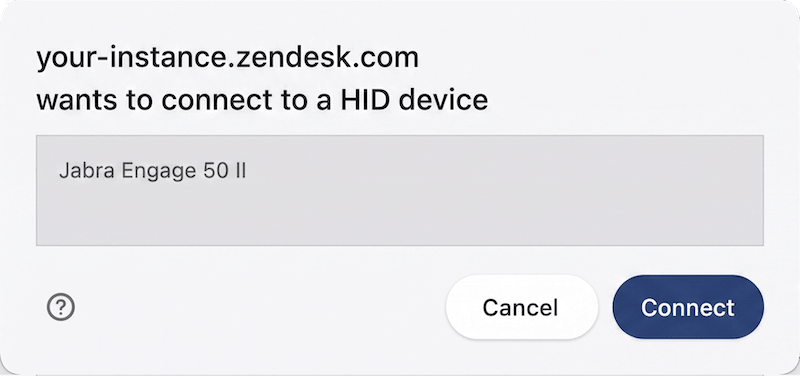
- In the pop-up window indicating that your instance wants to connect to a
device, select your Jabra device.
-
Click Connect.
- Click Save.
Accessing the Connect agent workspace
You might want to access your Amazon Connect Customer workspace.
To access your Amazon Connect Agent Workspace, navigate to:
https://<your zendesk
                    subdomain>.my.connect.aws/contact-handling
.