Summary: ◀▼
You can enhance email security by enabling SPF, DKIM, DMARC, and ARC authentication to reduce spoofed and spam emails. This feature suspends emails that fail authentication, which you can review in the Suspended tickets view. Monitor suspensions regularly to identify and fix issues with sender authority or forwarding workflows, improving your email ecosystem's health without disabling authentication.
- Sender Policy Framework (SPF) is a path-based email authentication technique.
- DomainKeys Identified Mail (DKIM) is a signature-based email authentication technique.
- Domain-based Message Authentication, Reporting, and Conformance (DMARC) is a technical specification that allows email message senders and receivers to cooperate and better detect when messages don't originate from the internet domain they appear to represent.
- Authenticated Received Chain (ARC) is a set of email headers used to preserve and validate authentication through auto-forwarding. You may want to check that your email provider supports this protocol.
This article includes the following topics:
Related articles:
Turning on sender authentication
SPF, DKIM, DMARC, and ARC alignment, also referred to as sender authentication, is managed on the Email page in Admin Center.
To turn on sender authentication
- In Admin Center, click
 Channels in the sidebar, then select Talk and email > Email.
 - In the Email settings section, select Authenticate emails received with SPF, DKIM, and DMARC alignment.
- Select an option: Minimal, Native traffic,
or Native and forwarded traffic.
Zendesk recommends turning on this feature for Native traffic first, then testing to ensure that Native and forwarded traffic isn't suspending traffic that should arrive with authentication verified.
- Minimal: Basic protection across your Zendesk account that protects both native and forwarded email, suspending only emails that are blatant spoof attempts.
- Native traffic: DMARC authentication is supported for emails sent directly to native Zendesk support addresses by end users.
- Native and forwarded traffic: Zendesk runs authentication checks on email traffic forwarded to Zendesk, leveraging ARC headers and authentication results from the forwarding address.
- Click Save.
Emails that fail this type of authentication are suspended. You can view them in your Suspended tickets view. Tickets suspended for failing to pass authentication have Failed email authentication as the cause of suspension. Be very careful recovering these, as they may not be from the sender listed in the email.
Checking for suspensions
After you turn on this feature, it's important to monitor your Suspended tickets view regularly for suspensions. Emails that are suspended indicate an issue with the sender’s authority or possibly with your auto-forwarding workflow. We advise correcting the workflow rather than turning off the feature.
To check your Suspended tickets view
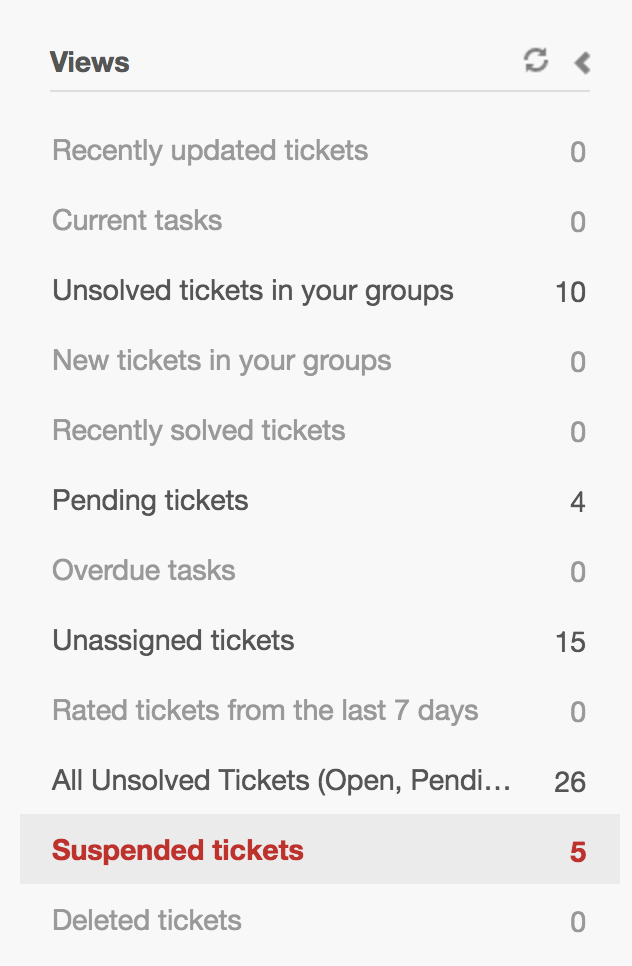
- In Zendesk Support, click the Views (
 ) icon in the
sidebar and then click the Suspended tickets
view.
) icon in the
sidebar and then click the Suspended tickets
view. You can arrange the view by Cause of suspension to make identifying issues easier.
If you find that many emails are suspended, turn off this feature temporarily and contact your domain admin or provider. This is an indication that your forwarding workflow may need to be examined and corrected. You may also need to contact Zendesk Customer Support.