Knowledge admins can use the Search settings page to view and manage settings that impact the way in which your help center search functions.
To view and manage search settings
- In Knowledge admin, click the Settings icon
(
 ) in the sidebar, then select Search settings.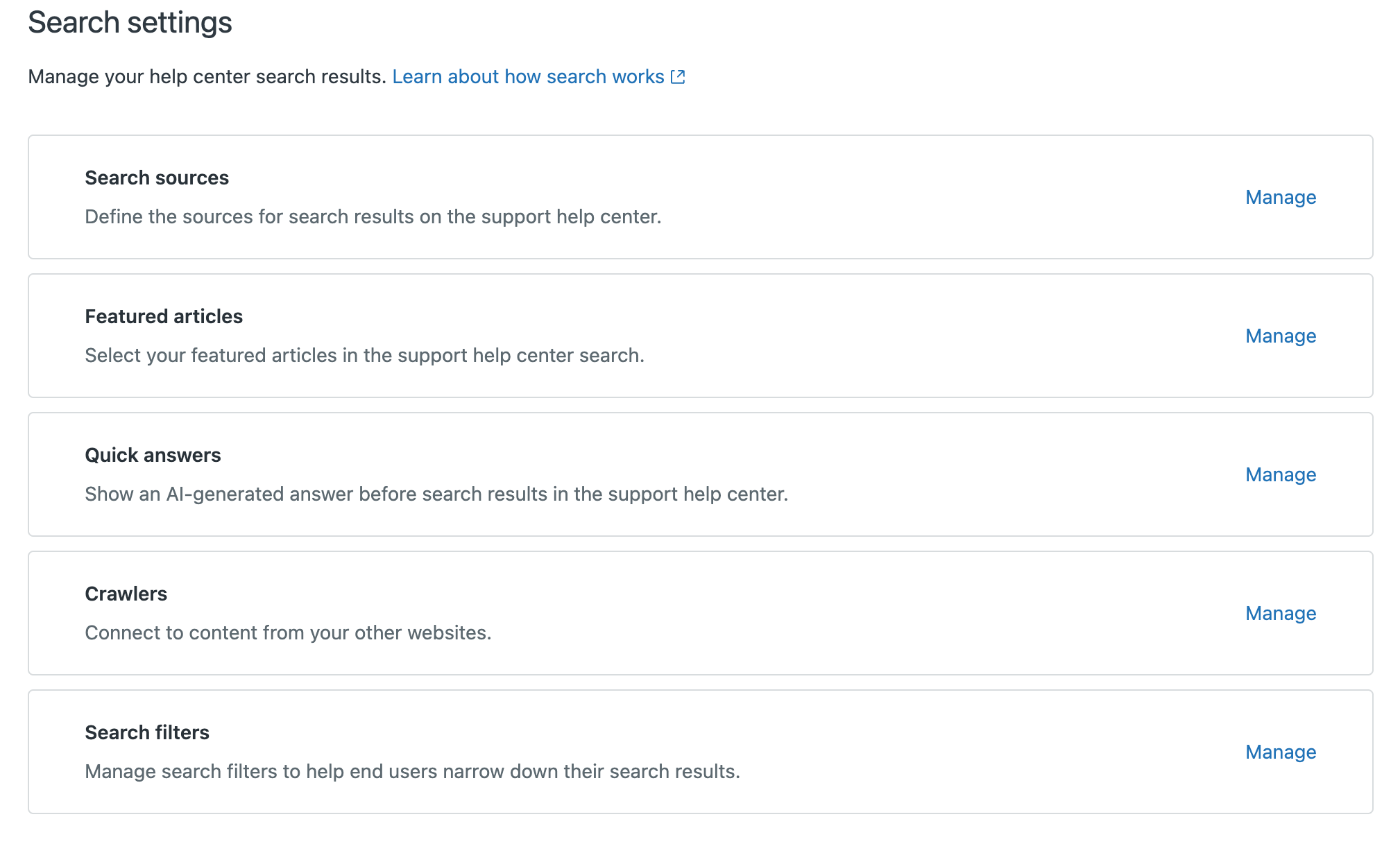
- Click Manage on any search setting to manage that setting:
- Search sources (Enterprise plans only): Define and enable the content sources that you want to include in help center search.
- Featured articles: Specify a list of articles that you want to display to users who are searching in the help center.
-
Quick answers: Turns generative search on or off in your help center. Generative
search is active by default for all plans. To turn this feature off, deselect Show
quick answers for search queries and click Save.

- Crawlers: Set up web crawlers to crawl and index different content within the same domain.
- Search filters (Enterprise plans only): Create sources and types for external content that you want to make available in your help center.
- Use the breadcrumbs to move back up in the hierarchy as needed.
