Summary: ◀▼
Create generative procedures to guide an AI agent through customer conversations with flexible, step-by-step instructions. Describe how to resolve an issue, search knowledge sources, phrase replies, and use actions, integrations, parameters, and other procedures. Review the generated procedure map, refine its logic, and publish it so the agent follows the intended conversation flow.
Generative procedures are flexible conversation flows that use agentic AI to guide an AI agent's responses and actions during a conversation with a customer.
Related articles:
Creating generative procedures
Client admins and client editors can create a generative procedure from within a use case.
To create a generative procedure
- In the AI agents workspace, select the AI agent you want to work with.
- Click
 Build in the sidebar, then select Knowledge > Use
cases.
- Click the use case you want to create a procedure for.
- Under Reply method, make sure Use procedure when use case is
triggered is selected.Tip: For more information about this setting, see Configure whether a use case uses a dialogue or generative procedure.
- On the Procedure tab, click Create procedure.
- On the Create procedure screen, enter a free-text description of how
the AI agent should solve a customer’s issue when this use case is
triggered.
Within a procedure description, you can:
- List the steps required to solve this task as you would with a human agent. For best results, list them in a logical, sequential order.
- Instruct the AI agent to search a knowledge source to answer the user’s question. For example, “Search in the help center for…” You can even use natural language to reference specific search rules (for example, “Search only in the English help center”).
- Add instructions on how to phrase an answer (for example, “Always include {{brandName}}”).
- Type a forward slash (/) or click the plus icon (+) to insert actions, API integrations, parameters, search rules, or links to other procedures or dialogues.
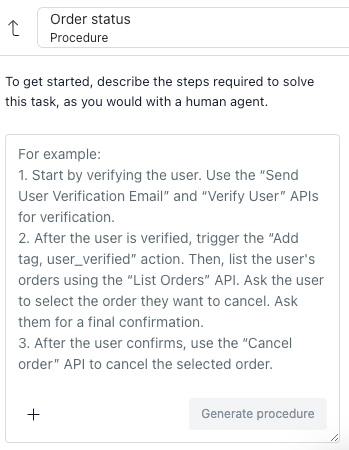
- Click Generate procedure.
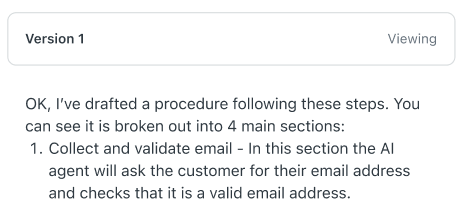
On the left, the procedure builder summarizes the procedure it generated, allowing you to read through the logic in a human-friendly way.
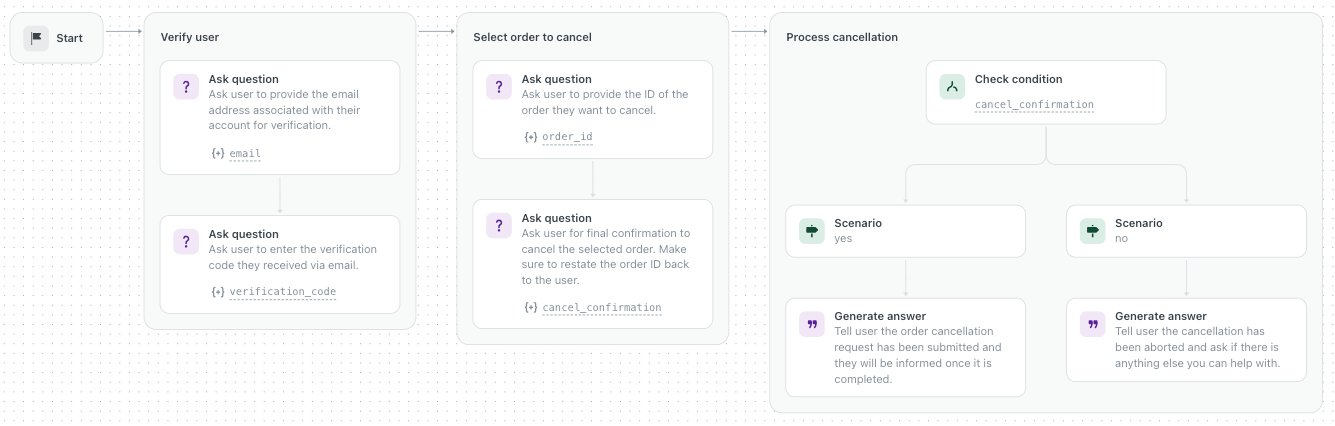
On the right, an AI-generated procedure map appears, showing you exactly what logic the AI agent will follow and what steps it will take during a conversation to solve a customer’s issue for this use case.
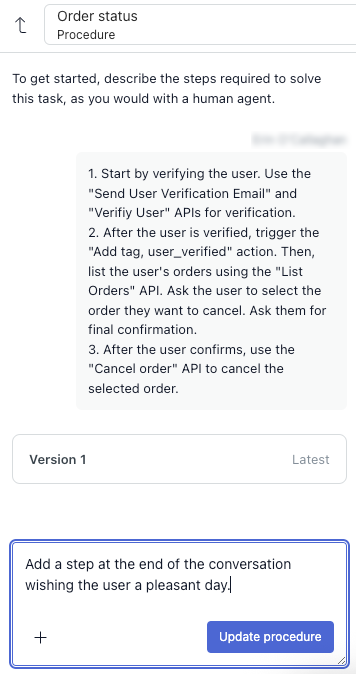
- If necessary, make adjustments to the procedure using the free-text field at
the bottom and click Update procedure.
Make adjustments by instructing the procedure builder to add, change, or delete parts of the current version of the procedure. Don’t rewrite the whole procedure in your adjustment.
For example, you might instruct the AI agent to:
- Add a step at a certain point in the current procedure.
- Change the content of a specific node in the procedure map.
- Adjust content throughout the entire procedure, such as changing {{phone}} with {{telephone}}.
After each adjustment you submit, the procedure builder sends a reply summarizing the changes it made to the procedure, and the procedure map is updated with your adjustments. You cannot edit your previous entries, but you can make limited edits to the procedure map directly.
Repeat as necessary until the procedure map looks the way you expect.Tip: If you prefer to read through the procedure’s logic in natural language, rather than as a visual procedure map, you can view a read-only text version of the procedure.If you want to start your procedure from scratch, click the Start over icon (
 ) in the upper right. Your changes are still
saved to the procedure’s version
history.
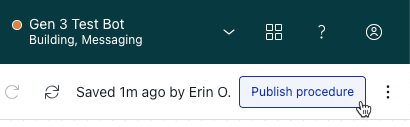
- Click Publish procedure in the upper right.
After you create a procedure, you can manage it at any time, including editing, testing, and restoring previous versions.
Article Q&A
Click to view
How do I create and publish a generative procedure for a use case?
Client admins and client editors can create one from a use case. In the AI agents workspace, select the AI agent, go to Build > Knowledge > Use cases, and open the use case. Under Reply method, select Use procedure when use case is triggered. On the Procedure tab, click Create procedure, describe how the agent should solve the issue, click Generate procedure, review and adjust it as needed, then click Publish procedure.
What can I include in a generative procedure description?
You can list task steps in a logical order, tell the agent to search a knowledge source and specify search rules in natural language, and give instructions about how to phrase answers. You can also insert actions, API integrations, parameters, search rules, or links to other procedures or dialogues by typing / or clicking +.
How can I review and refine a generated procedure?
The builder summarizes the procedure, and the procedure map shows the logic and steps the agent will follow. Use the free-text field to ask the builder to add, change, or delete parts of the current procedure, then click Update procedure. Avoid rewriting the whole procedure in an adjustment. The builder summarizes each update and refreshes the map. You can’t edit earlier adjustment entries, but you can make limited direct edits to the map. To restart, click Start over; your changes remain in version history.
Can I use rich-text elements in a generative procedure, and what can I do with it after publishing?
Generative procedures don’t currently support rich-text formatting such as buttons or carousels. After creating a procedure, you can manage it, including editing, testing, and restoring previous versions.