End-user presence can help businesses identify and prioritize tickets where users are still actively waiting in the queue versus those who have abandoned the conversation. By detecting when a user closes a website or disconnects, agents can focus their capacity on engaged customers rather than abandoned conversations.
This article contains the following sections:
About end-user presence and the EAP
End-user presence provides a signal to determine if a customer is still active on your website.
Because it is not always possible to perfectly identify presence, Zendesk uses specific signals combined with a buffer to prevent false negatives. For web messaging, the following signals indicate a user is no longer present:
- The end user closes the website.
- The end user closes the browser.
- The end user's internet connection is lost.
Requirements and limitations
Note the following when signing up for the EAP:
- Accounts need to have messaging turned on.
- This feature works only for users initiating conversations via the Web Widget and SunCo SDKs. It is not supported on mobile or social messaging channels.
- We will be introducing ticket triggers conditions for user presence on ticket updates soon, to give you the flexibility to create processes to handle change in user presence.
Signing up for the EAP
You can sign up for the early access program using this form. After you sign up, we’ll send you a confirmation email, and you’ll be able to turn on the feature for for your account.
Turning on end-user presence
If you’re accepted into the EAP, you can turn on the end-user feature in your messaging settings.
To turn on end-user presence
-
In
Admin Center,
click
 Channels
in the sidebar, then select
Messaging and social >
Messaging.
Channels
in the sidebar, then select
Messaging and social >
Messaging.
- Click Messaging settings.
-
Expand the Capacity release
section.
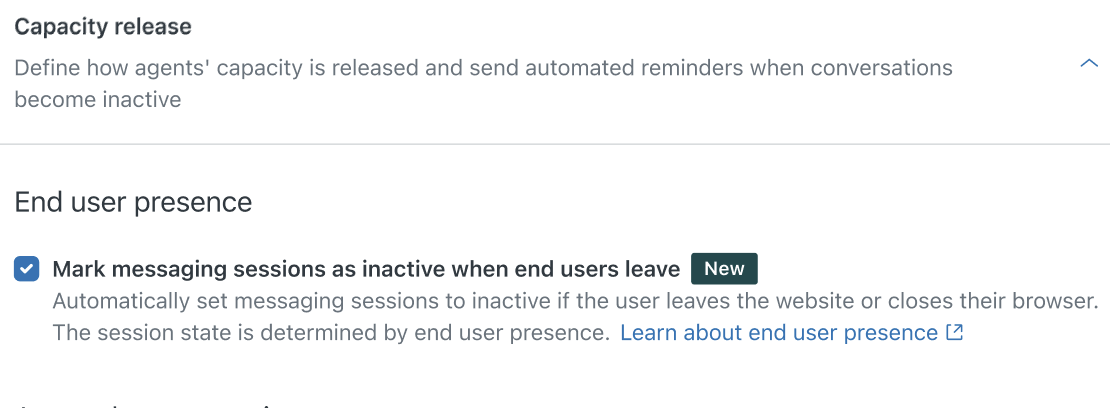
- Under End user presence, click Mark messaging sessions as inactive when end-users leave and opt into the terms and conditions.
- Again, click Mark messaging sessions as inactive when end-users leave and opt into the terms and conditions.
- Click Save.
Considering that the feature impacts routing and agents’ capacity, our recommendation is to turn on the feature in your sandbox first. Enable the feature on production/live accounts during low traffic periods, then turn the feature on in your production/live accounts during low traffic periods.
How messaging session states are determined
User presence is embedded directly into the definition of the messaging session state. There is no separate indicator; instead, the presence status toggles the session state shown on the ticket.
When the feature is turned on, the messaging session states are defined as follows:
- Active: The ticket has received an end-user response in the last 10 minutes (default) or within the user-specified auto release capacity inactivity period or the user presence is online.
- Inactive: The ticket has not received a response in the last 10 minutes (default) or within the auto release capacity inactivity period, the user presence is offline, or the ticket status is set to Pending, On-hold, or Solved. Any one of these events can cause the messaging session to become inactive.
How user presence affects routing and capacity
User presence directly impacts how tickets are queued and how agent capacity is calculated.
Routing Queue
- Messaging Routing: Only tickets with an active messaging session stay in the queue. Inactive or ended sessions are removed from the queue and can only be accessed through Views. See Routing messaging tickets and notifying agents for more information on messaging routing.
- Omnichannel Routing : If you are counting inactive conversations towards agent capacity, the queue includes both active and inactive tickets. Otherwise, inactive tickets are assigned directly to agents rather than staying in the queue. Essentially, there is no change in the expected behavior , except that user presence may move a greater percentage of your tickets to the inactive state sooner. See Understanding how omnichannel routing uses queues to route work to agents for more information on omnichannel queues.
Agent Capacity
- Messaging Routing: Agent capacity is released as soon as a messaging session becomes inactive or is ended.
- Omnichannel Routing: If you are counting inactive conversations towards agent capacity, the queue includes both active and inactive tickets. Otherwise, inactive tickets are assigned directly to agents rather than staying in the queue. See Managing your omnichannel routing configuration for more information.
- Auto-release Capacity: If you are automatically releasing agent capacity for inactive conversations, capacity is released when the session becomes inactive due to the end user leaving the website, or the auto release capacity timer elapses—whichever happens first. See Automatically releasing agent capacity for inactive messaging conversations for more information.
Using ticket triggers to manage abandoned conversations
There are two ticket trigger conditions that can be used to identify tickets associated with messaging conversations when a customer is no longer present:
- Ticket Messaging session state
- Ticket Messaging session inactive reasons
These conditions allow you to identify tickets that become inactive because the end user closed their browser or disconnected from the internet. For example, you can use these conditions to automatically handle the following scenarios:
- Automatically solve abandoned conversations in the queue
- Reassign abandoned conversations to a team for email follow-up
- Re-route inactive conversations to secondary queue with lower priority
- Tag abandoned conversations for reporting
Trigger recipe: Automatically solving abandoned conversations
The following ticket trigger conditions and actions automatically solve tickets associated with messaging conversations abandoned by the end user by leaving the website or going offline. This prevents abandoned conversations from lingering in the queue and getting assigned to agents.
-
Meet ALL of the following conditions:
- Ticket Status category | Is | Open
- Ticket Messaging session state | Changed to | Inactive
- Ticket Messaging session inactive reason | Is | User inactive or offline
-
Actions:
- Ticket Status category | Solved
- Ticket Add tags | abandoned_conversation
Trigger recipe: Reassigning abandoned conversations for email follow-up
The following ticket trigger conditions and actions automatically reassign tickets associated with abandoned conversations to be treated as email tickets by omnichannel routing and assigns it to a group of agents who can follow up with the end user asynchronously.
-
Meet ALL of the following conditions:
- Ticket Messaging session state | Changed to | Inactive
- Ticket Messaging session inactive reason | Is | User inactive or offline
-
Actions:
- Ticket Set routing channel | Email
- Ticket Group | email_group
- Ticket Priority | Normal
Trigger recipe: Re-routing inactive conversations to secondary queue with lower priority
The following ticket trigger conditions and actions automatically deprioritizes inactive conversations so that the high priority messaging queue is used only for active conversations.
-
Meet ALL of the following conditions:
- Ticket Priority | Is | High
- Ticket Messaging session state | Changed to | Inactive
- Ticket Messaging session inactive reason | Is | User inactive or offline
-
Actions:
- Ticket Priority | Low
- Ticket Group | secondary_group
Trigger recipe: Tagging abandoned conversations for reporting
The following ticket trigger conditions and actions automatically adds a tag that can be used to identify abandoned conversation tickets for reporting purposes.
-
Meet ALL of the following conditions:
- Ticket Messaging session state | Changed to | Inactive
- Ticket Messaging session inactive reason | Is | User inactive or offline
-
Actions:
- Ticket Add tags | abandoned_conversation