Verified AI summary ◀▼
Forward emails from your existing address to support by adding your external address and setting up forwarding in your email service. This allows you to manage customer inquiries through your preferred email while maintaining ticket tracking. Ensure proper setup by verifying forwarding and adding an SPF record for outgoing emails. Avoid using distribution groups or aliases to prevent routing issues.
As described in Choosing the email addresses to receive support requests, you can receive support requests at an external email address and forward the incoming email to Zendesk. In turn, Zendesk can send email replies to your customers via your external email address. External email addresses are owned and maintained by you, outside of Zendesk (for example, support@mycompany.com).
- Add your external support address in Zendesk so Zendesk can verify it and display it in outbound email.
- Set up forwarding in your email service so that incoming email is forwarded to a Zendesk support address.
Things to consider
- Connecting your email is one of the last steps before going live with Zendesk. Hold off on forwarding your email until you’re ready to process tickets in Zendesk.
- You can forward email to any existing Zendesk address. You can also create one or more support addresses for forwarded email. See Planning your Zendesk support addresses for forwarded email.
- If you use a Gmail account to receive support requests and expect low volume, Zendesk recommends using the Zendesk Gmail Connector for Email instead of setting up forwarding. See Turning on automatic ticket creation for your Gmail inbox.
- If you can’t set up forwarding yourself (for example, IT needs to set it up for you), you may consider setting up forwarding first before adding the external support address in Zendesk. Email traffic is one-way (inbound only) until you add the external address. Zendesk only sends outbound email on your behalf from that address when a support address has been added, and it has passed forwarding verification.
Planning your Zendesk support addresses for forwarded email
If you use one external email address to receive support requests, you can forward email from that address to any existing Zendesk support address. You can use your default support address, another Zendesk support address, or create a new address.
If your customers currently send support requests to multiple external email addresses, you can forward them to a single Zendesk address. However, Zendesk recommends creating a Zendesk support address for each forwarded account instead.
- billing@mycompany.com
- help@mycompany.com
- sales@mycompany.com
In this scenario, first create a new, native Zendesk support address for each, so you have a 1:1 mapping with your external forwarded accounts. Then follow the steps in Adding your external support address in Zendesk to connect the accounts.
Although you don’t have to set up your addresses this way, creating multiple Zendesk support addresses to receive forwarded email has advantages. For example, you can more easily route tickets to groups based on the support address where they were received.
Adding your external support address in Zendesk
First, add your external support address to Zendesk. When you add your support address, your email will be verified, and you'll know whether you've set up email forwarding correctly. If you're forwarding email from multiple addresses, repeat this procedure for each email address.
- If the Zendesk support address you're forwarding email to doesn’t exist yet, create it. See Adding a Zendesk support address.
- In Admin Center, click
 Channels in the sidebar, then select Talk and email > Email.
 - Click Manage support addresses.
- Click Add address, then click Connect external address.
- If you have multiple brands, select the brand for which you're adding an external support address.
- Select Email forwarding, then click Next.
- Complete these steps in your email provider account outside of Zendesk (such as Gmail
or Microsoft 365):
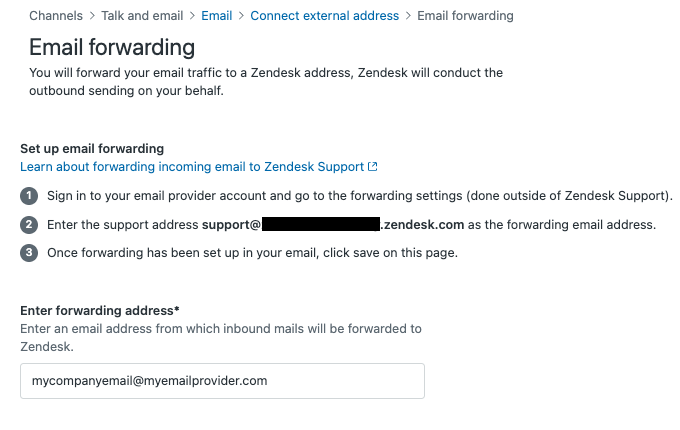
- Sign in to your email provider account and go to the forwarding settings.
- Enter the Zendesk support address that you want to forward email to as the forwarding email address.
- After you set up email forwarding in your email provider account, back in Zendesk,
enter your existing support email address in the Enter
forwarding address field, then click Save.
- Click the options menu icon (
 ) next to the support address you just added, then click
Verify forwarding.
) next to the support address you just added, then click
Verify forwarding.A test email is sent to that address to verify that you've set up forwarding properly. If successful, a message indicates the address is verified.
If your email service requires a verification email, you must search for the new ticket created from that email and click the verification link. The ticket might be suspended, so check your Suspended tickets view. You may need to click Verify again to re-verify the forwarding setup.If the test fails, you are alerted. After resolving issues, you must perform the verification again. See How to verify forwarding.
If you resolve the forwarding issue but don’t retry the forwarding check, email sent to the email address will create tickets but will not send Zendesk Support notification emails from that address.
External accounts are owned and maintained by you. After forwarding, verify that Zendesk can send outgoing email on behalf of your email server by adding an SPF (Sender Policy Framework) record.
Setting up forwarding on your mail server
When adding your external support address to Zendesk Support, Zendesk displays the high-level steps you need to take to set up forwarding in both Zendesk and your external email account. The steps differ depending on the email provider you're using. When you are finished, Zendesk verifies that forwarding is set up correctly.
Some email providers allow you to create email forwarding rules so that you can select the incoming mail that should be forwarded to your Zendesk account. Contact your email provider if you need help setting up automatic forwarding. Zendesk can't provide support for third-party products, such as email clients.
Refer to your email provider's documentation for more information about forwarding email:
- Microsoft 365 (Be sure first to allow forwarding in Manage Remote Domains)
- Outlook
- Gmail
- iCloud
- Yahoo
- Proton Mail
Zendesk Support does not support multi-forwarding, or forwarding that goes through multiple locations before being sent to the Zendesk support address. If multi-forwarding is configured, the requester will be the first address that Zendesk can find in the Reply:To or From: fields in the email headers. This could produce inconsistent results and is not supported.
Additional steps when forwarding email
- Add a sender policy framework (SPF) record if you’re using a custom domain (for example, support@mycompany.com) to verify that Zendesk can send outgoing email on behalf of your email server.
- Digitally sign outbound email from Zendesk to combat spoofing and prove that an email actually came from somebody in your organization.