Summary: ◀▼
Use the intelligent triage dashboard in Explore to track tickets by topic, entity, sentiment, and language, and compare enrichment with reply, assignment, and resolution times. You can review top trends, drill into ticket details, clone the dashboard, or build custom reports for deeper analysis. Historical data starts August 3, 2024.
Zendesk Explore features a prebuilt dashboard to help you monitor your intelligent triage activity. The intelligent triage dashboard can help you identify tickets classified by topic, sentiment, and language, as well as any entities you've defined.
You can edit and customize the intelligent triage dashboard by cloning it. If you need something more complex, you can write your own reports using a wide range of metrics and attributes.
The information in Explore dashboards is updated on a schedule. The schedule depends on which Explore plan you're using.
In the following topics, you'll learn how to access the intelligent triage dashboard and see the available reports:
Related articles:
Accessing the intelligent triage dashboard
Use the following procedure to access the intelligent triage dashboard.
To access the intelligent triage dashboard
- In Analytics, click the Dashboard icon (
 ) in the left sidebar.
 - From the list of dashboards, click the Zendesk Copilot: Intelligent triage dashboard.
Understanding the intelligent triage dashboard reports
On this dashboard, metrics such as Unreplied tickets, % One-touch, Two-touch solves, Comments (all user types), and Agent updates consider only email replies on the ticket. If you want to create further messaging-focused reports, you can create your own custom reports using the intelligent triage metrics and attributes in the intelligent triage dataset.
This dashboard contains the following tabs. Click a section to find out more information:
Overview tab
The overview tab contains the following reports:
Overview tab headline metrics
The Overview tab shows information about tickets enriched with topic, entity, language, and sentiment. You can filter the reports by time, group, brand, channel, and form.
This tab displays the following headline metrics (KPIs):
- Total enriched tickets: The total number of tickets enriched with topic, language, or sentiment.
- All tickets created: A count of all created tickets.
- First reply enriched tickets: The median first reply time for all enriched tickets.
- First reply all tickets: The median first reply time of all created tickets.
- First assignment enriched tickets: The median first assignment time for all enriched tickets.
- First assignment all tickets: The median first assignment time for all created tickets.
- Full resolution enriched tickets: The median full resolution time for all enriched tickets.
- Full resolution all tickets: The full resolution time of all created tickets.

Overview tab reports
This tab displays the following reports:
-
Top 5 topics: Displays the top five topics and the number of
tickets enriched with each topic.

-
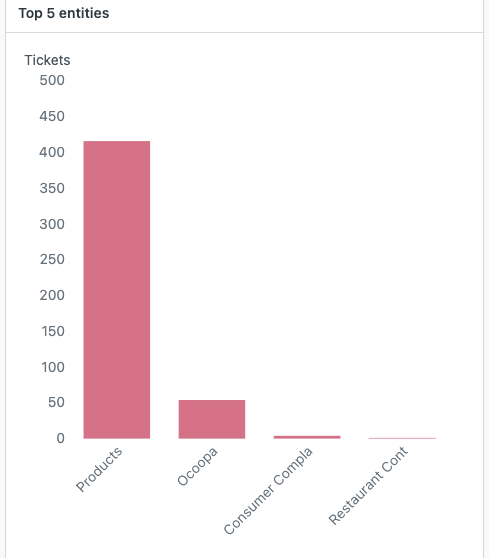
Top 5 entities categories: Displays the top five entities and the
number of tickets enriched with each topic.
-
Top 5 languages: Displays the top five languages and the number
of tickets enriched with each language.

-
Average ticket sentiment: Displays the average sentiment rating
for all sentiment-enriched tickets.

-
Topic enriched tickets: Displays the percentage of topic-enriched
tickets.

-
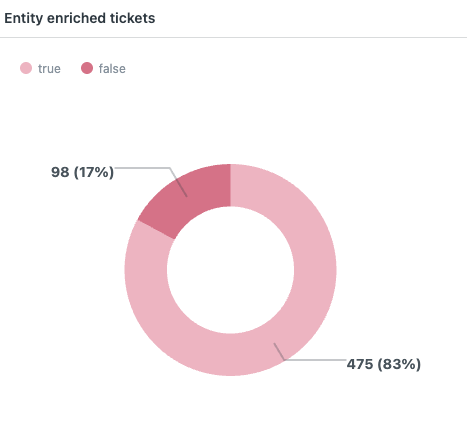
Entity enriched tickets: Displays the percentage of
entity-enriched tickets.
-
Language enriched tickets: Displays the percentage of
language-enriched tickets.

-
Sentiment enriched tickets: Displays the percentage of
sentiment-enriched tickets.

-
Tickets enriched vs not enriched by channel: Displays the number
of enriched and not enriched tickets for each channel. By default,
channels that don't support intelligent triage aren't displayed. If you
want to display these, select them from the Channel filter at the top of
the dashboard tab.

-
Tickets enriched vs not enriched by submitter role: Displays the
number of enriched and not enriched tickets for each submitter
role.

Topic tab
The topic tab contains the following reports:
Topic tab headline metrics
The Topic tab shows information about tickets enriched with topic. You can filter the reports by time, group, brand, channel, form, and status. Additional filters include topic category, subcategory, and confidence.
This tab displays the following headline metrics (KPIs):
- Topic enriched tickets: The total number of tickets enriched with topic.
- All tickets created: A count of all created tickets.
- First reply topic enriched tickets: The median first reply time for all topic-enriched tickets.
- First reply all tickets: The median first reply time of all created tickets.
- First assignment - tickets w/topic: The median first assignment time for topic-enriched tickets.
- First assignment all tickets: The median first assignment time for all created tickets.
- Full resolution time - tickets w/topic: The median full resolution time for all topic-enriched tickets.
- Full resolution all tickets: The full resolution time of all created tickets.

Topic tab reports
This tab displays the following reports:
-
Ticket volume distribution by topic category: Displays the number
of tickets for each topic.

-
Topic trends - Top 15 topics: Displays a line graph showing your
top 15 topics over time.

-
Topic breakdown across key metrics: Displays detailed information
about your tickets with topics, including satisfaction score, sentiment
rating, first reply time, and more. You can click most values, then
select Drill in to see a breakdown of that result for individual
tickets.

-
Agent replies across top 10 topics: Displays the number of
one-touch, two-touch, and multi-touch tickets for each topic.

-
Tickets enriched with topic vs. not enriched with topic by
channel: Displays tickets enriched with topic for each channel.
By default, channels that don't support intelligent triage aren't
displayed. If you want to display these, select them from the Channel
filter at the top of the dashboard tab.

-
Tickets enriched with topic vs. not enriched with topic by submitter
role: Displays tickets enriched with topic for each submitter
role, such as end users, agents, and admins.

Entity tab
The entity tab contains the following reports:
Entity tab headline metrics
The Entity tab shows information about tickets enriched with entities you've defined. You can filter the reports by time, brand, channel, form, status, and entity.
This tab displays the following headline metrics (KPIs):
- Entity enriched tickets: The total number of tickets enriched with an entity.
- All tickets created: A count of all created tickets.
- First reply entity enriched: The median first reply time for all entity-enriched tickets.
- First reply of all tickets: The median first reply time of all created tickets.
- First assignment entity enriched: The median first assignment time for entity-enriched tickets.
- First assignment of all tickets: The median first assignment time for all created tickets.
- Full resolution entity enriched: The median full resolution time for all entity-enriched tickets.
- Full resolution of all tickets: The full resolution time of all created tickets.

Entity tab reports
This tab displays the following reports:
-
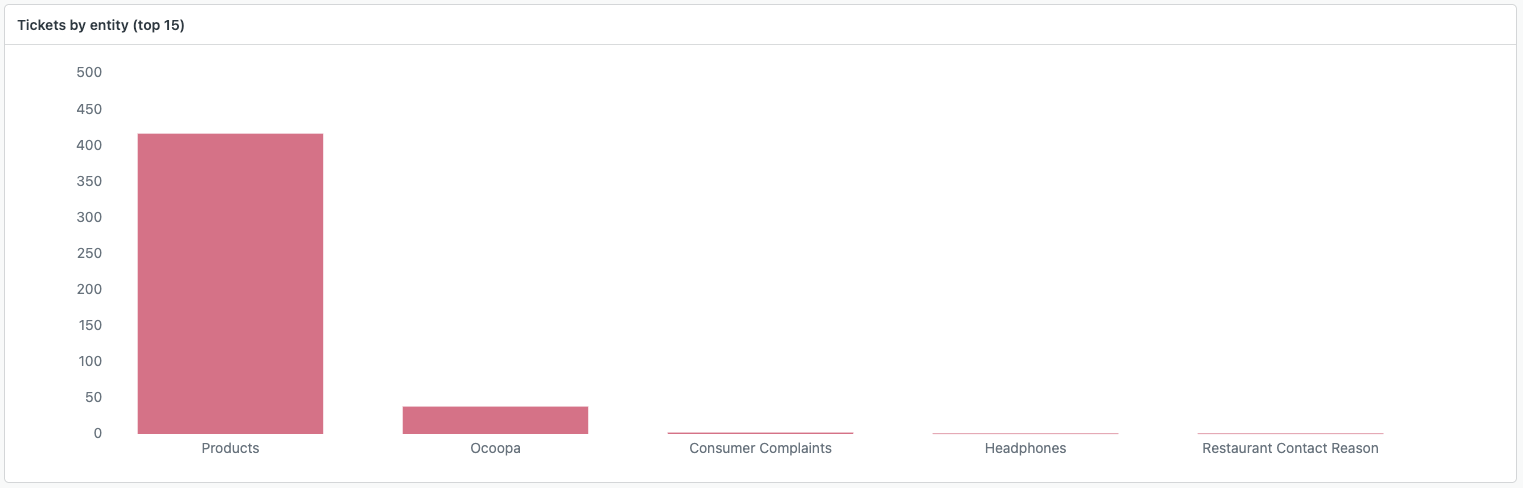
Ticket volume distribution by entity: Displays the number of
tickets for each entity.
-
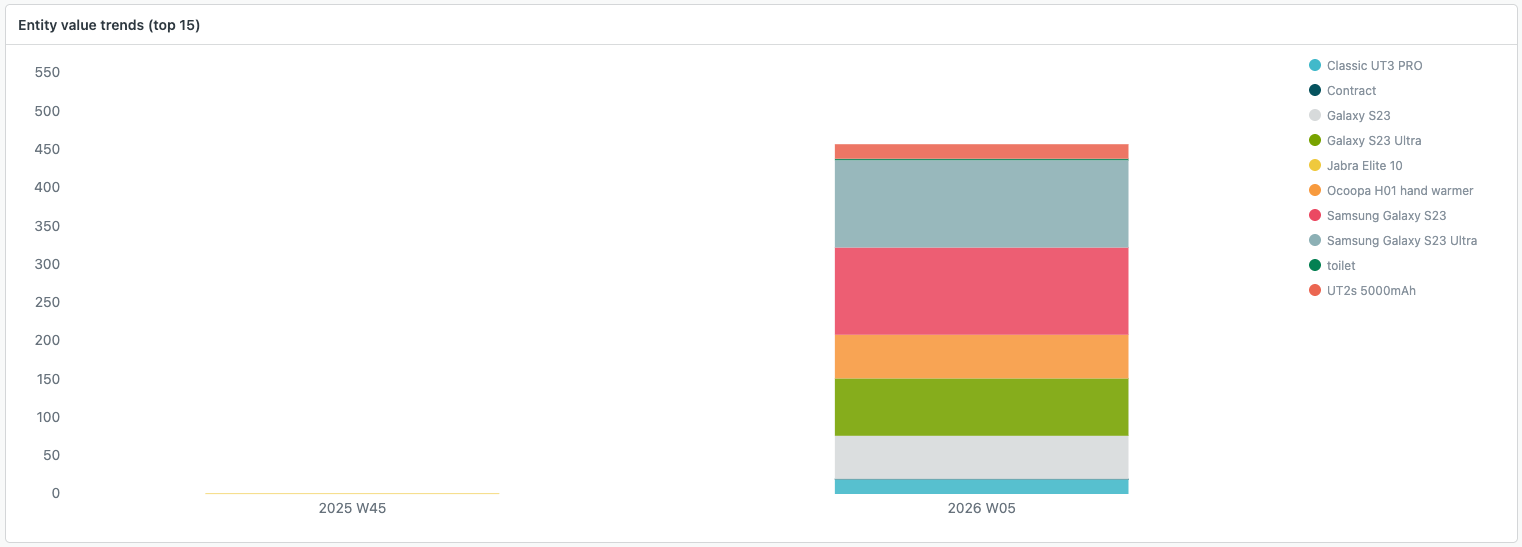
Entity trends - Top 15 entity values: Displays a line graph
showing your top 15 entities over time.
-
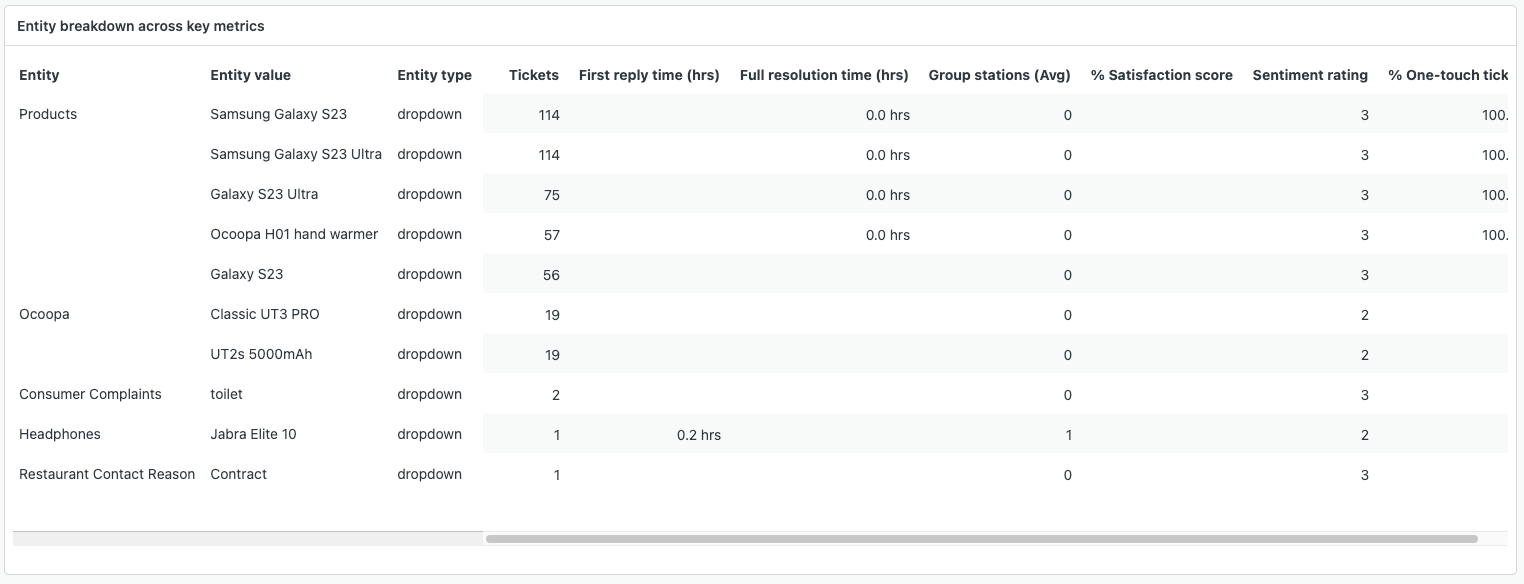
Entity breakdown across key metrics: Displays detailed
information about your tickets enriched with entities, including
satisfaction score, sentiment rating, first reply time, and more. You
can click most values, then select Drill in to see a breakdown of that
result for individual tickets.
-
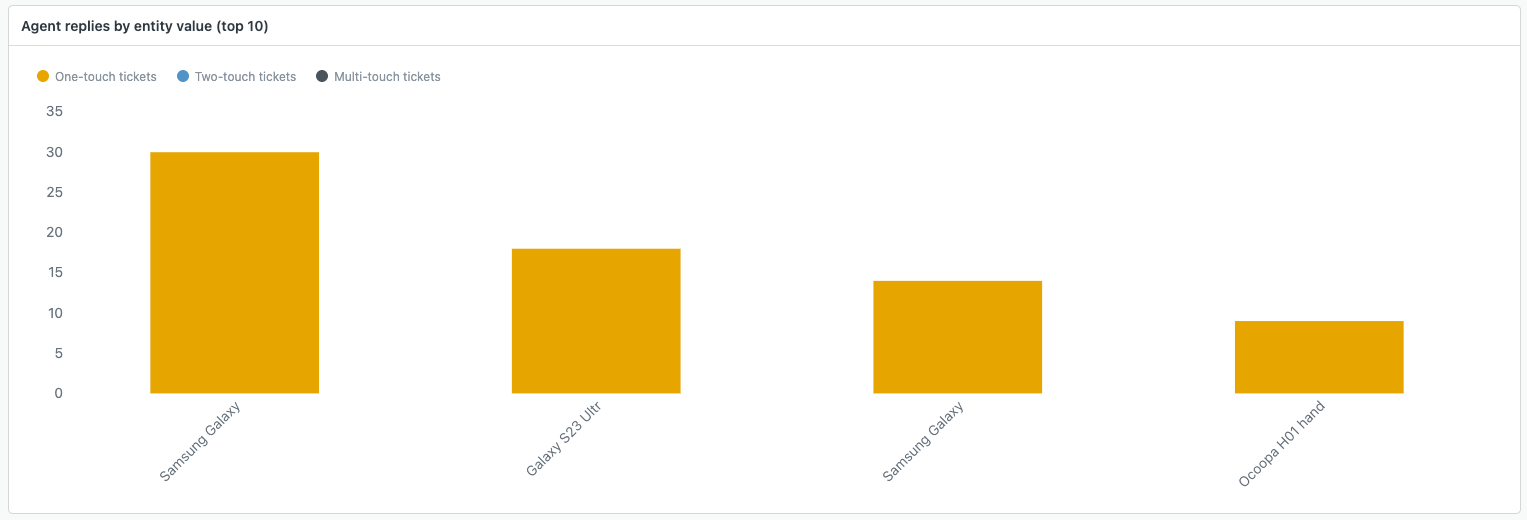
Agent replies across top 10 entity values: Displays the number of
one-touch, two-touch, and multi-touch tickets for each entity.
-
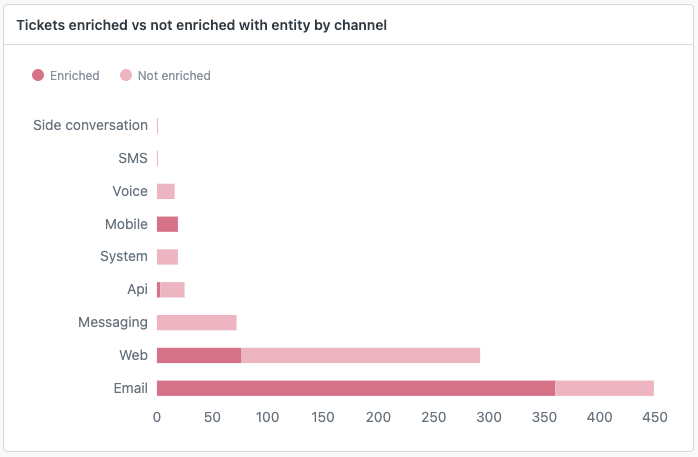
Tickets enriched with entity vs not enriched with entity by
channel: Displays tickets enriched with entities for each
channel. By default, channels that don't support intelligent triage
aren't displayed. If you want to display these, select them from the
Channel filter at the top of the dashboard tab.
-
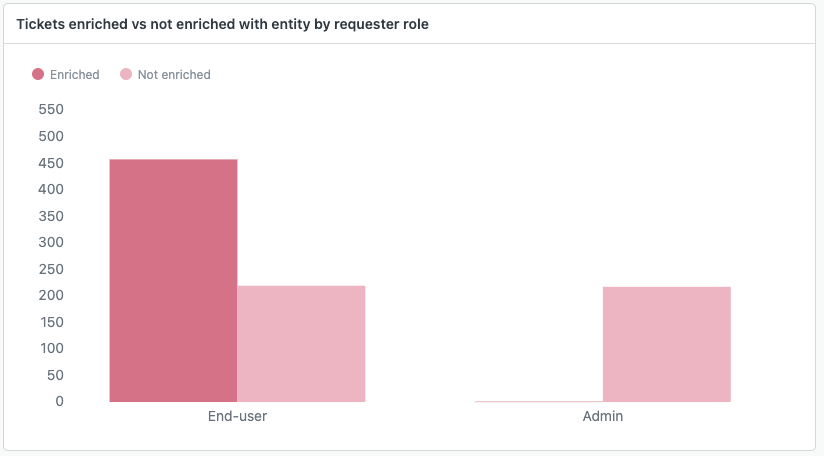
Tickets enriched with entity vs not enriched with entity by submitter
role: Displays tickets enriched with entities for each submitter
role, such as end users, agents, and admins.
Sentiment tab
The sentiment tab contains the following reports:
Sentiment tab headline metrics
The Sentiment tab shows information about tickets enriched with sentiment. You can filter the reports by time, group, brand, channel, form, and status. Additional filters include sentiment confidence.
This tab displays the following headline metrics (KPIs):
- Sentiment enriched tickets: The total number of tickets enriched with sentiment.
- All tickets created: A count of all created tickets.
- First reply - tickets w/sentiment: The median first reply time for all sentiment-enriched tickets.
- First reply all tickets: The median first reply time of all created tickets.
- First assignment - tickets w/sentiment: The median first assignment time for sentiment-enriched tickets.
- First assignment all tickets: The median first assignment time for all created tickets.
- Full resolution - tickets w/sentiment: The median full resolution time for all sentiment-enriched tickets.
- Full resolution of all tickets: The full resolution time of all created tickets.

Sentiment tab reports
The Sentiment tab shows information about tickets enriched with sentiment.
This tab displays the following reports:
-
Customer sentiment over time: Displays the average customer
sentiment from one (very negative) to five (very positive) over
time.

-
Average ticket sentiment: Displays the average ticket sentiment
across all sentiment-enriched tickets.

-
Sentiment breakdown across key metrics: Displays detailed
information about tickets enriched with sentiment, including
satisfaction score, percentage of one-touch tickets, full ticket
resolution time, and more. You can click most values, then select Drill
in to see a breakdown of that result for individual tickets.

-
Intelligent triage - Ticket enrichments for sentiment by channel:
Displays the number of tickets from each of your channels that are
enriched with sentiment. By default, channels that do not support
intelligent triage are not displayed. If you want to display these,
select them from the Channel filter at the top of the dashboard
tab.

-
Intelligent triage - Enriched tickets with sentiment by submitter
role: This displays a count of sentiment-enriched tickets for
each submitter role, such as end users, agents, and admins.

Language tab
The Language tab shows information about tickets enriched with language. You can filter the reports by time, group, brand, channel, form, and status. Additional filters include language and language confidence.
The language tab contains the following reports:
Language tab headline metrics
This tab displays the following headline metrics (KPIs):
- Language enriched tickets: The total number of tickets enriched with language.
- All tickets created: A count of all created tickets.
- First reply - tickets w/language: The median first reply time for all language-enriched tickets.
- First reply all tickets: The median first reply time of all created tickets.
- First assignment - tickets w/language: The median first assignment time for language-enriched tickets.
- First assignment all tickets: The median first assignment time for all created tickets.
- Full resolution - tickets w/language: The median full resolution time for all language-enriched tickets.
- Full resolution all tickets: The median full resolution time of all created tickets.

Language tab reports
This tab displays the following reports:
-
Language volume distribution - Top 10: The number of
language-enriched tickets for each language.

-
Total enriched tickets: The percentage of language-enriched
tickets.

-
Language trends: The number of language-enriched tickets for each
language over time.

-
Language breakdown across key metrics: Displays detailed
information about tickets enriched with language, including satisfaction
score, first reply time, full ticket resolution time, and more. You can
click most values, then select Drill in to see a breakdown of that
result for individual tickets.

-
Tickets enriched with language vs. not enriched with language by
channel: Displays language enriched against non-language
enriched tickets for each channel. By default, channels that do not
support intelligent triage are not displayed. If you want to display
these, select them from the Channel filter at the top of the dashboard
tab.

-
Tickets enriched with language vs. not by submitter role:
Displays language-enriched against non-language enriched tickets for
each submitter role, for example, end user, agent, and admin.
