Zendesk messaging triggers allow you to send messages to customers and optimize your workflows.
This article contains the following tables:
Related articles:
Channels
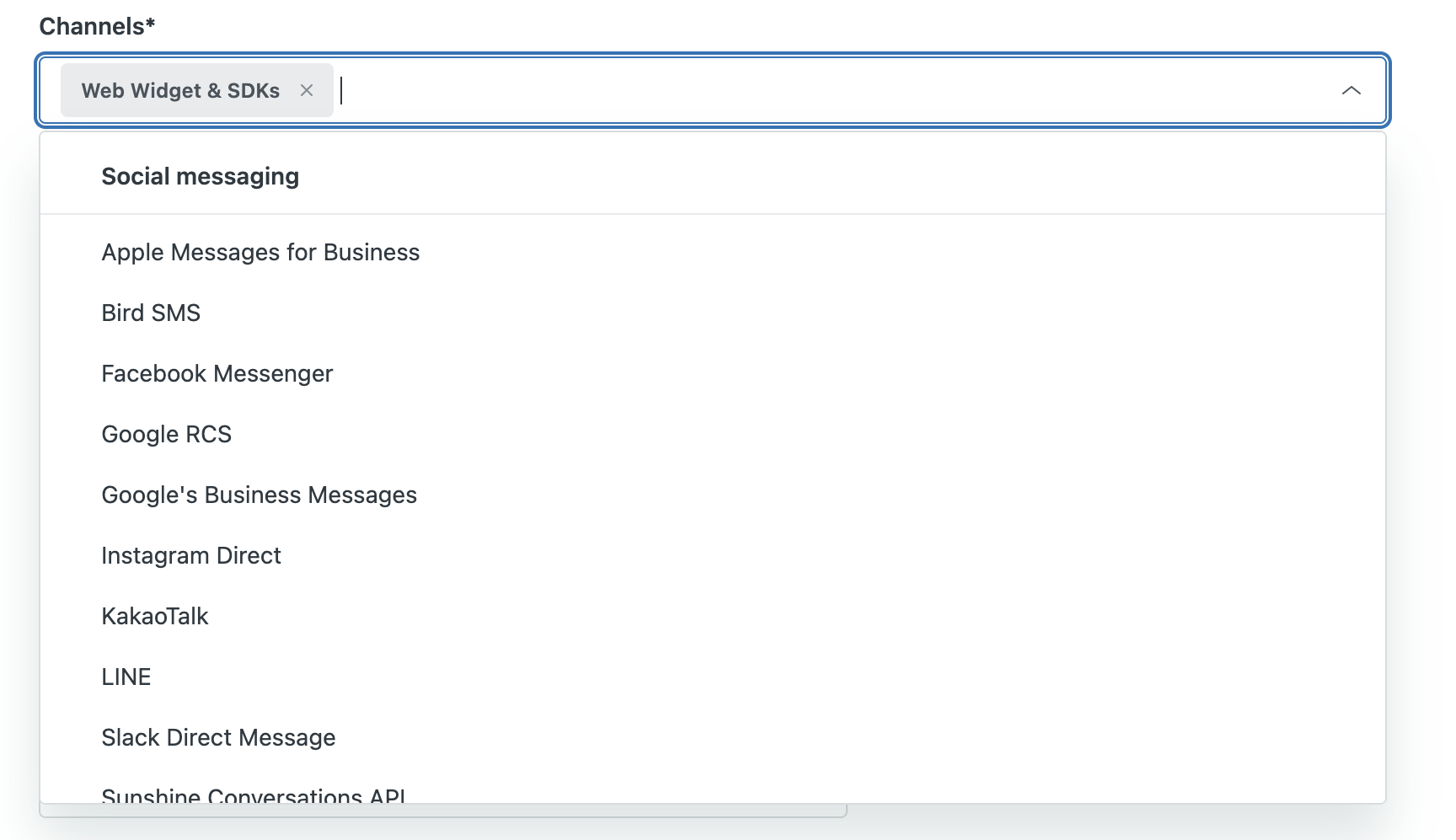
Messaging triggers can be used on Zendesk messaging channels, including:
- Web Widget
- Mobile SDKs (iOS, Android, Unity)
- Zendesk-supported social channels
Web Widget & SDKs is selected by default. You can delete this selection, or add any social messaging channels when creating a messaging trigger.
Trigger firing events
Every trigger starts with a firing event. These events dictate whether the trigger will run, then evaluate its conditions and fire its specified actions. Use the Run trigger dropdown to choose a trigger’s firing events.
- When a customer requests a conversation: The trigger runs when a conversation is handed off by the AI agent and a ticket is created, or the end user re-engages in the conversation after agent capacity is released.
- When a message is sent: The trigger runs when a customer enters the conversation and sends a message in the messaging Web Widget.
- When a conversation is added to the queue: The trigger runs when a messaging conversation is placed in the queue.
- When a conversation is assigned from a queue: The trigger runs when a messaging ticket is assigned to an agent from the queue, using the Accept button or auto-accept. It doesn't run when an agent reassigns the ticket to another agent, or when the agent claims the ticket from a group view.
Trigger operators
Use the following operators to build trigger condition statements.
| Operator | Description |
|---|---|
| is |
Exact match.
|
| Less than |
Less than the number entered, but not including.
|
| Greater than |
More than the number entered but not including.
|
| Less than or equal to |
An exact match or less than the number entered.
|
| Greater than or equal to |
An exact match or more than the number entered.
|
| Is not |
Anything but the value entered.
|
| Contains |
String includes the following text.
|
| Contains (case sensitive) |
String includes the following text.
|
| Does not contain |
String does not include the following text.
|
| Reg Ex |
Matches for regular expression values using the
Python RegEx
framework.
This field looks for a full
match, not
a partial. For assistance, you can use
Pythex
as a quick reference and validation tool.
|
| Reg Ex (case sensitive) | Field looks for a full case-sensitive match, not a partial match. |
| Is one of the following | Multi-select field; looks for a match that includes any of the selections. |
| Is not one of the following | Multi-select field; looks for a match that excludes all the selections. |
Trigger conditions
Condition statements are collections of conditions, field operators, and condition values. Available values can vary based on the condition selected. Condition statements are essentially ‘if’ statements that return all tickets that meet the specified criteria.
You must select one – and only one – of the condition statements to save and use a trigger in both the Visual and Developer views:
-
Check All of the Following Conditions requires all conditions to be met to execute a trigger’s actions.
-
Check Any of the Following Conditions requires only one condition to be met to execute a trigger’s actions.
| Condition | Description |
|---|---|
| Date and time | |
| Hour of day |
Hour of the day (Universal Time Clock):
0 = midnight 23 = 11 p.m. Note that the Hour of day condition uses the hour only, and does not include minutes. |
| Day of week |
Day of the week:
0 = Monday 6 = Sunday |
| Previous conversation | |
| Customer previous conversations | Number of times the customer has previously had a conversation with an agent. (New conversation = 0). Limited to 32,000 previous conversations. |
| Customer Information | |
| Customer name | Name of customer |
| Customer triggered |
Triggered customer (activated by Set triggered action). Values are True or False |
| Customer email | Email of customer |
| Customer page URL |
The location of the Web Widget during the most
recent
customer event. An event can be when the customer
requests a
conversation, or when the customer sends a message
in the
conversation.
Not supported in social channels. |
| Customer Location | |
| Customer country |
The country associated with the customer's IP
address.
Not supported in social channels. |
| Customer IP |
IP address of the customer.
Not supported in social channels. |
| Customer device information | |
| Customer browser |
Browser used by the customer. Version number
does not include
patch updates.
Not supported in social channels. |
| Customer OS |
Operating system used by the customer. Does not
include OS
version.
Not supported in social channels. |
| Customer platform |
Platform used by the visitor.
Not supported in social channels. |
| Online Status | |
| Account status |
Status of your Zendesk account. Values are:
|
| Group status |
Status of the selected Zendesk group. Values are:
|
| Conversation-related information | |
| Brand | Multi-select field lets you add your active and inactive brands. |
| Customer is in active conversation |
Values are:
|
| Customer is requesting conversation |
Values are:
|
| Customer served |
Values are:
Not supported in social channels. |
| Group | Name of the group assigned to the conversation. |
| Sender | Name of the message sender. |
| Sender Type | Values are Agent or Customer. |
| Message | The message being sent. |
| Initial routing |
The conversation is added to a queue for the first time, and applies only to tickets with the New ticket status. Does not apply to tickets that are transferred from one group or agent queue to another. This condition can be used to differentiate between the messaging tickets added to the queue for the first time and tickets transferred to the queue. Values are:
|
| Customer queue | |
| Queue Size |
The total number of incoming conversation
requests for the
account. This condition targets the
overall account
queue,
not the department-specific queue.
Note:
If
you’re using the
multi-conversations
feature, multiple
conversations from a single user are
counted as a
single request.
|
Trigger actions
Action statements define what occurs if all the condition statements are true and the trigger fires. You can think of action statements as ‘then’ statements: if all of your conditions are true, then perform these actions to execute these actions to update the conversation.
| Action | Description |
|---|---|
| Send message to customer |
Sends a predefined message to the user.
When a message is sent to an end user by a messaging or system trigger:
|
| Wait |
Introduces a delay before the next action is
fired
Note:
Triggers run simultaneously. If multiple
triggers need to be
fired in a specific sequence, add at least
a one-second
delay to each subsequent trigger.
|
| Request email |
Sends an automated message to the customer requesting
their
email to facilitate
continuous
conversation
re-engagement. Not supported in social channels. |
| Set triggered |
Applies a flag that can be used with the Customer triggered condition. Values are: True or False |
| Add tags | Adds tags to the ticket. |
| Remove tags | Removes tags from the ticket. |
| Suspend user |
Suspends a user, preventing them from using your
messaging
service. See
Suspending messaging
users
for more information.
Note: When
using this
action in a trigger, include it as the trigger's
final
action.
|
Trigger placeholders
Placeholders are references to customer and agent details you can use in trigger action statements. When the trigger is fired, the placeholder pulls in the current visitor and session information.
| Placeholder | Type | Description |
|---|---|---|
| @hour_of_day | Integer | Current hour of the day (UTC timezone). 0 - 23 |
| @day_of_week | Integer | Current day of the week (0 = Monday, 6 = Sunday) |
| @customer_prev_conversations | Integer | Number of previous independent conversations initiated with agent (New conversation = 0) |
| @customer_name | String | Name of the customer. |
| @customer_triggered | String | True if the customer has previously received a messaging trigger. |
| @account_status | String | Status of the account (Online, Away, or Invisible). |
| @bot_name | String | Name of the AI agent published to the current messaging channel. |
| @customer_is_in_active_conversation | String | True if the customer is active in the conversation. |
| @customer_requesting_conversation | String | True if the customer is requesting a conversation. |
| @customer_served | String | True if customer is currently being served by an agent. |
| @sender | String | The name of the sender. |
| @customer_email | String | The email of the customer. |
| @sender_type | String | The type of sender (Agent or Customer). |
| @customer_page_url | String | The URL of the page the customer is on. |
| @customer_ip | Integer | The customer's IP address |
| @message | String | The message sent. |
| @queue_size | Integer | The incoming conversation requests. |
| @wait_time_min | Integer | Minimum estimated wait time for the first response from an agent to the ticket (in minutes). The wait time is available only for groups with at least 1 ticket routed in the last 7 days. |
| @wait_time_max | Integer | Maximum estimated wait time for the first response from an agent to the ticket (in minutes). The wait time is available only for groups with at least 1 ticket routed in the last 7 days. |