Summary: ◀▼
Use App Builder to create custom support apps by describing your workflow in plain language. AI generates app code and layouts, with tools to preview designs, upload reference files, edit code, test with real data, troubleshoot errors, and track versions. Refine apps through prompts, then publish them for agents and admins. Review plan limits and app-location restrictions, and test thoroughly before deployment.
App Builder lets you create Zendesk apps that extend Zendesk to fit your unique customer and employee service workflows. Instead of costly developer support, or long waits for new product features, you can quickly build solutions you need to support specialized processes, right when you need them.
App Builder lets you create these apps using natural language processing (NLP) and generative AI. With NLP, you can provide instructions in plain language, similar to how you might explain your ideas to a colleague or friend. Generative AI interprets these prompts and generates the necessary code, UI, and functionality. With generative AI, building apps is as easy as describing them, eliminating the learning curve associated with traditional coding.
Here are some key benefits of App Builder:
- Accelerated prototyping: Generate functional code from plain language prompts lets you move quickly from concept to working prototype.
- File upload support: You can upload up to five files directly into your App Builder prompts. The following file types are supported: Markdown (.md), PNG, JPG, TXT, DOCX, PDF, CSV, or JSON. This allows the AI to access your wireframes, requirements, and data samples to determine the layout, required input fields, UI components, and functionality logic, helping you build production-ready apps with less manual back-and-forth.
- Real-time visual preview: Instantly see how your app will look and behave as you build, making it easy to validate the design and functionality.
- Built-in version control: Every change you make is automatically versioned. Easily trace changes, restore previous versions, and compare differences.
- End-to-end testing environment: Test your app with real Zendesk data and API responses in a safe environment before deploying. Any changes you make during testing will be reflected in your actual account.
- Zendesk-specific AI expertise: Generate apps using Zendesk frameworks, APIs, and design best practices, and automatically resolve common Zendesk-specific issues.
- Data integration: Build apps that connect and work with data from Zendesk, your company's internal systems, and popular third-party platforms like Google, Jira, and others.
- Work saved and synced everywhere: Your work stays securely saved and up to date across sessions, browsers, and devices.
- Dark mode support: App Builder supports both dark and light modes. You can build and test your app in your preferred theme, and agents will see the app automatically adapt to match their own interface settings. No additional coding is required. Apps built prior to December 2025 may require a republish or prompt update to display properly in dark mode.
- Global and localized interface: App Builder and all its menus, prompts, and guidance are fully translatable. The interface displays in your chosen language where translations are available, and automatically supports right-to-left (RTL) layouts and region-specific formats.
- Direct code editing for fast, precise edits: Use the native code editor to fine-tune your app's logic, UI, and configuration. This saves time and reduces prompt usage while maintaining compatibility with visual previews and AI assistance.
- Test Mode Assistant: When testing your app, an AI-led assistant automatically detects raw errors or unexpected results, explains the root cause in plain language, and applies fixes.
- App Designer: Explore and compare up to three AI-recommended layout options before app building begins, ensuring the app's structural foundation aligns with your workflow.
Apps created by the App Builder are designed with Zendesk Garden components as well as ZAF APIs and REST APIs.
- Understanding how to use App Builder
- Creating, publishing, and managing apps with App Builder
- App Builder code structure reference
- Troubleshooting App Builder
This article includes the following sections:
App Builder overview (video)
In addition to the details in this article, this video provides a visual overview of App Builder to help you get started.
Getting started
A conversation is a guided, ongoing exchange in the conversation pane where you outline your requirements, review suggested solutions, refine your app, and troubleshoot errors as needed. Conversations serve as your interactive workspace with App Builder, recording all prompts, responses, and iterations as you shape your app idea.
You can have multiple conversations at the same time to explore different ideas or prototypes. Not every conversation results in a published app. Sometimes you use a conversation solely for experimenting, learning, or testing features.
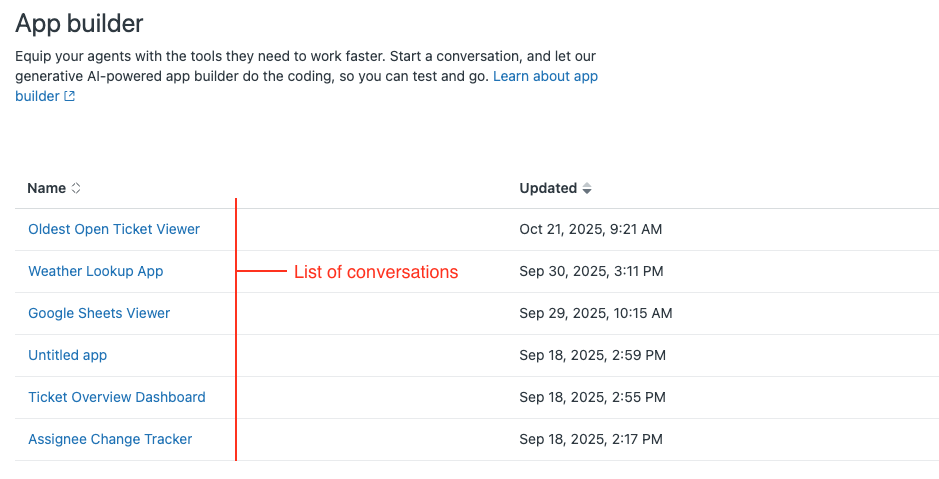
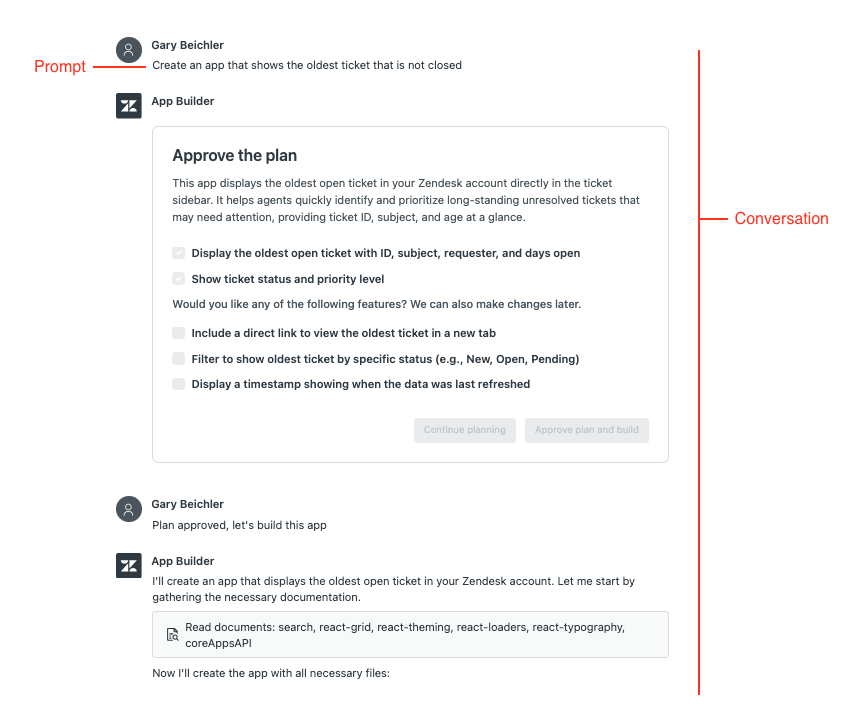
Prompts are the individual instructions or questions you send within a conversation to move your app forward. For example, you might enter “Add a status filter to this view” or “Update the app to show high priority tickets first.” Through a series of prompts and responses, you and App Builder collaboratively build and refine your app.
After you describe your app requirements, click Choose a design to enter App Designer, where you can preview and compare layout options in a live modal before approving the build plan. If you already know how you want your app to look, click Build now to skip design recommendations and proceed directly to building.
Apps are the tangible results you create and install from successful conversations. An app is the working solution you build, test, publish, and manage in Zendesk. Once published, agents and admins can use the app in their workflow. An app may be generated from a single conversation or from several rounds or after several refinement cycles.
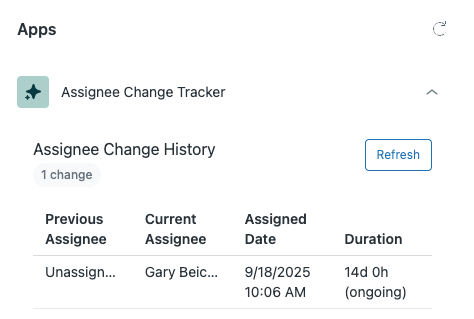
Conversations and apps are tracked separately in App Builder. A conversation can be linked to either a draft app (still being built or refined) or a published app that’s already live in Zendesk. This means you can return to any conversation at any time to continue building a draft or update and re-publish a live app.
App Builder uses NLP and generative AI to interpret user prompts and convert them into functional apps. To ensure you get the best results from App Builder, it's important to follow specific guidelines when crafting your prompts. For best practices, see Prompting guidelines for App Builder.
Best practices and limitations
- Build a simple feature and keep refining the app by adding additional prompts that offer more context and detailed requirements. By breaking the development process into several segments, you can more easily troubleshoot and address issues in specific parts of the app before introducing additional complexity.
- If the built app doesn’t work, ask the AI to add logging.
- Read the AI's response to make sure it understands what you are asking it to build.
- Perform thorough testing of the app before publishing it.
- When testing your app, a Test Mode Assistant automatically captures failed actions and raw errors, explains what went wrong, and applies fixes directly to your build.
- If something doesn’t work as expected, provide detailed explanations of what you’re expecting, which parts are functioning correctly, and which parts are not. Avoid simply stating that it doesn’t work.
- Approach the process with patience to better understand how the AI operates and what steps to take if you’re not achieving the desired results.
Limitations
Current limits include:
- Conversation allowance by plan per account:
- Suite Professional and Support Professional: Up to 10 conversations
- Suite Enterprise and Support Enterprise: Up to 30 conversations
- Suite Enterprise Plus: Up to 50 conversations
Note: A conversation is the chat or set of prompts where you collaborate with AI to plan, refine, and solve app ideas. Start a new conversation for each new app you want to create. Not every conversation leads to a published app.An app is the finished product you publish from a conversation. Once published, the app is installed in your Zendesk account for agents and admins to use.
Conversation allowances only limit how many builds you can have in progress at a time. You can publish and deploy as many apps as you need. There’s no cap on the number of published apps, only on how many conversations you can have simultaneously.
- Deleting a conversation does not delete the published app itself. The app will remain available and usable in Zendesk for agents and admins. However, once you delete the conversation, you won’t be able to edit or update that app. To make further changes, you’ll need to create a new conversation and build a new version of the app.
- All eligible customers with access to App Builder receive approximately 3,600
prompts at no cost. The limit is an approximation. See the next bullet for more
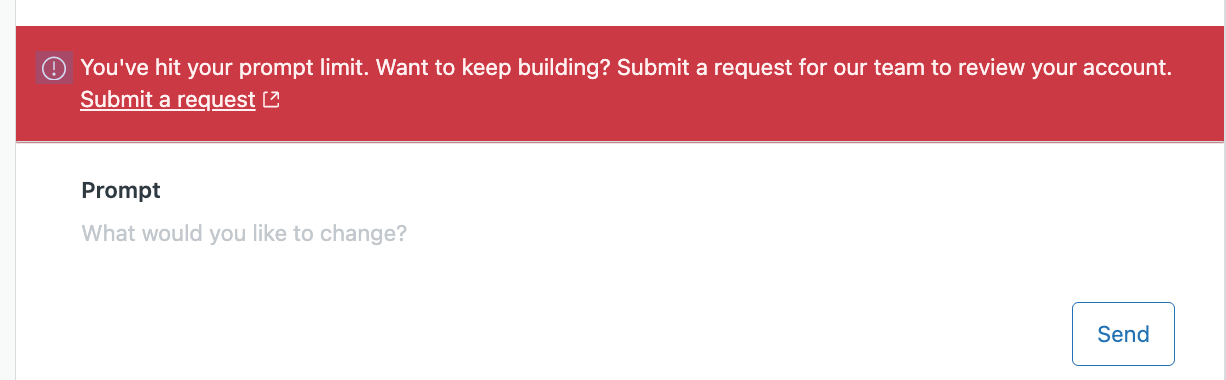
information. When you reach this prompt limit, a banner appears above the prompt
box with a “Submit a request” link to submit your request. If approved, your
limit increases one time to a maximum of approximately 7,200 prompts, depending
on your eligibility. If your request is not approved or you reach the higher
limit, you’ll need to wait until the annual prompt limit resets on February 1 to
continue building apps with App Builder.
- The maximum number of prompts allowed is based on the expected length and complexity of each prompt. If you submit larger prompts, the total number of prompts you can send will decrease accordingly.
- App Builder doesn't track or display prompt usage in the user interface.
- App Builder currently limits input prompts to 50,000 characters and allows up to 200 messages per conversation. Actions are also rate-limited to 6–12 requests per minute per user. These limits are enforced at the conversation level.
- Only one OAuth provider per app. You cannot connect to multiple OAuth services (for example, Google) in the same app.
- You can only build and use apps within a single environment. You cannot move an app from sandbox to production or between environments, so you’ll need to manually recreate your app if you want it elsewhere.
- You cannot import an existing app into App Builder to edit or enhance it. You can only create new apps or continue work on apps originally started in App Builder.
- App Builder supports six app locations: Ticket Sidebar, New Ticket Sidebar, User Sidebar, Organization Sidebar, Top Navigation, and Side Navigation. When you start a new app, you must choose one location, and you cannot change it after the conversation starts.
- Each app can only include code for a single location. If you want the same functionality in multiple locations, you’ll need to build and manage a separate version of the app for each one.
- You can attach up to five files per prompt. Supported file types are PNG, JPG, TXT, DOCX, PDF, CSV, and JSON. Uploaded files are used as LLM context to generate app UI and logic only. They cannot be used to generate images or replace app asset logos.
- As your conversations grow longer, you may notice slower performance because full pagination isn’t supported yet.
- The change log only tracks details for the ten most recent versions. Very long files may not be fully tracked, so you may not always see the full history of every change in your app.
- When you download your app, you’ll receive the compiled code, not the separate source files or full configuration details, which means editing outside App Builder isn’t possible at this time.
- App Builder supports both secure and standard (non-secure) settings parameters. Secure settings are encrypted values hidden from end users (such as API keys or secrets), while standard settings are regular, visible configuration values (such as feature flags, labels, or URLs).
- Third-party pdfjs-dist, tesseract.js, and charting libraries are currently supported.
Next steps
Now that you understand the core concepts, you're ready to create, publish, and manage apps using App Builder.
Article Q&A
Click to view
How do I start building an app and choose its design?
Start a conversation and describe your requirements through prompts, then refine the app with further instructions. Select “Choose a design” to compare up to three AI-recommended layouts in App Designer before approving the build plan, or select “Build now” to skip the recommendations. A conversation can remain an experiment or be linked to a draft or published app.
How can I test and troubleshoot my app before publishing it?
Build in iterations, review the AI’s response to confirm it understood your request, and test thoroughly before deploying. If something fails, provide details about what you expected and what works or does not; you can also ask the AI to add logging. Test Mode Assistant detects failed actions and raw errors, explains what went wrong, and applies fixes. Note that changes made during testing are reflected in your actual account.
How many conversations and prompts can I use, and are there limits on published apps?
Conversation allowances are up to 10 for Suite or Support Professional, 30 for Suite or Support Enterprise, and 50 for Suite Enterprise Plus. These limit builds in progress, not published apps; there is no cap on published apps. Eligible customers receive approximately 3,600 prompts, with a possible one-time increase to approximately 7,200 if approved. If you reach the applicable limit, you must wait for the annual reset on February 1. Prompts are limited to 50,000 characters, conversations to 200 messages, and actions to 6–12 requests per minute per user. App Builder does not display prompt usage. Deleting a conversation does not delete its published app, but you can no longer edit or update that app through the deleted conversation.
Can I import an existing app or move my App Builder app to another environment or location?
You cannot import an existing app into App Builder or move an app between environments; you must manually recreate it in another environment. Each app uses one of six supported locations, and you cannot change the location after its conversation starts. An app can contain code for only one location, so you need a separate app version for each location where you want the functionality.
What should I know about App Builder’s availability and integrations?
App Builder is not available on accounts using the legacy Support interface. An app can connect to Zendesk, internal systems, and third-party platforms, but it supports only one OAuth provider per app, so you cannot connect multiple OAuth services in the same app.