After you create an AI agent, you need to activate it before it can begin interacting with customers on your chosen channels. At any time, you can also manage an AI agent’s channels, or clone or delete it.
This article contains the following topics:
- Activating an AI agent
- Managing an AI agent's channels
- Editing an AI agent
- Cloning an AI agent
- Deleting an AI agent
Related article:
Activating an AI agent
Activating an AI agent makes it live for customers on the channels you choose. You might have activated an AI agent during the creation process, or you might have saved its configuration without activating it yet.
To activate an AI agent
- In the AI agents workspace, click
 Dashboard in the sidebar.
 - In the list of AI agents, hover over an AI agent with the status Ready to
activate and click Activate.
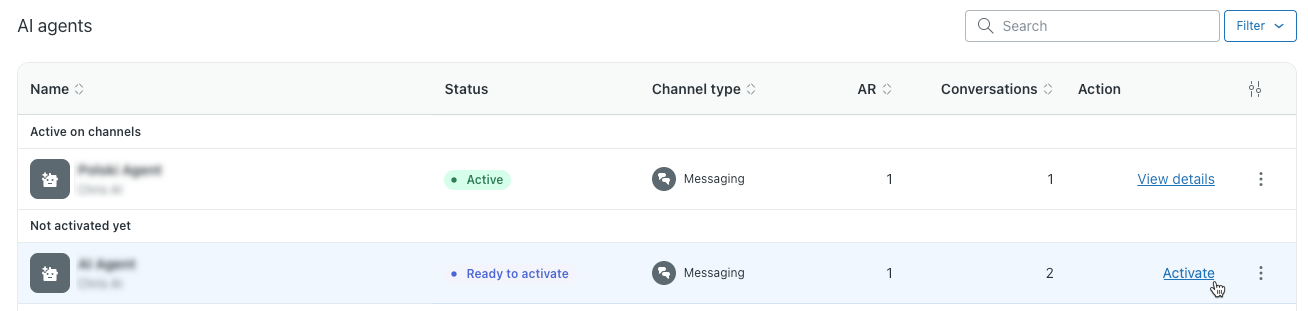
The Manage your channels dialog opens.
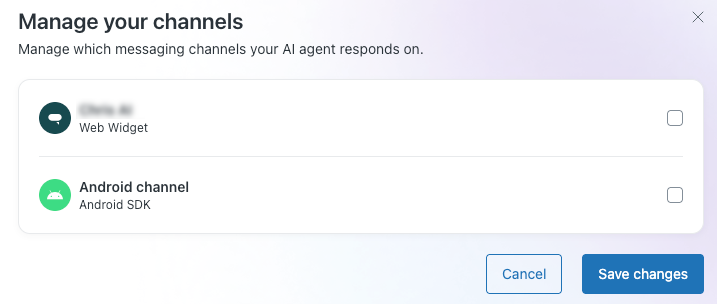
-
Select the channels you want the AI agent to interact with customers on.
- Click Save changes.
Your AI agent is now live on your selected channels.
Managing an AI agent's channels
At any time, you can manage the channels that your AI agent is live on. Only one AI agent can be active on a channel at a time.
If you initially created an AI agent for messaging channels, you can’t later activate it on email (including API or web form) channels, and vice versa.
For messaging AI agents only: When you select channels for an AI agent, routing rules are automatically created. Routing rules determine which AI agent should respond on a given channel, and apply only to messaging channels, not email.
To manage an AI agent’s channels
- In the AI agents workspace, click
Dashboard in the sidebar.
- In the list of AI agents, hover over the AI agent you want to manage channels for.
- Click the options menu (
 ) and select Manage channels.
The Manage your channels dialog opens.
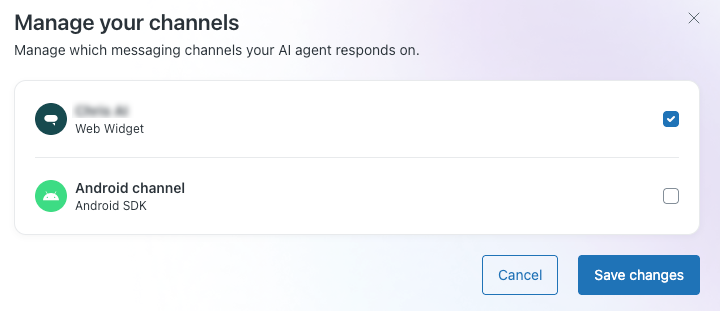
- If a channel is selected, it means the AI agent is already live on that channel.
- If a channel is deselected, it means the AI agent isn’t currently live on that channel, but it’s available to be added.
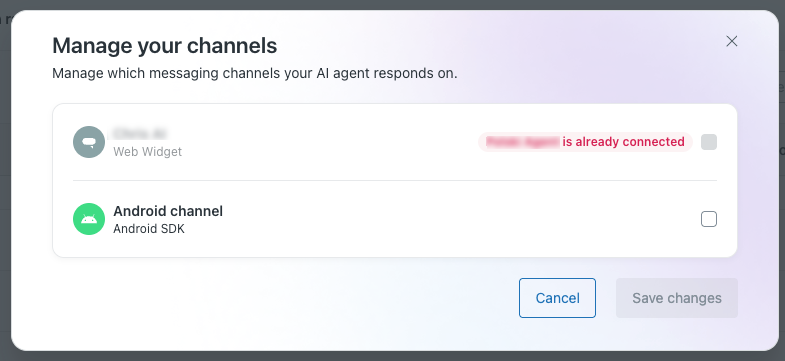
- If a channel already has an active AI agent, you can’t add another
one. You must first deactivate the active AI agent by managing its
channels before you can activate another.
- (Messaging AI agents only) If you modified the AI agent’s routing
rules, you can no longer manage the AI agent’s channels
through this menu.
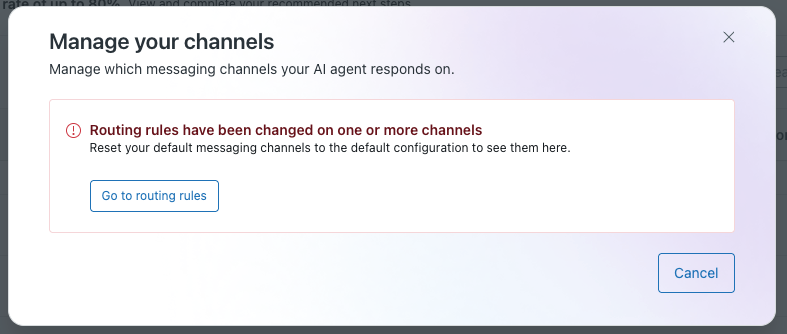
- Select or deselect the channels as needed.
- Click Save changes.
Your AI agent is now live on your selected channels.
Editing an AI agent
You can make updates to an AI agent as needed.
To edit an AI agent
- In the AI agents workspace, click
Dashboard in the sidebar.
- In the list of AI agents, hover over the AI agent you want to edit.
- Click the options menu () and select Edit configuration.
You’re taken to the General settings page. From here, you can make changes to the AI agent’s basic details, or else navigate elsewhere in the AI agents workspace to make additional updates to the AI agent’s configuration.
Cloning an AI agent
You can clone an existing AI agent. This is helpful if you want to use it as a starting point for a new AI agent in the same environment, or if you want to copy an AI agent between your production and sandbox environments.
Only AI agents with a status of "Ready to activate" or "Active" can be cloned.
Cloning an AI agent produces a copy of the original that contains the following:
-
Use cases
-
Procedures
-
Configured actions
-
API integrations
-
Templates
-
Search rules
-
Knowledge sources
The authentication tokens for knowledge sources also carry over, so sources are usable immediately without re-authentication.
-
Segments
-
Entities
-
Personalization settings (including identity and tone of voice)
-
Languages
-
Settings
The following are known limitations:
- Import frequency and auto-refresh settings aren't cloned. Reconfigure these settings manually in the cloned AI agent.
- Custom actions and action flows aren't cloned. You must recreate them manually in the target environment, then reconnect them to any procedures or dialogues that use them in the cloned AI agent.
- Help center content isn't cloned. Cloning an AI agent doesn't clone help center content. You must connect the help center in the target environment manually.
To clone an AI agent
-
In the AI agents, click
 Organization management in the sidebar, then select Organization
management.
Organization management in the sidebar, then select Organization
management.You can also select the option to clone an agent from the options menu on the main dashboard.
- In the AI agents list, find the AI agent you want to clone.
- Click the Duplicate (
 ) icon.
A dialog appears.
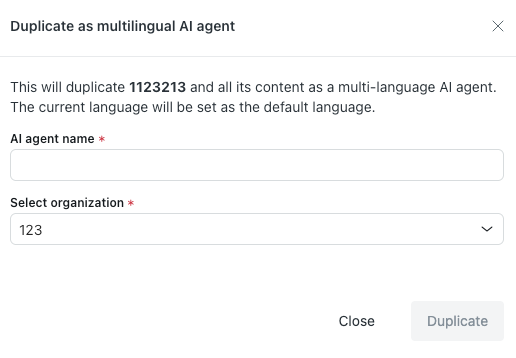
- In AI agent name, enter a name for the cloned AI agent.
- In Select organization, select the organization you want to clone the AI agent to (either your production or sandbox environment).
- Click Duplicate.
The duplicated AI agent will appear in the target organization with a state of "Setup Incomplete".
If you clone an AI agent from one environment to another (for example, from sandbox to production), the cloned AI agent might not appear in the AI agents list right away. Refresh the page or sign out and sign back in to see it.
- Click the continue setup link.
The Select a brand dialog appears.
-
Select a brand the cloned AI agent will be connected with and click Done.
The state of the AI agent changes to Ready to activate.
Deleting an AI agent
You can delete an AI agent if you no longer need it. Deleting an AI agent deletes any AI agent–specific settings or personalization, but it doesn’t delete content shared with other AI agents, such as API integrations. You must be a client admin with access to the AI agent to be able to delete it.
You can delete an AI agent from the Dashboard or from Organization management.
- In the AI agents workspace, click
Dashboard in the sidebar.
- In the list of AI agents, hover over the AI agent you want to delete.
- Click the options menu () and select Delete.
- In the confirmation dialog, click Delete agent.
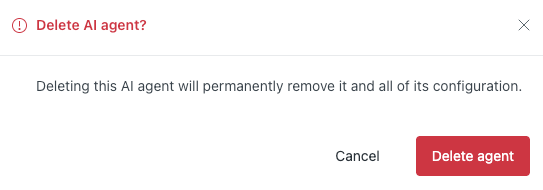
The AI agent is permanently deleted.
To delete an AI agent from Organization management
- In the AI agents, click
Organization management in the sidebar, then select Organization
management.
- In the AI agents list, find the AI agent you want to delete.
- Click the Delete (
 ) icon.
A dialog appears.
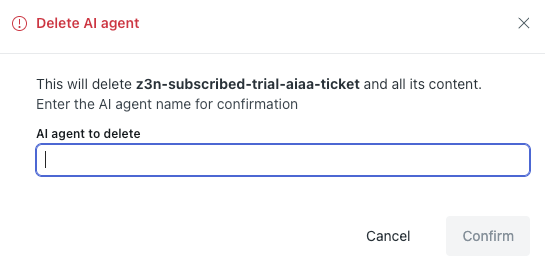
- In the text field, enter the name of the AI agent exactly as it
appears.
The name must have the exact same casing and spacing.
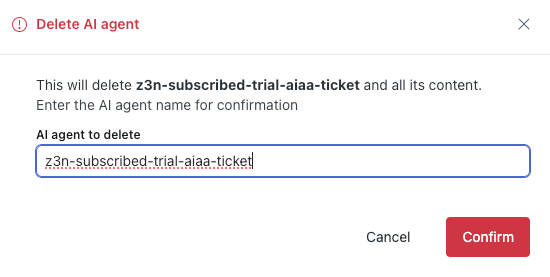
- Click Confirm.
The AI agent is permanently deleted.