In the AI agents workspace, the default landing page is a dashboard that provides quick access to overall performance metrics, relevant AI agent configuration, and helpful resources. This dashboard makes it easier to build, launch, and monitor AI agents.
This article contains the following topics:
- Accessing the dashboard
- Viewing overall AI agent metrics
- Viewing automation recommendations
- Managing your AI agents
Related article:
Accessing the dashboard
In the AI agents workspace, the dashboard is the default page you’re taken to when you sign in. You can also access the dashboard at any time.
To access the dashboard
-
IIn the AI agents workspace, click
 Dashboard in the sidebar.
From here, you can: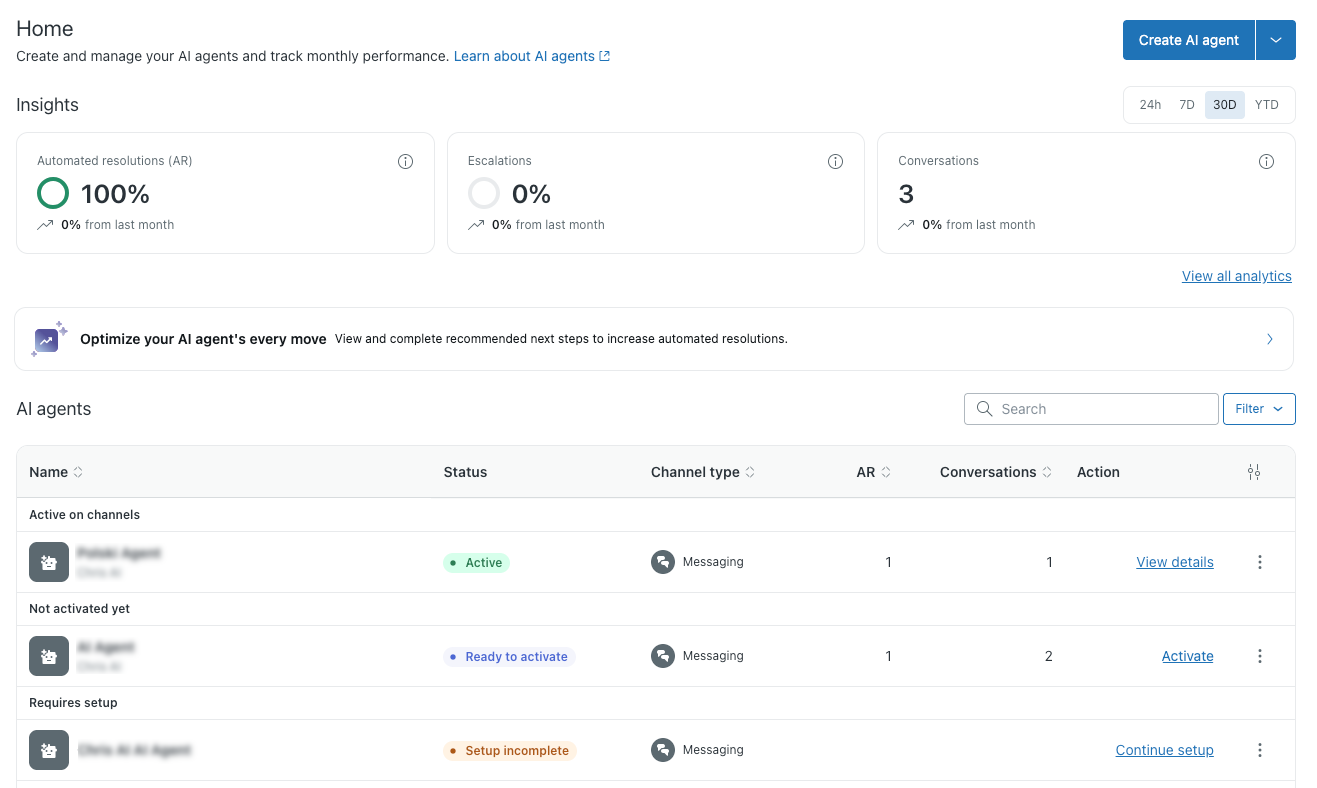
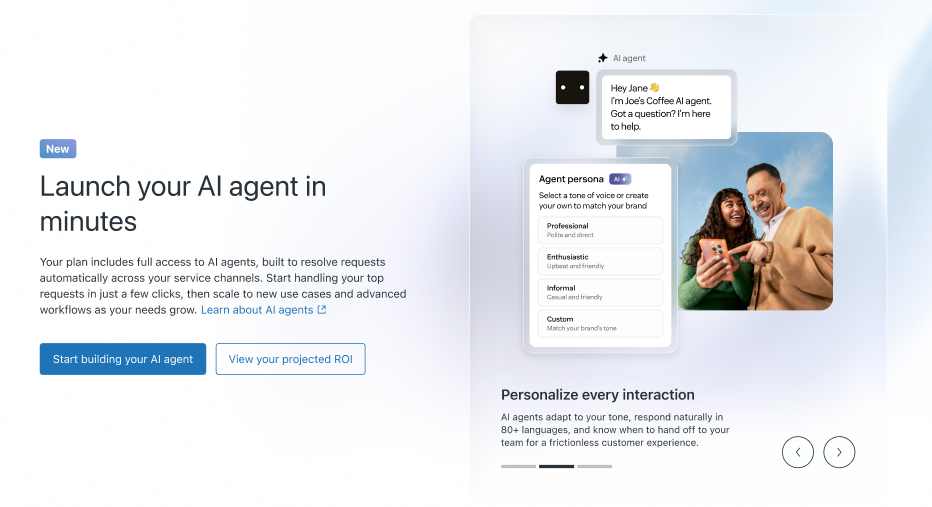
If no AI agents have been created in your account, you’ll see a welcome page instead of the dashboard. From the welcome page, you can create your first AI agent.
Viewing overall AI agent metrics
In the Insights section of the dashboard, you can view the following metrics to get an overall view of how your AI agents are performing:
- Automated resolutions (AR): The percentage of conversations that result in an automated resolution.
- Escalations: The percentage of conversations that were escalated from an AI agent to a human agent.
-
Conversations: The total number
of conversations across all your AI
agents and customers.

For more detailed AI agent analytics, see Analyzing AI agent performance with the reporting dashboard.
Viewing automation recommendations
Below the Insights section is a banner that you can click to view the recommended next steps for how to improve your automation rate.
Managing your AI agents
In the “AI agents” section of the dashboard, you can see a list of all your AI agents. The list shows each AI agent’s name, current status, and channel type. You can also see at-a-glance analytics like automated resolutions and overall conversation volume for each AI agent.
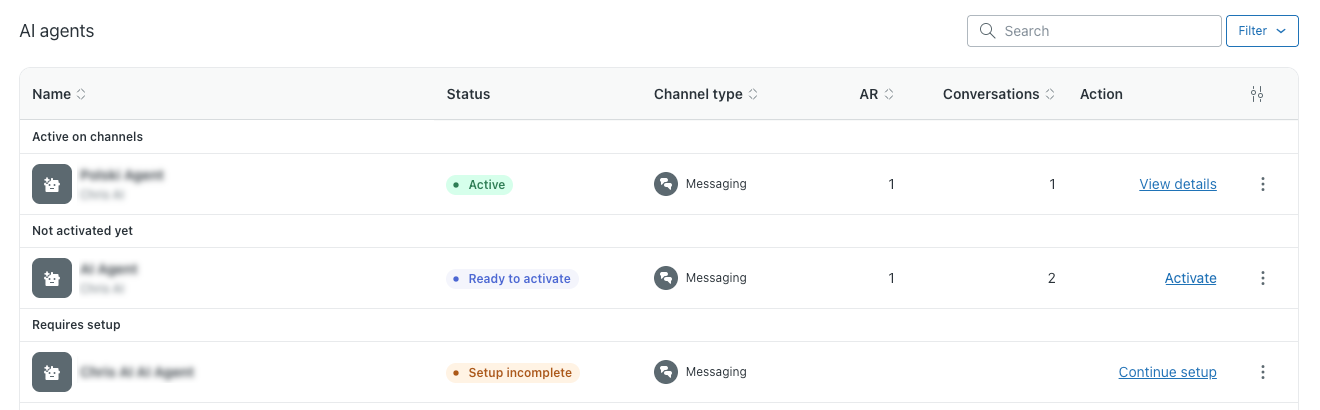
You can search for a specific AI agent, or filter the list by status, channel type, and brand.
In the list of AI agents, you can click an AI agent to navigate directly to the most relevant configuration, which depends on the AI agent’s current status:
- Active: Click the AI agent or click View details to create or manage the AI agent’s use cases.
- Ready to activate: Click the AI agent or click Activate to activate the AI agent on the channels you choose.
- Setup incomplete: Click the AI agent or click Continue setup to return to the AI agent creation process.
For each AI agent, you can also use the options menu ( )
to perform additional configuration. For more
information, see
Activating and managing AI agents.
)
to perform additional configuration. For more
information, see
Activating and managing AI agents.