Verified AI summary ◀▼
Leverage AI-powered quality assurance to automate ticket reviews, uncover trends, and improve customer experiences. Set up a structured QA process, define quality standards, and use AI to flag critical interactions for review. Manage users and workspaces, create rating categories and scorecards, and monitor performance through dashboards. Enhance service quality with targeted coaching sessions, quizzes, and calibration to ensure consistent feedback.
Zendesk Quality assurance (QA) leverages AI to automate 100% of ticket reviews. By analyzing every interaction, you can quickly uncover trends and identify areas for improvement, which boosts efficiency, enhances agent performance, and ultimately leads to better customer experiences.
This guide is recommended for anyone responsible for quality assurance planning and implementation, as well as the initial configuration and organizational setup of Zendesk QA.
This article includes the following topics:
- Understanding quality assurance
- Planning your implementation
- Accessing Zendesk QA
- Reviewing your help desk connection
- Granting users access to Zendesk QA
- Planning and creating workspaces
- Setting up scorecards and using AI-powered tools to review and evaluate customer conversations
- Ensuring service quality with monitoring and coaching
- More resources and next steps
Understanding quality assurance
Quality assurance (QA) is a systematic approach that ensures products and services consistently meet customer expectations, achieve service targets, and adhere to industry standards.
Support teams are the eyes and ears of the company. While automated metrics like first response time indicate the team's speed, they don't capture whether an agent goes the extra mile to provide excellent service or if the agent is rude, gives incorrect technical advice, or misses a major security step. Monitoring QA allows you to spot patterns that metrics alone miss.
In customer support, QA is rarely the responsibility of just one person. Instead, it’s typically distributed across several roles, depending on the size of the company.
Common roles responsible for QA include:
- Peer reviewers who are typically experienced senior agents who spend a few hours a week reviewing tickets from newer peers.
- QA specialists or analysts typically perform ticket audits by reviewing transcripts and call recordings. They usually score interactions based on accuracy, empathy, brand voice, and technical resolution.
- Support team leads and supervisors typically review a subset of their own team's tickets to ensure their direct reports are following protocol, and use QA results to have 1-on-1 development conversations with agents.
- QA managers and heads of quality typically design the quality framework by deciding which metrics matter (for example, CSAT vs. IQS), deciding which tools to use, and ensuring the QA process itself is fair and consistent, by performing calibrations.
Monitoring ticket conversations with Zendesk QA helps you understand customer issues and assess customer interactions.
AI-powered QA tools automatically scan tickets for sentiment, grammar, tone, or any other issues you consider valuable. They flag problematic tickets for human review, so QA peer reviewers, specialists, analysts, team leads, supervisors,managers, or heads of quality don't have to search for them manually.
Agents feel more supported when they receive fair, transparent feedback rather than being judged solely on a single angry customer rating (CSAT). With Zendesk QA you can review every single ticket conversation and gain instant insight into your support teams’ performance.
You can monitor and compare general metrics, such as your Internal Quality Score (IQS) against your CSAT (Customer Satisfaction). You can then examine specific conversations to understand the causes of any issues, allowing you to continuously train your teams and improve your service.
Zendesk QA also helps you evaluate how well your AI agents perform in conversations with your customers. You can then analyze the results and use this information to update your AI agents and customer service workflows as needed.
Planning your implementation
Effective quality assurance requires a well-defined structure and strategy. Here are some key steps to perform QA effectively:
- Define your quality standards: Set measurable criteria that reflect your brand and regulatory requirements. See Understanding the quality indicators on the Reviews dashboard cards.
- Plan your QA process: Decide who will conduct reviews, how often, and what tools or QA scorecards you’ll use to evaluate performance. See Methods for reviewing customer support conversations.
- Train your team: Ensure everyone understands the QA standards and receives ongoing training to stay aligned. See More resources and next steps.
- Use AI as your first line of defense: Leverage AI-powered tools to automatically detect the most critical interactions that need human review. See About AI insights in Zendesk QA.
- Automatically assign tickets for human review: Use AI to route flagged interactions to the appropriate reviewers, ensuring timely attention. See Setting up assignments in Zendesk QA.
- Monitor performance and provide coaching: Use quality monitoring to track agent performance and identify coaching opportunities. See Ensuring service quality with monitoring and coaching.
- Calibrate regularly and perform Reviewer QA: Align reviewer standards and evaluate the reviewers to maintain consistency. See Ensuring service quality with monitoring and coaching.
It’s important to note that QA works best as an ongoing cycle. A consistent and evolving QA process helps you identify issues early and strengthen team performance. Over time, this leads to more reliable service and stronger customer relationships.
Accessing Zendesk QA
By default, the Zendesk account owner is the only user with access to the add-on and has a role of Admin in Zendesk QA.
To get started setting it up, you can access Zendesk QA from anywhere in Zendesk.
To access Zendesk QA
- Click the Zendesk products icon (
 ) in the top bar, then select
Quality assurance.
) in the top bar, then select
Quality assurance.
The Conversations view is the primary area where you land.

Here, agents access the conversations they've worked on, and admins, managers, and reviewers evaluate those conversations. See Using the Conversations view.
Reviewers can leave scores and provide feedback to agents, helping improve customer support quality and overall agent performance. See Using Zendesk QA as a reviewer.
Reviewing your help desk connection
All support requests, from all channels, become tickets in Zendesk Support. Tickets capture your customer's initial request for support and all the conversations your agents have with the customer along the way to solving their support issue. When you buy the Zendesk QA add-on, all your Zendesk ticket conversation-data automatically imports into Zendesk QA. Ticket conversations from your Support help desk sync with Zendesk QA every four to six hours.
You can review your connection to Support, and configure it as needed. For example, you may want to protect the privacy of your customers and support agents by filtering out selected content, ensuring it's not visible to reviewers or stored by Zendesk QA. Or you might select a retention period, so conversations that remain inactive for the specified time are automatically deleted. See Managing help desk connections in Zendesk QA.
Granting users access to Zendesk QA
By default, the Zendesk account owner is the only user with access to the add-on and the account owner has a role of Admin in Zendesk QA.
Grant access to each user who will manage settings, participate in reviews, or be reviewed in conversations. Access to the Quality assurance add-on is controlled in Admin Center.
The following table shows the Zendesk QA roles available in Admin Center.
| Role | Description |
| Admin | Can see everything and manage all settings. |
| Agent | Can view their own conversations, reply to feedback, and view their customer reviews. They have workspace-specific permissions and can view and edit data within their assigned workspaces only. They also have access to their own dashboard and can perform self-reviews, if enabled. |
| Reviewer | Can view all reviews but cannot edit workspace settings. Can perform peer reviews. |
| Workspace lead | Can view everything in the workspace and manage quizzes, assignments, groups, disputes, and calibration sessions. Cannot edit other workspace settings or scorecards. |
| Workspace manager | Can view all reviews and manage all workspace settings. |
| Connected user | Connected users don't have access to Zendesk QA. Their conversations are available for review, but these agents are unaware that they're being reviewed. |
To give a user access to Quality assurance
- In Admin Center, click
 People in the sidebar, then select Team > Team members.
 - On the Team members page, scroll through the list or use the search option to find the user you want to grant access to, then click to open their profile.
- Click the Roles and access tab.
- Beside Quality assurance, click the Access checkbox.
- Use the Role dropdown next to Quality assurance to select a role for the
user.
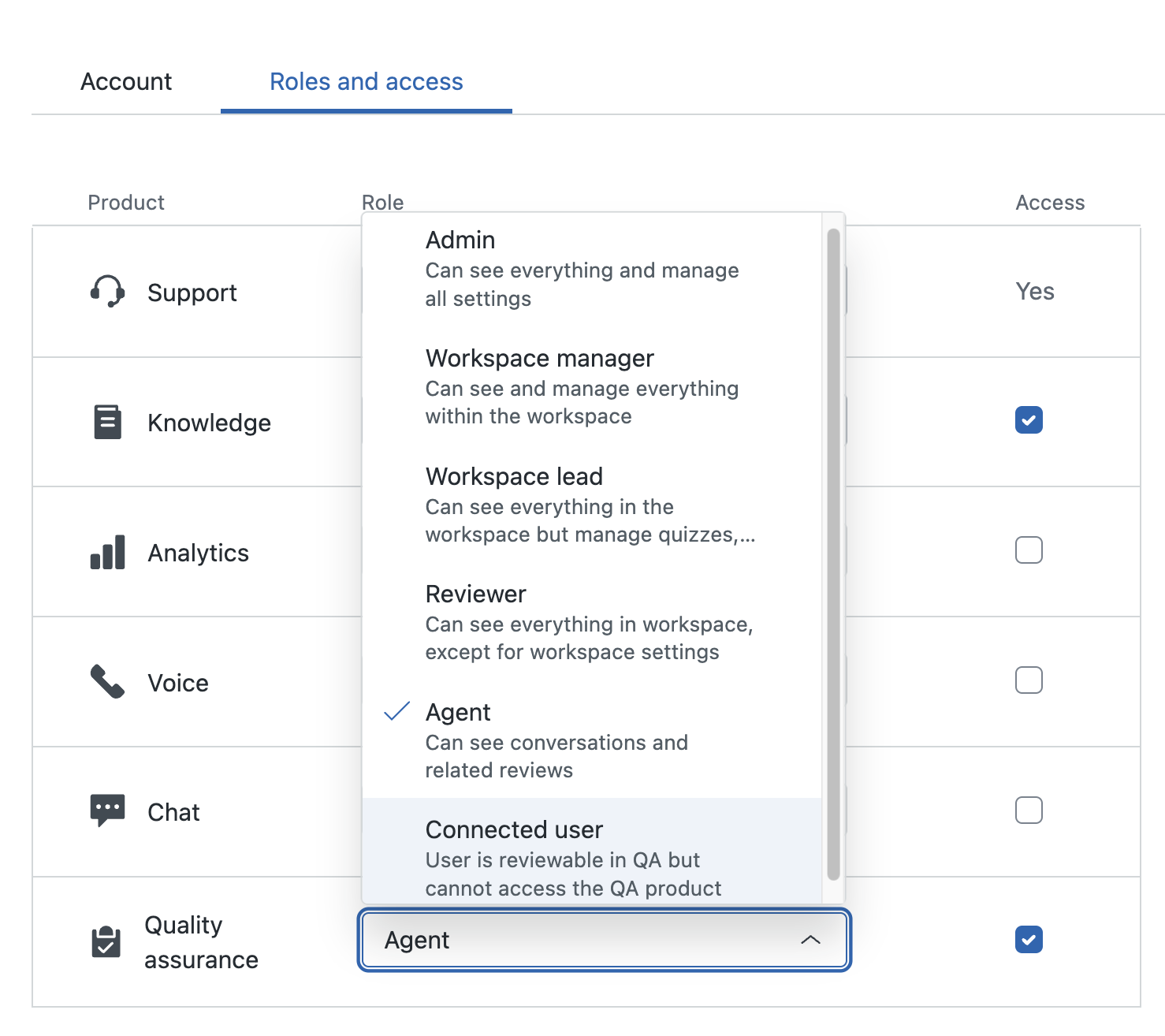
- Click Save.
You can review users in the Users page to confirm that the right people are present and have the correct permissions for QA workspaces.
To access the Users page in Zendesk QA
- In Quality assurance, click your profile icon in the top-right corner, then select Users, bots, and workspaces.
- In the side menu, click Users.
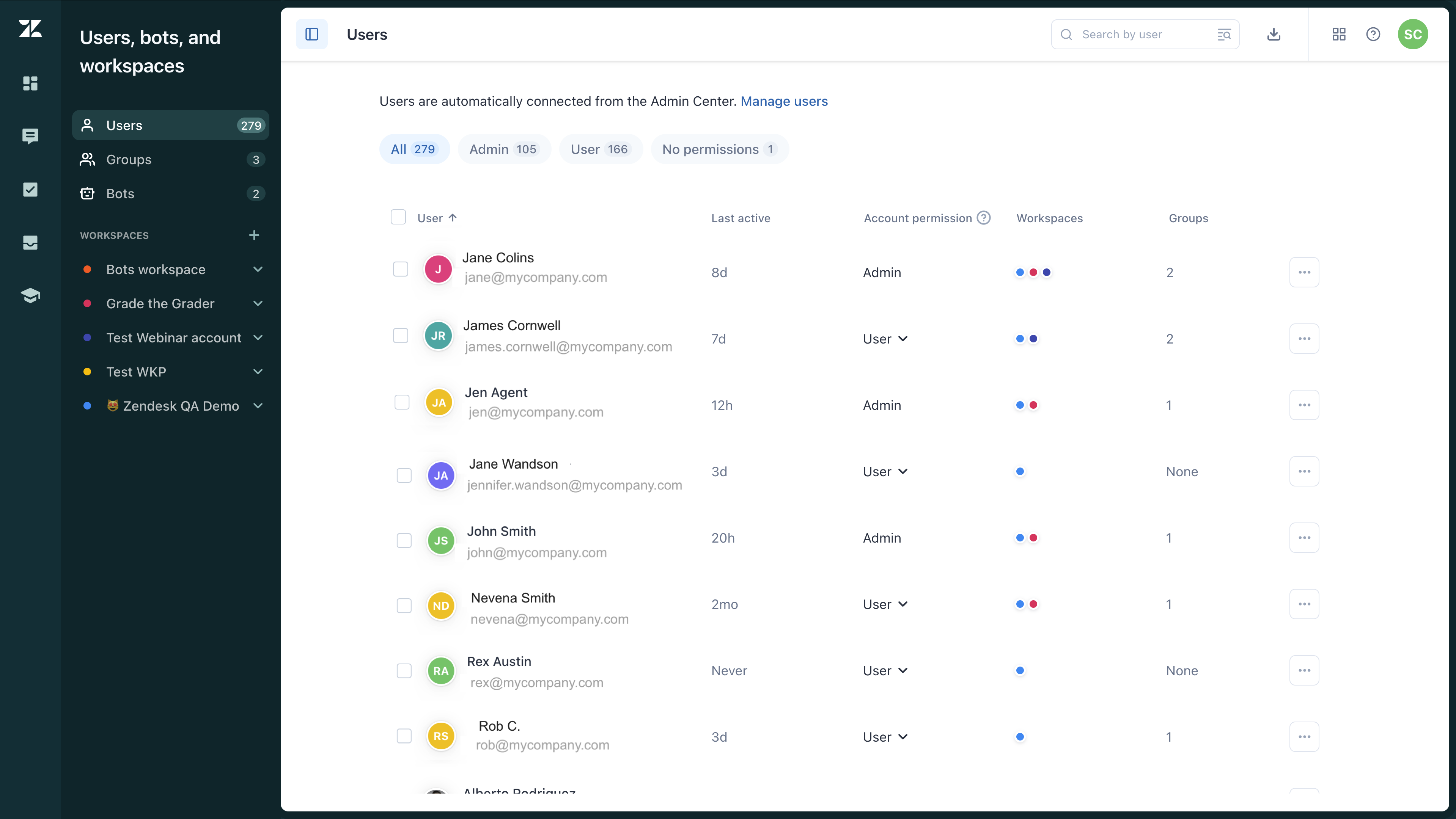
To learn more see Understanding roles and permissions in Zendesk QA.
Planning and creating workspaces
A workspace allows reviewers to review conversations using one set of criteria. All accounts have one default workspace. Once given access to Zendesk QA, all new users are automatically assigned to the account’s default workspace called Zendesk.
You cannot remove users from the account’s default workspace. However, you can create additional workspaces, and change the default workspace, if needed.
There are good reasons to configure Zendesk QA to use a single workspace or multiple workspaces. Understanding the benefits of each option helps you optimize your team's workflow and review processes. At a high level:
-
Sharing a consolidated workspace works well for teams that measure performance in the same way, such as small teams, teams with a flat hierarchy, and teams where everyone works across the same range of conversations.
-
Creating multiple workspaces allows you to segment users and define different review criteria for each workspace.
To create a new workspace
- In Quality assurance, click your profile icon in the top-right corner, then select Users, bots, and workspaces.
- In the navigation panel, click the create workspace icon (+) next to Workspaces to create a new workspace.
- Enter a unique name for the workspace.
- Click Create workspace.
Within each workspace, you can configure the following settings:
- Members: Add or remove users from the workspace and change their permissions for that workspace. See Managing workspace members.
- General: Set or edit the workspace name and representative color, turn unbiased grading and self-reviews on or off, and select the default reviewee. See Managing workspace’s general settings.
- Hashtags: Manage custom hashtags and track their usage. See Adding custom hashtags to Zendesk QA comments.
- Threshold: Set the overall QA goal for the workspace. Scores below the threshold appear in red, while scores above it appear in green. See Setting a performance reporting threshold in Zendesk QA.
- Assignments: Set up automatic assignment of conversations based on specific conditions. See Setting up assignments in Zendesk QA.
- Calibration: Ensure consistent feedback by having reviewers rate the same conversations and comparing their evaluations. See Setting up calibration in Zendesk QA.
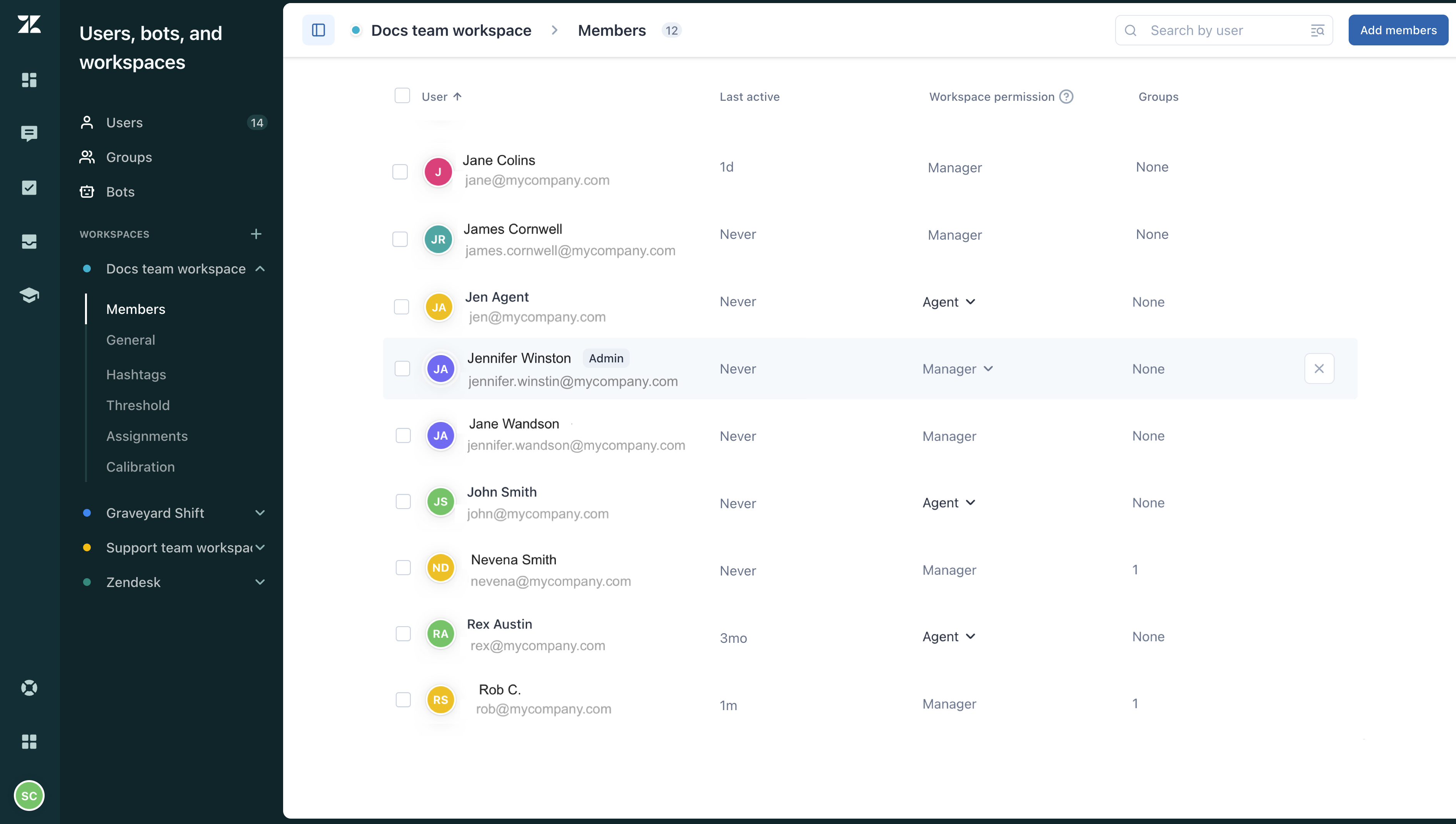
In General settings, set your default workspace. You can also configure key account settings and adjust other global options that apply to all workspaces, such as notification preferences, AI and automation, privacy, and review workflows. To learn more, see Viewing and updating Zendesk QA account settings.
To change the account’s default workspace
- In Quality assurance, click your profile icon in the top-right corner.
- Click Settings.
- In the sidebar under Account, click General.
- Use the Default workspace drop-down to select your preferred default
workspace for all users.

- Click Save changes.
Setting up scorecards and using AI-powered tools to review and evaluate customer conversations
Quality assurance encompasses a variety of methods to review and evaluate performance and improve quality across customer interactions and operational workflows.
A scorecard defines how conversations are evaluated. You can customize or create new scorecards to evaluate agent performance, identify improvement areas, and ensure your team meets organizational goals. You can add categories, set rating scales, and define weights to highlight important aspects of customer interactions. Use conditional scorecards to streamline reviews based on specific criteria, and add root causes for detailed feedback. Once set up, publish your scorecard to start assessing your team's quality assurance process. See Creating scorecards.
Spotlight insights enhance your QA process by automatically highlighting key interactions for review, using predefined insights like outliers, churn risk, and exceptional service. This tool helps you identify improvement opportunities by analyzing conversations and tagging them with performance indicators. Access insights through the Feedback section in conversations to quickly assess and address customer interactions. See Understanding spotlight insights.
Autoscoring evaluates and scores all customer interactions automatically, helping you maintain consistent quality assessments and save time. By activating autoscoring categories you can identify training needs across categories like empathy, tone, and comprehension. See Understanding autoscoring categories.
Prompt-based AI insights leverage the latest AI models, allowing you to customize AI-powered prompts using natural language for quality autoscoring and risk detection. By using AI prompt-based categories, you can ask targeted questions about conversations using natural language and automatically score them based on your criteria. See About AI insights in Zendesk QA.
Ensuring service quality with monitoring and coaching
To ensure consistent monitoring, you can automate the process of getting the right tickets in front of the right reviewers.
Create assignments for managers or peer reviewers and set review goals. These recurring tasks consist of sets of conversations assigned to reviewers for evaluation based on specific criteria and predefined goals. For example, to review five technical tickets per week for each agent.
To create an assignment
- In Quality assurance, click your profile icon in the top-right corner, then select Users, bots, and workspaces.
- Choose your workspace, then click Assignments.
- Click Create assignment.
- On the General tab, enter an Assignment name.
- Under Cycle settings, select how frequently the assignment cycle Repeats: Never, Daily, Weekly, Bi-weekly, or Monthly.
- Select a custom Start date and time. For monthly assignments,
also specify whether you want it to start on the same day every month or on
specific dates (for example, the first day of the month or every fourth
Thursday).

- Select the Timezone.
- Configure the assignment's reviewers and reviewees.
- Configure the assignment's conditions.
- Configure the assignment's goal.
- Click Create assignment.
Use Zendesk QA to run calibration cycles. Calibration aligns reviewers by having them rate the same conversations and compare evaluations, ensuring consistent feedback for agents. Have multiple reviewers score the same ticket to ensure everyone is aligned on what "good" looks like, reducing bias and ensuring fair coaching. See Setting up calibration in Zendesk QA.
Once you've identified gaps, create coaching sessions. You can bundle specific conversations and pinned notes into a formal coaching session. You can also track when coaching sessions occurred and whether agents have reviewed the feedback they received. See Understanding coaching sessions.
Analytics and dashboards offer a real-time overview and highlight trends in service quality across human and AI agents, teams, and channels. You can create custom views to select which cards to display or hide, and download reports that give you an overview of your Zendesk QA data. Use dashboard filters to efficiently locate the data necessary for assessing and enhancing your team's performance. See About dashboards in Zendesk QA.
More resources and next steps
Depending on their role in setting up or using Zendesk QA, make sure your team members review the following:
- Using Zendesk QA as a reviewer
- Using Zendesk QA as an agent
- Zendesk QA video webinar tutorials and tips
- Online course: Setting up a perfect customer service review program
When you’re ready to learn more, you may find the following resources helpful: