Voice AI agents enable intelligent, conversational phone support by automating end-to-end customer voice interactions. This feature lets incoming calls start with an AI agent and, when needed, escalate to a human agent. Every call creates a Zendesk ticket for tracking, reporting, and handoff context.
These AI agents are seamlessly integrated with Zendesk voice and are built on our agentic AI technology, meaning you can take advantage of procedures and actions you’ve already built. They can engage in natural-sounding conversations with customers, including making small talk, disambiguating between topics, providing AI-generated answers based on your existing policies and procedures, and even executing actions.
This article contains the following topics:
- About voice AI agents
- Signing up for the voice AI agents EAP
- Creating a voice AI agent
- Configuring a voice AI agent
- Connecting an AI agent to Zendesk voice
- Testing a voice AI agent
- Monitoring the performance of a voice AI agent
- Best practices for deploying a voice AI agent
Related article:
About voice AI agents
Voice AI agents offer multilingual, end-to-end voice automation for one of your most important support channels. From greeting to issue resolution to conversation wrap-up, voice AI agents provide an always-available first line of support for your customers.
Voice AI agents are best suited for the following types of use cases:
- Account management
- Authentication
- Billing and payments
- Booking and reservations
- Call routing
- Troubleshooting
- FAQs
- Order management
If a customer needs to speak with a human, calls can be instantly routed to agents based on omnichannel routing, tags, or actions. If a human agent is available, the customer is transferred. If no human agent is available, the customer can leave a voicemail.
When escalating, voice AI agents provide a seamless handoff to human agents with full context and conversation history. Escalated calls can be sent to human agents in Agent Workspace with a full transcript, concise summary, and a detected intent, so agents always start informed.
Keep reading to learn more about voice AI agents, including:
Benefits
Voice AI agents let you:
- Offer 24/7 phone support without adding staff. Provide 24/7 coverage that automatically scales during peaks and off‑hours, without adding staff. Reduce overtime and telephony costs by automating routine calls.
- Resolve even complex calls and route right the first time. Replace IVR menus with natural conversations that capture intent, verify identity, and gauge urgency. Solve customer requests end to end, with knowledge‑grounded answers and policy-aware actions. Escalate to human agents only when needed, providing full‑context and reducing transfers and repeats. Route by intent and caller profile to the right queue or expert, cutting average handling time and after-call work.
- Unify AI and CX for faster, more complete resolutions. Voice AI agents are embedded in the Zendesk suite, so ticketing, knowledge, routing, actions and analytics work as one. Call summaries with full context and detected intent mean less work for human agents and lower average handling time, eliminating the need for customers to repeat themselves.
- Trust every resolution with full control and transparency. Add instructions to AI agent responses, ensuring every resolution aligns to your customer service needs. Stay in control with real-time visibility into your AI agent’s chain of thought. Let AI agents operate autonomously and add precision and control when needed.
How it works
When a caller dials your phone number, the voice AI agent answers and attempts to resolve the caller’s request. If the voice AI agent:
- Resolves the request, the call ends, and the ticket is updated. See Call flow: Caller to AI agent for details.
- Can’t resolve the request, the call is escalated to your phone queue, routing rules run, a human agent answers with full context, and finishes the call. See Call flow: Escalation to human agent for details.
Call flow: Caller to AI agent
All calls to the configured phone number first connect to the AI agent.
- The call connects to the AI agent.
- A ticket is immediately created to log the call.
- The AI agent engages the caller and works to resolve the issue based
on your configuration:
- The AI agent detects the appropriate use case based on what the caller says.
- Based on this use case, the AI agent chooses the best path
to solve the customer’s issue:
- Replying with small talk or a disambiguating question.
- Retrieving an AI-generated answer from your existing knowledge sources.
- Performing steps guided by a generative
procedure.Note: In cases where the AI requires a bit more time to process a caller’s query (for example, when calling APIs or retrieving answers from knowledge sources), the voice AI agent might use filler sentences similar to the following to avoid long silences:
- “Hm, I’m looking for an answer now.”
- “Give me a second.”
- “Almost there.”
- Any ticket fields configured to be updated during the conversation (including custom fields) are updated in real time on the ticket.
- If the caller’s request is resolved by the AI agent, the call ends
and the ticket is updated with:
- A full call transcript
- An AI-generated call summary
- A link to view the AI agent conversation in the conversation logs
- Any other ticket fields updated by the AI agent
Call flow: Escalation to human agent
If the AI agent can’t resolve the caller’s request, the call is escalated to a human agent.
- The AI agent updates the ticket before escalation by:
- Posting the call transcript and a summary to the ticket to prepare for handoff.
- Updating any other ticket fields you've configured to be updated through actions.
- The AI agent sends the call to your queue for a human agent to pick
up.
Standard phone number settings resume at this point.
- If you’ve configured an IVR greeting or custom greeting, the caller hears it now. If you prefer not to play additional greetings (to avoid double greetings after the AI agent handoff), configure a one-second silent greeting in the Available agents greeting.
- The call is routed based on your configuration:
- If you use voice routing: If the AI agent updated the Group ticket field during the conversation, that group is prioritized for routing. If no group was updated, the call routes to the group defined in the phone number’s routing settings.
- If you use omnichannel routing: Any ticket fields updated during the AI agent conversation (for example, Group or Skills) are used for routing. Your standard omnichannel routing configuration applies.
- The right agent is selected based on your routing configuration. The agent sees the AI-generated summary on the ticket to get instant context for a smooth handoff.
- The agent assists the caller and ends the call.
- A voice comment is posted to the ticket to capture the agent-caller interaction.
- The agent can complete post-call work.Tip: If you have Zendesk Copilot, it can assist the agent with after-call tasks. See Using generative AI to create call summaries and transcripts on tickets.
Limitations and pricing
Voice AI agents are not available with Talk Partner Edition (TPE).
Voice AI agents are not intended to be used to evaluate and classify emergency calls, or to dispatch or prioritize emergency first response services or emergency healthcare patient triage systems.
Usage of voice AI agents is billed based on:
- Minutes used: See Zendesk Talk number availability and pricing.
-
AI agent connection charges: An additional per-minute charge applies
when the AI agent is connected to a call. Charges accrue only for the time
the AI agent is active on the call. Current rates per minute:
- USD: $0.005
- GBP: £0.0033
- EURO: €0.0042
- BRL: R$0.036
-
Automated resolutions consumed: See About automated resolutions for AI
agents. For a voice AI agent, an automated resolution is consumed
for any call for which both of the following are true:
- Was not escalated to a human agent.
- Passed verification performed by our LLM. The verification process evaluates the content of the conversation immediately following the call to ensure that the customer’s request was actually satisfactorily resolved without human-agent intervention. Conversations that don’t pass this verification are not considered automated and do not consume an automated resolution.
The pricing and packaging for voice AI agents are subject to change following the conclusion of the EAP.
Signing up for the voice AI agents EAP
If you have a voice plan, you can sign up for the voice AI agents EAP by filling out this form. We’ll review your submission and, if approved, enable the EAP in your account within a few days.
Creating a voice AI agent
Client admins can create a voice AI agent in the AI agents workspace.
To create a voice AI agent
- In the AI agents workspace, click
 AI agent management in the sidebar, then select Create AI
agent.
AI agent management in the sidebar, then select Create AI
agent. - In AI agent name, enter a descriptive name for your AI agent.
- In Channel, select Voice.
- In Industry, select one of the following options that best fits the
industry the AI agent will be used for:
- Airline
- Gaming
- Telecommunication
- E-Commerce
- Banking
-
Other
If your exact industry isn't available as an option, select the closest fit. This setting impacts benchmarks and other industry-related settings throughout your account.
- In Select language, select the language your AI agent should
use.
You can add more supported languages later.
- In Locale, select a locale to determine the AI agent’s vocabulary and
accent.
For example, if you add French as a supported language, you can choose a locale of France or Canada. The locale affects the AI agent’s phrasing, word choice, spelling conventions in transcripts, and spoken pronunciation during conversations.
- In Icon, select an icon that should be associated with the language you selected.
- Click Create.
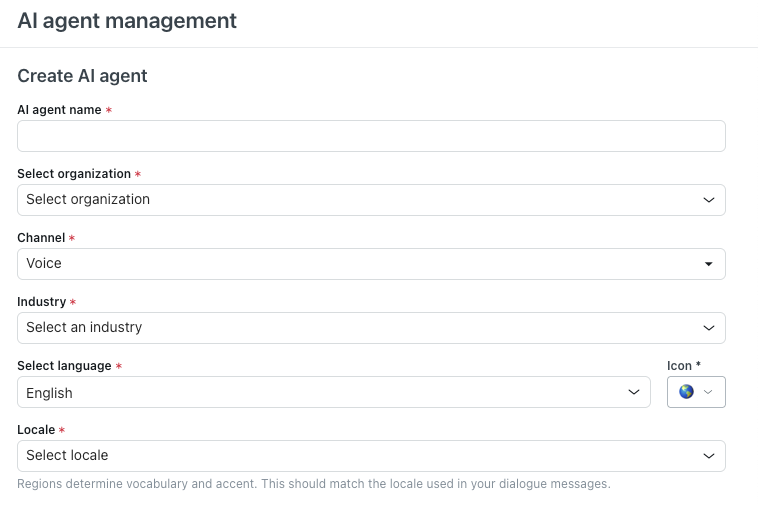
Your AI agent is created, but it won’t interact with your customers until you connect it to a Zendesk voice line.
Configuring a voice AI agent
After you create your voice AI agent but before you make it live for customers, perform the following tasks to configure how it behaves:
- Configure an AI agent persona to establish an identity
- Import a knowledge source to power AI-generated answers
- Create use cases to identify customer requests'
- Create generative procedures or dialogues to control responses
- Add multi-language support (Optional)
- Create actions, entities, and API integrations to increase automation (Optional)
- Create instructions to influence AI agent responses (Optional)
- Configure additional AI agent settings to fine-tune behavior (Optional)
Configure an AI agent persona to establish an identity
An AI agent’s persona controls the identity of the AI agent and how it presents itself to your customers. A persona gives the AI agent the context of who it’s working for, what your company does, what your products are, and so on.
See Customizing the persona, tone of voice, and pronoun formality for an AI agent.
Import a knowledge source to power AI-generated answers
For an AI agent to respond to customer questions with AI-generated answers, it must have access to at least one knowledge source. The knowledge source can be a help center, Confluence site or space, CSV file, or web-crawled website.
See Importing knowledge sources to power generative replies in AI agents.
Create use cases to identify customer requests'
Next, create use cases that allow the AI agent to understand customer requests and follow the correct generative procedures or dialogues (see the next section). If you don’t create any use cases, the AI agent forms responses using only the content of your imported knowledge source.
Using use cases, you can create a sort of “conversational IVR,” meaning the AI agent can disambiguate and clarify customer requests and direct them to the right use case. From there, you can decide whether to solve the request using a procedure or simply triage directly to the appropriate team.
See Creating use cases for AI agents to identify what customers are asking about.
Create generative procedures or dialogues to control responses
The most powerful step in AI agent setup is to create generative procedures. These procedures should reflect your business policies so that the AI agent can resolve customer requests in line with your policies. For all use cases except the welcome and escalation system replies, you’ll create generative procedures.
See Creating generative procedures for AI agents with agentic AI.
However, for the welcome and escalation system replies, you’ll create dialogues that allow the AI agent to respond to customer requests according to scripted conversation flows.
See Creating conversation flows in the dialogue builder for AI agents.
Add multi-language support (Optional)
You can add and activate additional supported languages to your AI agent so that it can converse with your customers in the languages they prefer. You can also select a locale to determine the AI agent’s vocabulary and accent.
The AI agent initially answers calls in the language set as your default, but customers can ask the AI agent to change to a different supported language during the course of the conversation.
Create actions, entities, and API integrations to increase automation (Optional)
To leverage helpful details in either generative procedures or dialogues, you can create:
-
Actions that allow the AI agent to perform actions based on the
details of the session or your customer relationship management (CRM)
system. For example, you can enrich the ticket with tags, custom fields, or
group assignments that route tickets to the right agents when escalating.
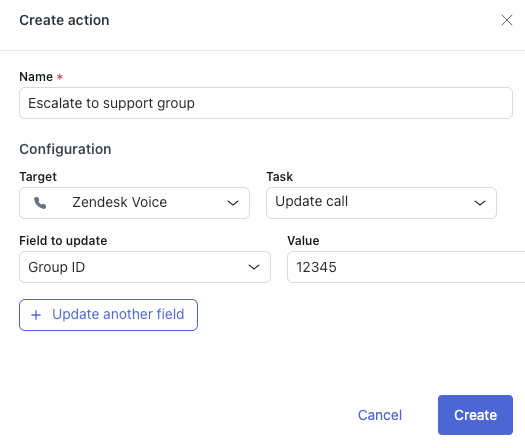
See Creating and adding actions for AI
agents.Note: When creating an action, pick “Zendesk Voice” as the Target and “Update call” as the Task. You can then define a field to update with a specified value.
- Entities that hold pieces of information in customer messages that have specific meaning, such as the user’s email address. See Creating entities in conversation flows for AI agents.
-
API integrations that leverage information from other backend systems
you use during your workflows. To create these API integrations, you use the
integration builder. See About the integration builder for AI
agents.Note: For APIs to be used by an AI agent at the right time and in the right context, it’s extremely important to add a clear description to your APIs while building them in the integration builder.
Create instructions to influence AI agent responses (Optional)
Instructions let you tailor an AI agent’s responses in ways beyond customizing their persona, tone of voice, and pronoun formality. For example, you can create instructions that tell your AI agents to use or avoid specific terminology, or to respond in specified ways to particular customer messages.
Configure additional AI agent settings to fine-tune behavior (Optional)
At any point, you can always continue configuring the AI agent’s settings. See Accessing and viewing settings for AI agents.
Connecting an AI agent to Zendesk voice
After you create and configure your AI agent, you must connect it to a Zendesk voice line before it can begin interacting with customers. The instructions below assume you’ve already created a voice AI agent and added a phone line or digital line for voice.
To connect an AI agent to Zendesk voice
- In Admin Center, click
 Channels in the sidebar, then select Talk and email > Talk.
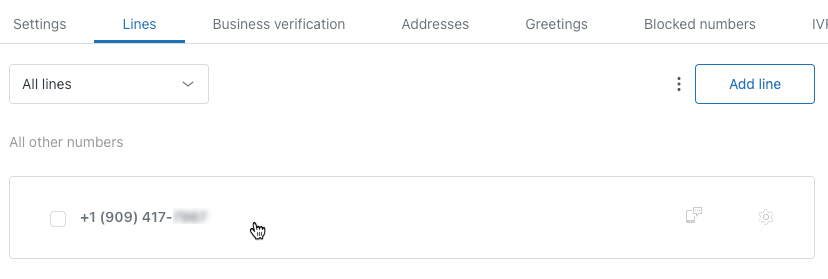
 - Select the Lines tab.
- Click your phone line.
- Select the Routing tab.
- Select Turn on AI agent.
- In Select an AI agent, select the AI agent you created
above.
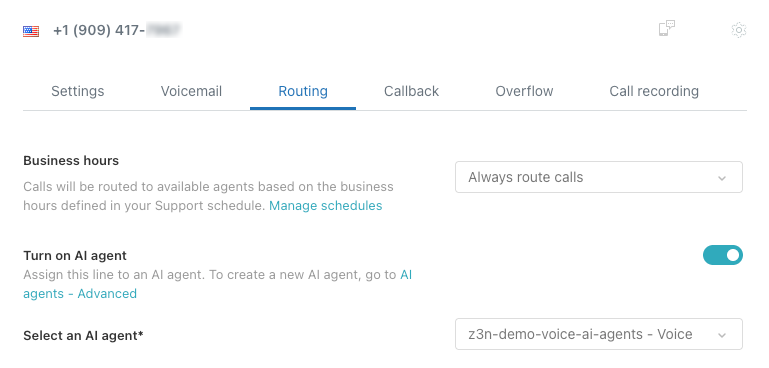
- Click Save changes.
Your voice AI agent is now the first responder on the selected voice line.
Testing a voice AI agent
During the EAP, voice AI agents must be tested in production environments. They can’t be tested in sandbox environments or in the test widget.
To test a voice AI agent
- Use the call console in Agent Workspace to call the line connected to the voice AI agent.
- Interact with the AI agent as a customer would.
- To test your escalation flow, use a second device or an incognito browser to receive handoffs.
Monitoring the performance of a voice AI agent
The final and ongoing step in creating a voice AI agent is to monitor its performance and continue to improve its efficiency. The Reporting dashboard gives you insights into key automation metrics, reports on the value of AI agent outcomes, and helps you make data-driven decisions to improve future efficiency.
To monitor the performance of a voice AI agent
- In the AI agents workspace, click
 Reporting in the sidebar.
 - Select either the Overview or Contact reasons tab.
- Click the AI agent filter and select your voice AI agent.For more information about the reports, see Analyzing AI agent performance with the reporting dashboard.Tip: Alternatively, you can click the Channel filter and select Voice to filter the results in the KPIs on the Overview tab only.
Automated resolutions in the voice channel are also reflected in the Automated resolutions dashboard in Admin Center.
Additionally, every call generates or updates a Zendesk ticket. AI transcripts, summaries, and the link to the AI conversation are stored on the ticket. Tickets are reportable in Zendesk analytics, so you can view the Zendesk Voice dashboard or create custom reports to track volumes, outcomes, and handoffs.
Best practices for deploying a voice AI agent
When deploying a voice AI agent, keep the following best practices in mind:
- Experiment with different tone of voice settings to optimize for natural conversations.
- Use spoken, human-like phrasing in your dialogues and generative procedures. Always read welcome and escalation dialogues aloud to check for a natural-sounding flow. Avoid references to non-voice-friendly content, such as URLs.
- In your escalation dialogue, add an AI agent message such as "Just a moment!" to let the customer know the escalation is ongoing.
- Avoid duplicate greetings after escalating from the voice AI agent to a human agent. Add a short, silent greeting at the phone number level if your standard greeting isn’t desirable after an escalation.
- Use ticket field updates for smarter routing. Create actions that allow your AI agent to set Group and Skills ticket fields during the conversation to drive precise routing, which is especially powerful when used with omnichannel routing.
- Perform test calls that mimic real customer scenarios.