Ticket events show all the ticket updates and notifications, whether it's by a person or by a business rule, such as a trigger. By looking at the ticket events, you can see the complete history of a ticket. Events include ticket properties that are added, removed, or changed, as well as any external notifications associated with the ticket update.
You can also view the following video:
Viewing all events
Ticket events show all the updates and notifications that have occurred to that ticket. Events are not shown by default. You have the option to show ticket events alongside the ticket comments.
Reviewing ticket events can help you trace the path of a ticket and troubleshoot any issues. For example, you can see whether a trigger has fired or what type of browser the end-user was using.
-
If you're using the
Zendesk Agent Workspace,
open a ticket and click the events
icon (
 )
in the
conversation header
to toggle between ticket
conversations and events.
)
in the
conversation header
to toggle between ticket
conversations and events.

If you're not using the Zendesk Agent workspace, open a ticket and click Conversations under the active comment area, then select Events.

-
Review the ticket events displayed.
The events for each ticket update appear separately. For more information about the information shown in events, see Understanding what is shown in ticket events.

If a field's value was changed, the new value appears along with the crossed-out previous value, allowing you to easily see what changed.
For example, if an agent changed a ticket status from Open to Pending, the update appears in Show all events like this:

- To preview the email sent for that notification, click the ID next to a notification.
- (Enterprise only) To view the specific version of any trigger that fired, click the trigger's title.
- When you finish viewing ticket events, click Events, then select Conversations.
Understanding what is shown in ticket events
Ticket events shows ticket properties, notifications, and user information. When you view ticket events, some or all of the following might appear, depending on what was changed or added to the ticket for that ticket update.
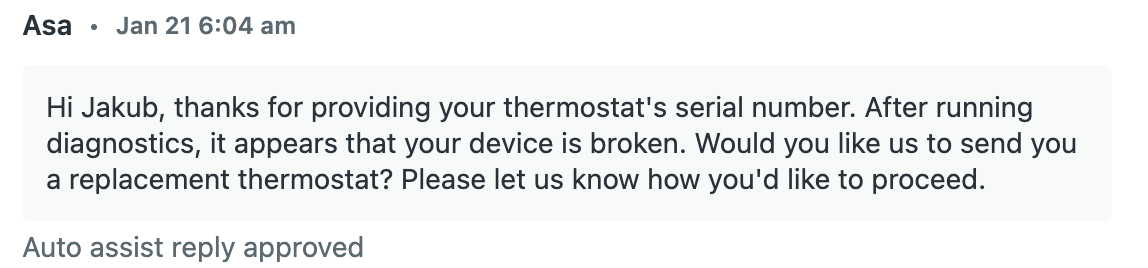
If you're using the Copilot add-on, ticket events also show approved auto assist reply suggestions and actions.
Properties
-
Subject: The subject of the ticket

-
Form: The ticket form (if
your plan supports
multiple forms)

If you're working with contextual workspaces, the Form that you see in ticket events may not match the form that is displayed. Once an update has been made to the ticket, then the Form will update appropriately.
-
Group: The group responsible
for the ticket

-
Organization: The organization
associated with the ticket

-
Type: The type of the ticket (Incident, question, problem, or task)

-
Total time spent (sec) and Time spent last update (sec): If you're using the Time Tracking app, these fields display the total time agents have spent on the ticket and the time spent on the last ticket update. Time displays in seconds.

-
Status: The status of the ticket (new, open, pending, on-hold, solved, or closed)

-
Requester: The person who created the ticket

-
Priority: The priority of the ticket (low, normal, high, or urgent)

-
Assignee: The agent assigned
to the ticket

-
Custom field: A custom field an administrator has added to the ticket form

-
CCs: Anyone who was CC'd
on the ticket

-
Messaging session inactive:
The activity status of a messaging conversation
changed to inactive

-
Messaging session ended:
Indicates that the messaging session has ended and
the reason for it

-
Set routing channel from messaging to email:
Indicates when a messaging
conversation transitions to being treated as an email
ticket in omnichannel routing.
When this is caused by the omnichannel routing configuration
setting to
route all agent-ended messaging sessions as email
tickets,
the event's reason appears as
Session ended by agent. If this
change is the result of the ticket trigger action Ticket
> Set routing channel, the
event's reason appears as
From ticket trigger.

-
Approval status: Indicates
when an approval request changes status. The first
occurrence of Approval status: Pending
in ticket events indicates the creation
of the approval request. Possible statuses include: Pending,
Approved, Denied,
Withdrawn

Communications
In addition to new and changed ticket properties, you can see triggers, automations, routing, and email communications that occur in the background with ticket updates.
-
Email notification:

-
Trigger: Any triggers that
have affected the ticket, such as a trigger that
notifies the assignee

Enterprise customers can click a trigger's title to view the specific version of any trigger that fired (see Viewing the trigger revision history).
-
Message pushed to target: A
message sent to a cloud-based third-party target,
like JIRA.

-
Offered to: Any agent who was
offered the messaging conversation ticket and, if
applicable, the skills omnichannel routing considered when
offering the ticket. Maximum
of 20 offered to events recorded
per ticket.

User information
At the bottom of the information you see when you click Show all events, you can view details about the submitting users' location, browser, and IP address if that information is captured by the channel. Browser-level security, VPNs or proxies, and custom web forms can all prevent IP address and location data from being available and accurate.
User profile updates affected by triggers aren't captured in the ticket event log.
-
Submission channel: If a ticket
is submitted through a channel other than the
web form, such as X (formerly Twitter) or email, details
about the channel
appear.

-
User agent string: A string that identifies browser information and other system details. This is only available for the web ticket form unless you capture this in a channel you develop.

-
IP address: The IP address used for that ticket update. Keep in mind that this information isn't always available or accurate.

-
Location: The IP location for that ticket update. Keep in mind that this information isn't always available or accurate, especially if the user is using a VPN.

Auto assist information
-
Auto assist reply approved:
The text of the suggestion that was approved and
the name of the agent who approved it.
-
Auto assist action completed, skipped, or failed:
The action that was
performed, its status, and the name of the actor under which
it was executed. When
action flows or custom actions are executed, the actor is
shown as "Auto assist". When
an agent performs a standard action, the ticket events show
the agent's name.

Failed actions are also presented in the ticket conversation log so that agents are alerted when an action fails.
-
Pre-approved auto assist action completed, skipped, or failed:
The action that
was automatically performed by auto assist and its status.