Summary: ◀▼
You can configure your support system to allow anyone to submit tickets with or without registration. Without registration, anonymous requests create suspended tickets requiring email verification to prevent spam. With registration, users verify their email before submitting tickets. This setup controls user access, ticket management, and helps maintain security while enabling open support through various submission channels.
You can configure your Zendesk Support instance to be open, closed, or restricted (see Understanding options for end-user access and sign-in). This article describes how to set up an open Zendesk Support instance, so that any user can see your help center and submit support requests.
This article contains the following sections:
Understanding what an open Zendesk Support instance means
Not requiring registration means that all of your users are unverified (users are not prompted to verify their email addresses), which is fine if you don't need or want your users to visit and use your help center (for example, see Turning off ticket management in your help center to allow email-only support). Registered users are verified, meaning that they (or you) have verified their email addresses and user accounts have been created.
Even though you don't require users to register, your users still have the option of registering and creating a login to use your help center, unless you modify your help center to hide the Sign Up and Login pages.
If you would like to provide open support, you have two options: registered or unregistered end-users. You can add users or they can add themselves.
Keep in mind that if your settings allow anyone to submit tickets, any visitor to your site can register while submitting a support request. This means they'll be able to access help center content restricted to signed-in users. For more information, see Understanding options for end-user access and sign-in.
Anybody can submit tickets, no registration required
If you allow anybody to submit tickets and don't require registration, users don’t receive the welcome email that prompts them to verify their email address and create a password so that they can sign in to your help center. Instead, submissions from anonymous end users will create a suspended ticket and send a verification email to the email address entered by the requester.
Suspended tickets are always created for anonymous support requests (unless you turn off Verify anonymous requests, which isn't recommended due to spam risks). Even if a user’s email is already verified, if the user is anonymous (not signed in), a verification email will be sent and a suspended ticket will be created for every submission.
- The end user clicks the verification link in that email (which recovers the suspended ticket).
- Or, an agent manually recovers the suspended ticket on the end user’s behalf.
Suspended tickets are retained so agents can review and recover legitimate requests while keeping unverified or abusive submissions out of the active ticket queue.
This verification step uses the existing email verification message and link. If you’ve already customized your verification email template, it will be used for the verification email sent after an anonymous request.
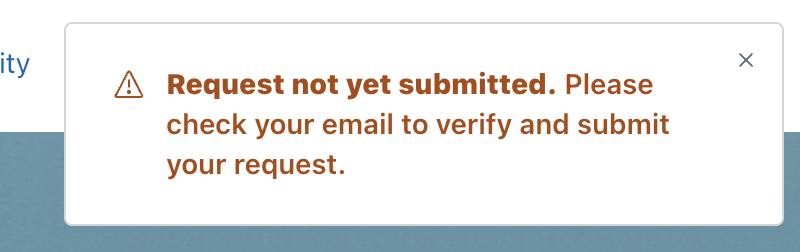
Anonymous end users see the following message in help center after submitting a support request:
- Web form
Anonymous users can't interact with AI agents on your help center. If you’re using autoreplies to recommend articles (legacy) or AI agents to create replies based on help center content, autoreplies don't appear for the user until the suspended ticket is recovered.
- API requests to /api/v2/requests
- Web Widget (Classic) contact form
- Support SDK
- End users submitting requests while they’re signed in
- Agents creating tickets
- Requests created by sending an email to your support email address
- Requests created through Messaging channels
- API requests to /api/v2/tickets
If you don't want your users to visit your help center, because you provide support via email only for example, you can remove the link to the ticket that is contained in the triggers that are used to send email notifications when tickets are received and updated (see Removing ticket links from your notifications).
If you leave the ticket link in the email notifications, the user can click it to register and create a password, then sign in to use your help center, track their existing tickets, submit new support requests, and so on. If a registered end-user submits a ticket without signing in, it will be flagged (see About flagged tickets from registered users who are not signed-in).
- In Admin Center, click
 People in the sidebar, then select Configuration > End users.
 - In the Anybody can submit tickets section, select Enabled.
- By default, tickets from anonymous users are suspended with suspension type "Anonymous
request." If you don't want to suspend these tickets, deselect Verify anonymous
requests (not recommended).
Deactivating this setting can allow your account to be used in email spam attacks. If a spam attack is detected, Zendesk may reactivate this feature to protect your account.
- If you use the Zendesk API to let users submit tickets, make sure Require
authentication for request and uploads APIs is not selected.
See Creating anonymous requests in the developer docs.
- Make sure Ask users to register is not selected.
This option is not visible if you haven't activated your help center yet.
- Click Save tab.
If you want to allow end-users to add attachments to their requests, see Enabling attachments in tickets.
Anybody can submit tickets, registration required
When you require your users to register, the support request workflow changes. After signing up, users receive a welcome email message that prompts them to verify their email address and create a password to sign in to Zendesk. Requests submitted to Zendesk Support before registering are sent to the suspended tickets view; they are not added as tickets in your Zendesk Support instance. When the end user verifies their email address (or an agent verifies on the end user's behalf), future requests from the end user will create tickets.
The registration workflow is described in Options for end-user registration.
To allow anybody to submit tickets and require registration
- In Admin Center, click
People in the sidebar, then select Configuration > End users.
- Select Anybody can submit tickets.
- Select Ask users to register.
- Click Save Tab.
If you want to allow end-users to add attachments to their requests, see Enabling attachments in tickets.